
This article explains when to use the Blackmagic UltraStudio Recorder 3G, its requirements and limitations, and how to configure it correctly with Dartfish.
- What is the UltraStudio Recorder 3G?
- Setting up the UltraStudio Recorder 3G for use with Dartfish
- Record a video playing on a PC
- Common issues and troubleshooting
What is the UltraStudio Recorder 3G?
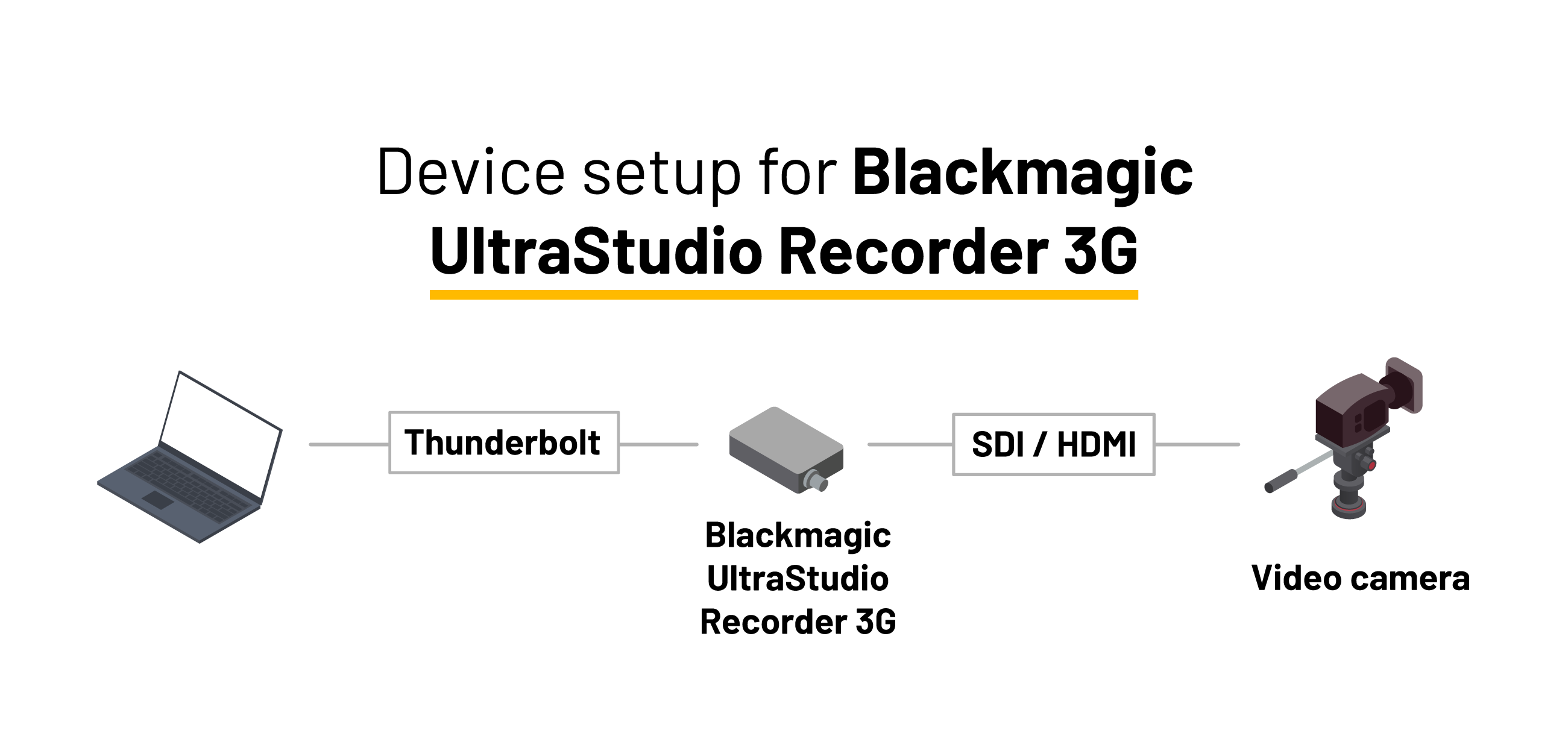
The Blackmagic UltraStudio Recorder 3G is a compact, professional capture device that allows you to ingest HDMI or SDI video into Dartfish using a Thunderbolt 3 or 4 connection.
It delivers:
Uncompressed 10-bit video
Up to 1080p at 60 FPS
Low latency, suitable for live capture and tagging
Unlike the AJA U-TAP, this device includes both HDMI and SDI inputs in a single unit, making it more flexible at a lower cost.
Key characteristics
| Feature | Details |
|---|---|
| Inputs | HDMI and SDI |
| Max resolution | 1080p |
| Max frame rate | 60 FPS |
| Video output | Uncompressed |
| Connection to PC | Thunderbolt |
| Power supply | Thunderbolt-powered |
Important
USB-C ports alone are not sufficient.
A true Thunderbolt 3 or 4 port is mandatory.
Pros & Cons
Advantages
HDMI and SDI inputs on the same device
Low latency, suitable for live tagging
No external power supply
High video quality (uncompressed)
Very competitive price for professional capture
Limitations
Requires a native Thunderbolt 3 or 4 port
Limited stream configuration options
Uncompressed video requires:
High-performance CPU
SSD storage
Sufficient RAM
Requires up-to-date Blackmagic drivers
The Blackmagic UltraStudio Recorder 3G relies on your PC performance.
Make sure your system meets the Dartfish system requirements.
Setting up the UltraStudio Recorder 3G for use with Dartfish
Step 1 - Install the drivers
Download and install Blackmagic Desktop Video (required to switch between HDMI and SDI inputs):
Step 2 - Device set up
Connect your camera to the UltraStudio Recorder 3G using:
HDMI cable or
SDI cable
Connect the UltraStudio Recorder 3G to your PC using a Thunderbolt 3 or 4 cable
Confirm that the white LED is ON
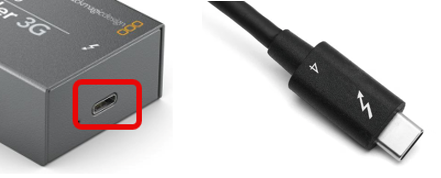
If the LED is off, the device is not powered or not connected via Thunderbolt.
Step 3 – Configure input in Blackmagic Desktop Video
Open Blackmagic Desktop Video
Select the UltraStudio Recorder 3G
Choose the correct input:
HDMI or
SDI (selected by default)
Confirm that a valid video signal is detected
Step 4 – Select the device in Dartfish
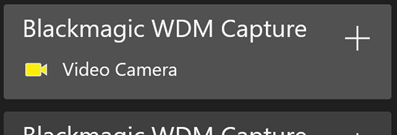
- Go to the Live workspace
- Click on Source.
- Select Blackmagic WDM Capture
- Click on Apply in the device name window
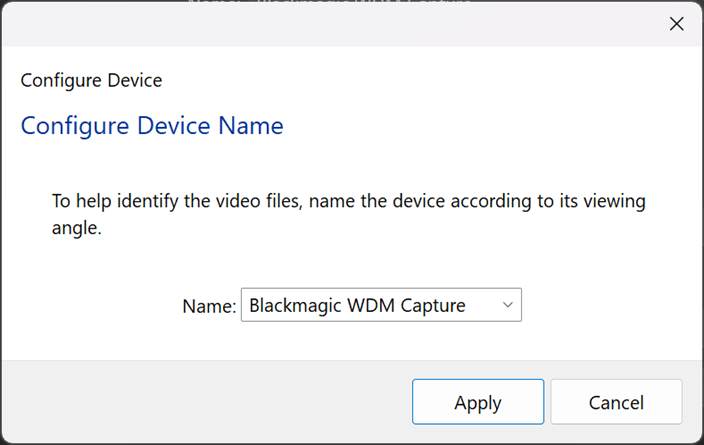
You are now ready to record, tag, and analyze.
Record a video playing on a PC
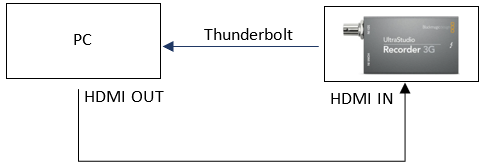
This scenario is particularly useful when you want to record a video that is streamed on the internet (i.e., one you can watch in a web browser). It allows you to record and tag games or live events without needing to be on-site. This setup works with the Blackmagic UltraStudio Recorder 3G, provided your computer has a Thunderbolt 3 port and you connect it using an HDMI cable from your computer’s display output.
Overview
The Blackmagic UltraStudio Recorder 3G is used as a virtual second display.
Set up
Connect the computer’s HDMI output to the UltraStudio Recorder 3G
Press Windows+P
Set display mode to Extend
Launch Dartfish and select Blackmagic WDM Capture
Move the browser or video player to the extended display
Set the video to full screen
Set audio output to UltraStudio Recorder 3G (otherwise no audio will be recorded)
Common issues and troubleshooting
| Issue | Solution |
|---|---|
| Device not detected | Confirm your PC has a Thunderbolt 3 or 4 port. USB-C ≠ Thunderbolt. |
| Video input not visible | Ensure your camera is sending a supported format (e.g., 1080p60). Use the correct cable (HDMI/SDI). |
| Dartfish doesn’t list device | Ensure you are using a Thunderbolt 3 or 4 cable. |
| Audio not captured | Make sure the audio is embedded in the HDMI or SDI feed, and that the camera’s output includes audio |
| Stream is not deinterlaced | In Setup → Video Format, manually set the stream to Interlaced – Top First or Bottom First, depending on the source. Ensure the PC uses an Intel CPU: deinterlacing is not supported on AMD and NVIDIA GPUs at this time. |