
Dartfish 2026 introduces a clearer and more structured approach to online document editing and synchronization.
The goal of this update is to:
Clearly distinguish between local and remote versions
Prevent accidental data loss
Improve merge conflict handling
Make synchronization behavior transparent
Improve publishing reliability
This article explains how online editing works and what users should expect.
This short video gives you a brief overview of the feature
- Core concept
- Remote Document Caching
- Conflict handling
- Opening a Document That Has Local Changes
- Key Takeaway
Core concept
When editing online documents:
A document exists on dartfish.tv
A user opens it
The user edits it locally
The user synchronize it
The changes are uploaded successfully
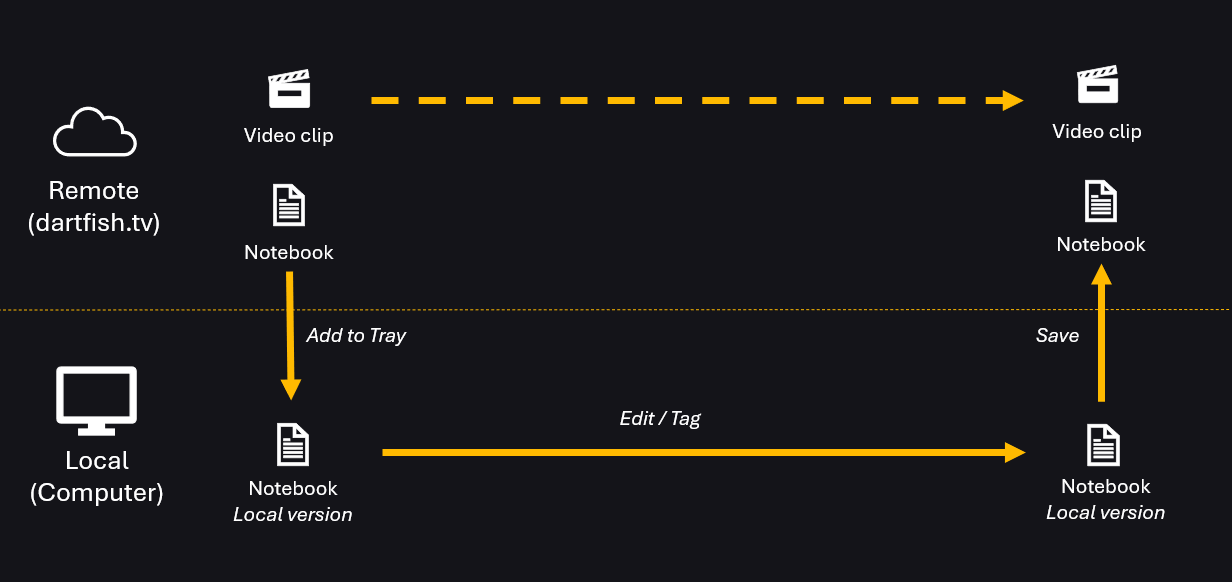
The diagram below illustrates this standard workflow.
Step 1 - Local version creation
The video clip and the notebook are stored on dartfish.tv.
When you Double-click the remote document, or drag it into the Tray, Dartfish downloads the document structure and creates a local version. The video clip remains online.
At this stage, the remote version remains unchanged and the editing will happen locally.
Step 2 - Edit / Tag
When you edit and/or tag the document, the changes are saved locally.
At this stage, the remote version is not modified yet. The local version becomes different from the remote version.
Step 3 - Synchronization
When you synchronize, Dartfish compares the local version with the remote version. If no online changes occurred, local edits are uploaded and the remote document is updated.
After a successful synchronization, local and remote version are aligned again.
Editing is always local.
This design prevents accidental overwriting and enables safe collaboration.
Remote Document Caching
When a remote document is opened:
A local copy is stored in:
%LOCALAPPDATA%Files are stored per user account ID
This enables:
Offline work
Safe editing
Version comparison
Conflict handling
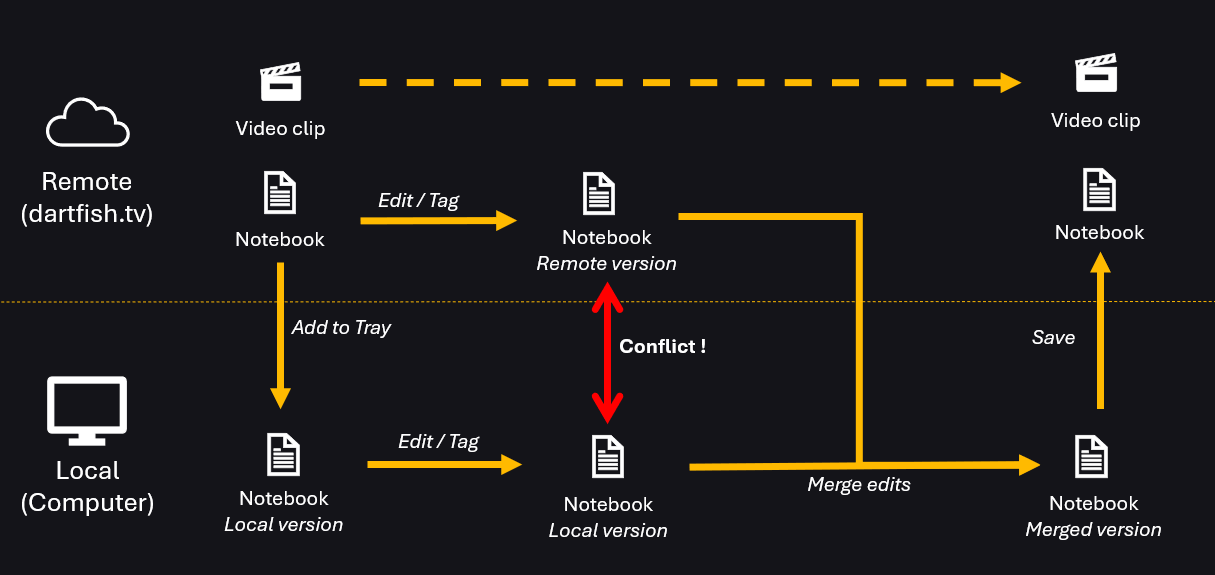
A conflict occurs when:
You edit the document locally
ANDAnother user edits the same document on dartfish.tv
The diagram below illustrates this situation.
After adding the document to the Tray:
You edit the Local version
Another user edits the Remote version
Now:
The local version contains changes
The remote version also contains changes
Both versions differ from the baseline
This triggers a merge conflict.
Why is this a problem ?
If Dartfish simply uploaded your local version, the remote edits would be lost.
If Dartfish simply downloaded the remote version, your local edits would be lost.
To protect data integrity, Dartfish requires a merge process.
Merge Process
When a conflict is detected during synchronization, Dartfish displays the following dialog:
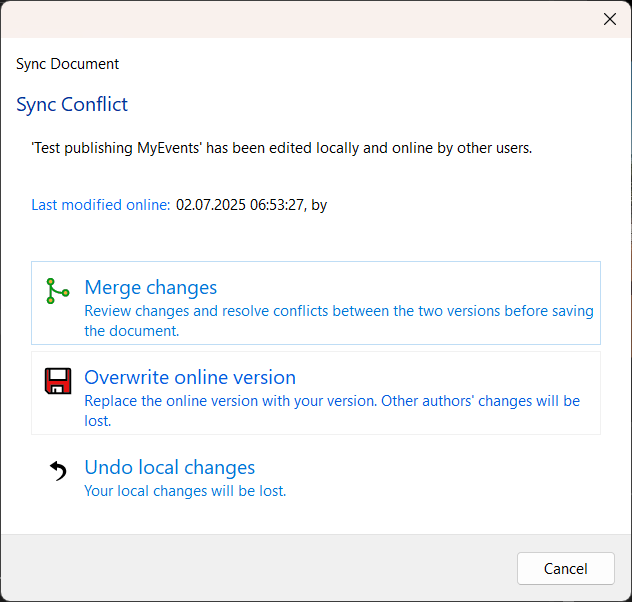
Dartfish cannot automatically decide which version should prevail. The system requires the user to make a decision.
Merge changes
Review changes and resolve confilcts between the two versions.
What Happens:
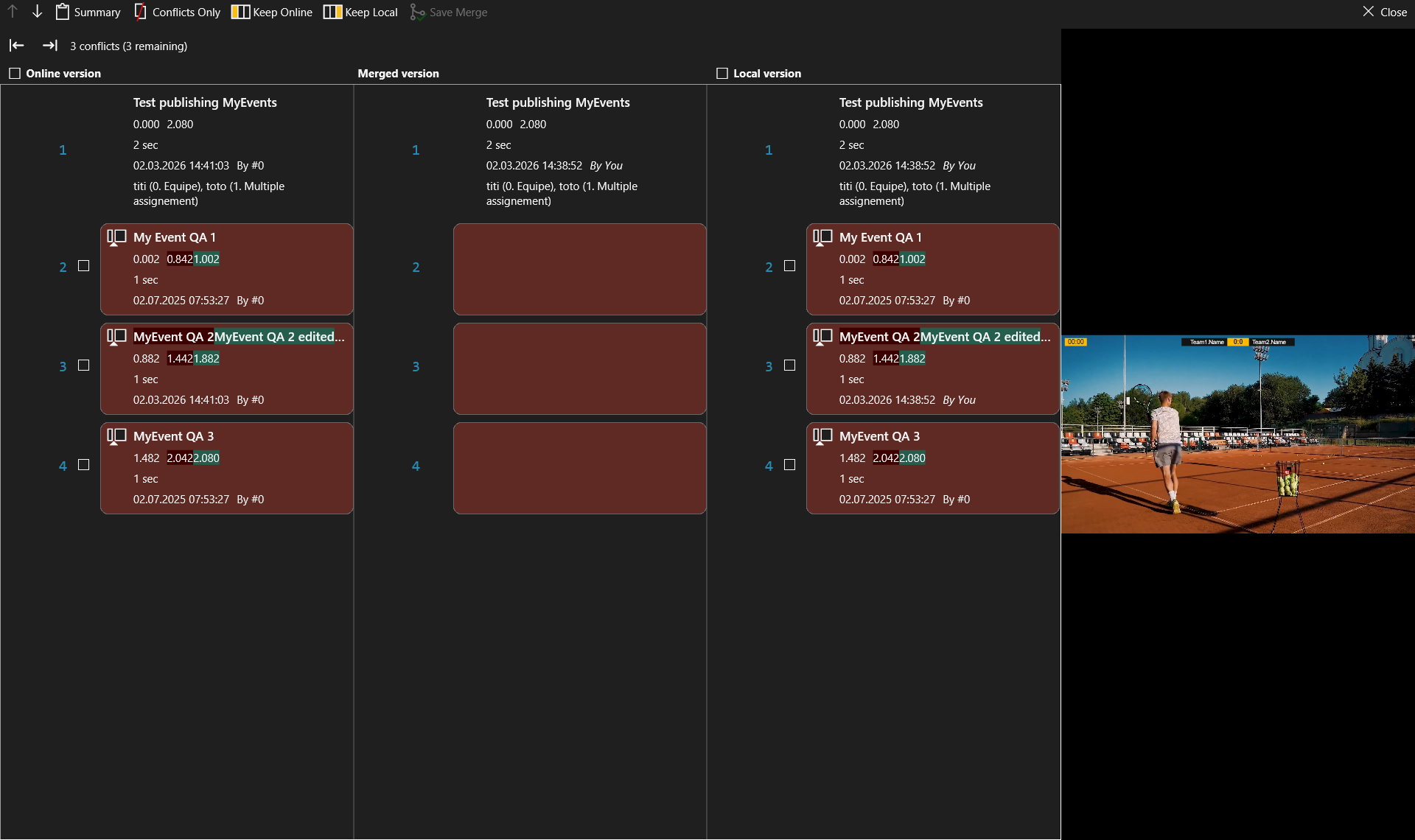
The Merge Panel opens
Differences between local and remote versions are displayed
The user manually resolves conflicts
A merged version is created
The merged version is uploaded
When to choose this:
In collaborative environments
When unsure what changed online
When preserving all edits is important
This is the safest option, and prevents accidental data loss.
Overwrite Online Version
Replace the online version with your local version. Other authors’ changes will be lost.
What Happens:
The local version is uploaded immediately
The remote version is completely replaced
Online edits made by others are permanently removed
When to choose this:
When you are certain your version is the correct one
When online changes are irrelevant or invalid
In controlled single-author workflows
This action cannot restore overwritten remote changes.
Undo Local Changes
Discard your local changes.
What Happens:
Local edits are deleted
The remote version is downloaded
- The local document is replaced with the current online version
When to choose this:
When your local edits are no longer needed
When online edits must take priority
When resolving accidental local modifications
Local edits cannot be recovered after this action.
Opening a Document That Has Local Changes
If a document already contains local edits, a warning dialog appears.
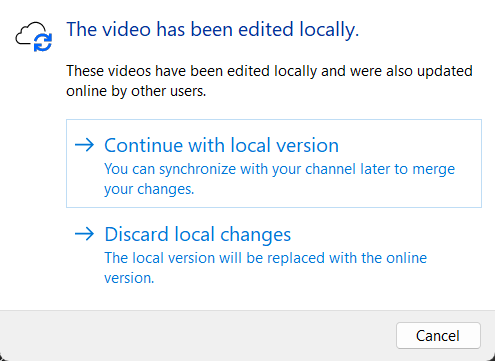
There are two possible situations:
- Document edited locally only
- Document edited locally and online (merge conflict)
User options:
Keep editing the local version
Discard local changes
Cancel the operation
If local changes are discarded, the local version is replaced by the current online version.
If both versions changed the same elements, a merge conflict must be resolved.
Key Takeaway
The online editing system in Dartfish 2026 is designed for safe collaboration.
It ensures:
Clear separation between local and remote versions
Conflict detection before overwriting
Structured merge resolution
Reliable publishing behavior
Transparent synchronization
Important Reminders
- Editing always happens locally
- Remote edits may happen at any time
- Dartfish never silently overwrites data
- Merge conflicts are protection mechanism