
This article explains how administrators use the Members section in dartfish.tv to manage the people known to their organization and prepare them to receive access to content. It clarifies that a member is an organizational record, distinct from a dartfish.tv user account, and shows how to add members manually or by CSV import, update their details, organize them with keywords, assign roles or licenses, review their subscriptions, and use search, filters, sorting, and bulk actions to maintain the members list efficiently.
Purpose and Scope
This article explains what members are in dartfish.tv and how administrators manage them.
A member is a person known to the organization and added by an administrator to the channel. Members are used to identify who should receive access to content. Access is granted by inviting a member to a collection or to the channel through a role.
A member record belongs to the organization and can include information such as a full name, email address, keywords, role, or license. The invited person must then create or sign in with a dartfish.tv account to accept the invitation. Once the invitation is accepted, dartfish.tv links the user account to the member and applies the corresponding access rights.
This article focuses on how to manage members in dartfish.tv.
What you can do
Add members manually or from a file
Edit member details such as name, keywords, role, or license
Search, filter, and organize members
Remove members when they are no longer part your organization
Requirements
- You must have administrator rights for the relevant dartfish.tv channel.
- If you import members from a CSV file, you must use the supported template and ensure the data is accurate.
Step-by-step guide
1. Open the Members page
- From the menu on the left, open Members.
- By default, dartfish.tv opens the Manage members page.
- Review the list of members already added to the channel.
The Manage members page gives you an overview of each member, including available information such as name, creation date, last login, etc…
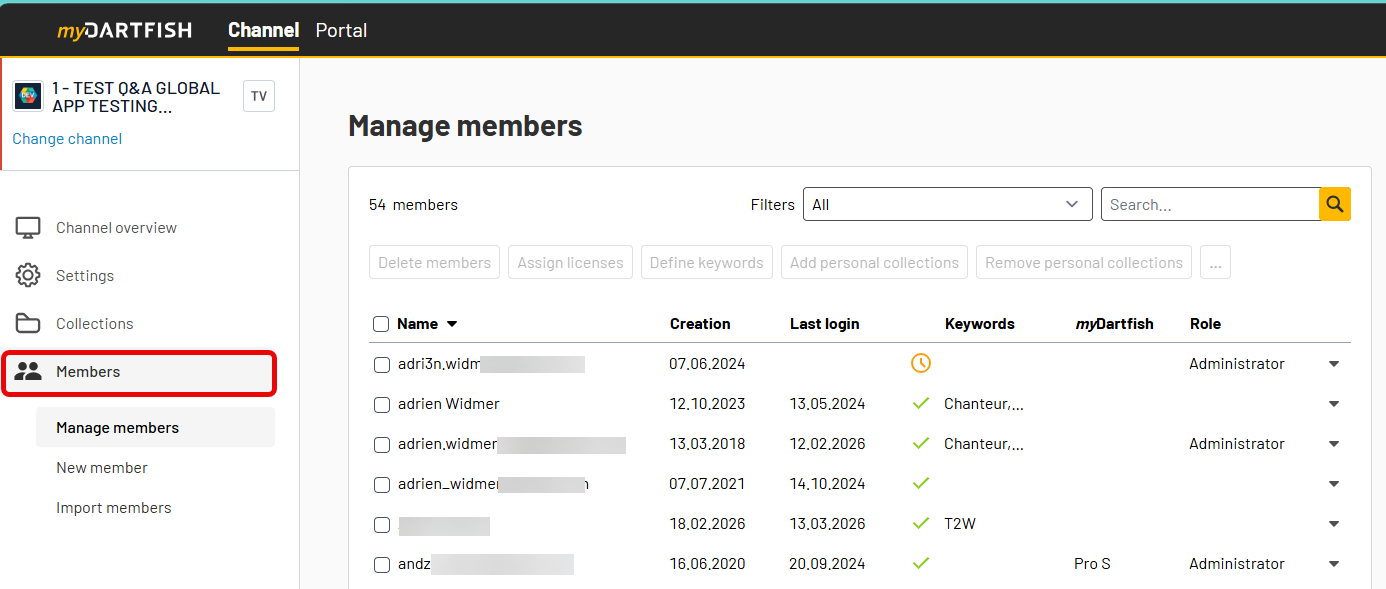
You can also sort the list by clicking the column headers. This helps you review members more efficiently.
2. Find and review members
Use the Manage members page to search, filter, and review the members already added to the channel.
Search for members
- Use the Search box.
- Enter a member name, email address, or keyword.
- Review the matching results in the list.
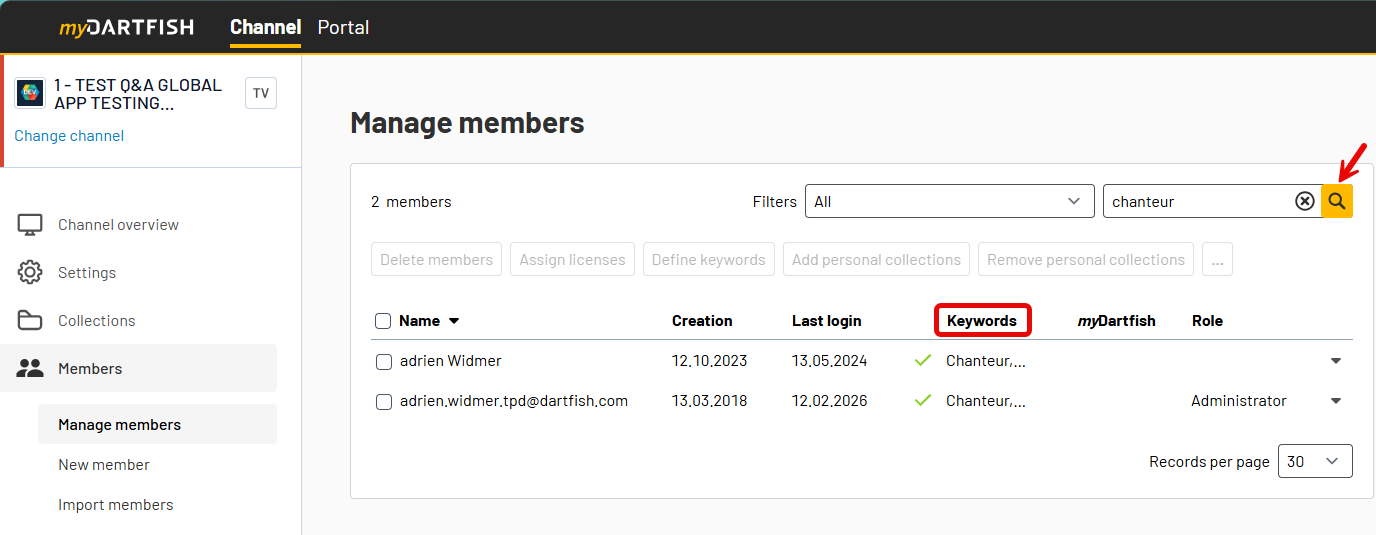
Filter the members list
Use Filters to narrow the list and find members with specific characteristics, such as:
- recently added members
- members who logged in recently, have a role, a myDartfish license, a personal collection, have subscriptions
- members whose invitation are pending or still to be invited
This is useful when you want to review members by status or prepare follow-up actions.
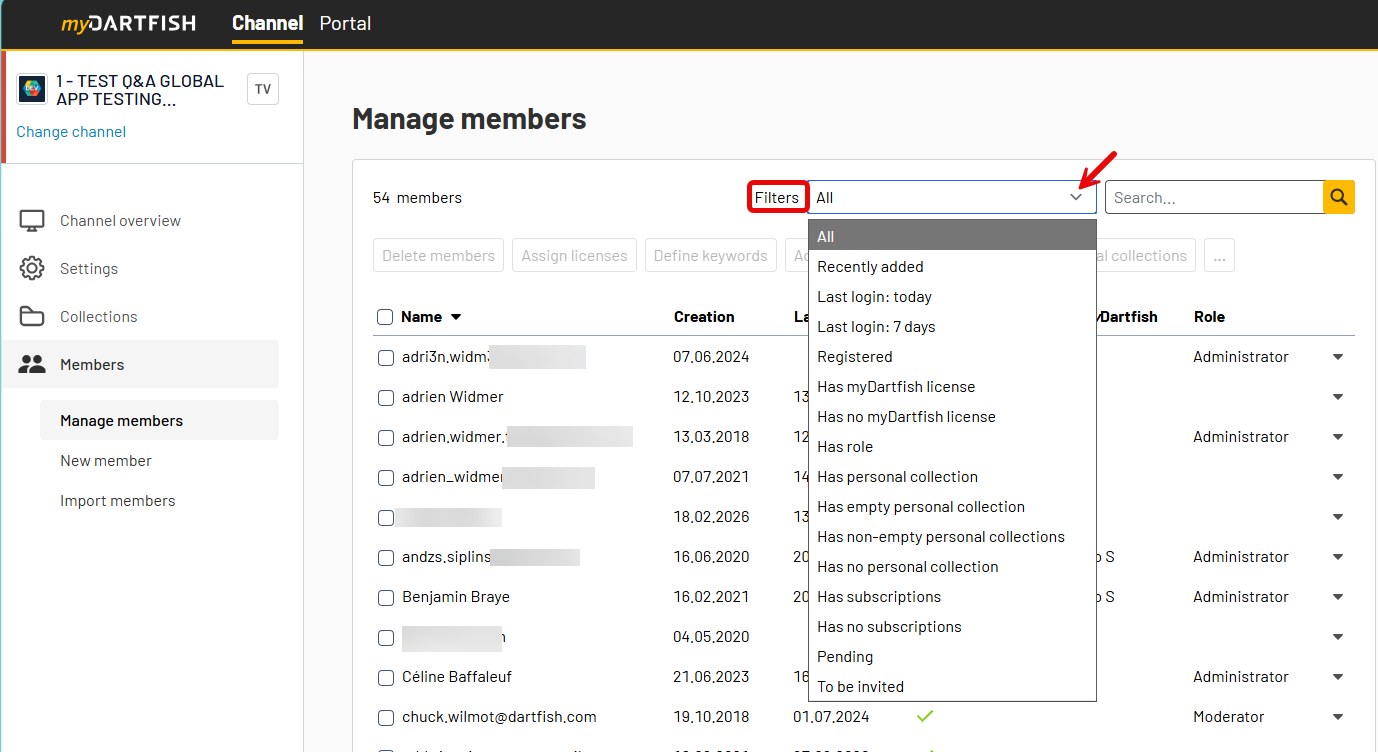
3. Add members
You can add members individually or import them in bulk from a CSV file.
Add one member manually
- Select New member.
- Enter the member’s email address and full name.
- Optionally, add keywords to represent a group.
- Optionally, assign a role and assign a myDartfish license.
- Save the new member.
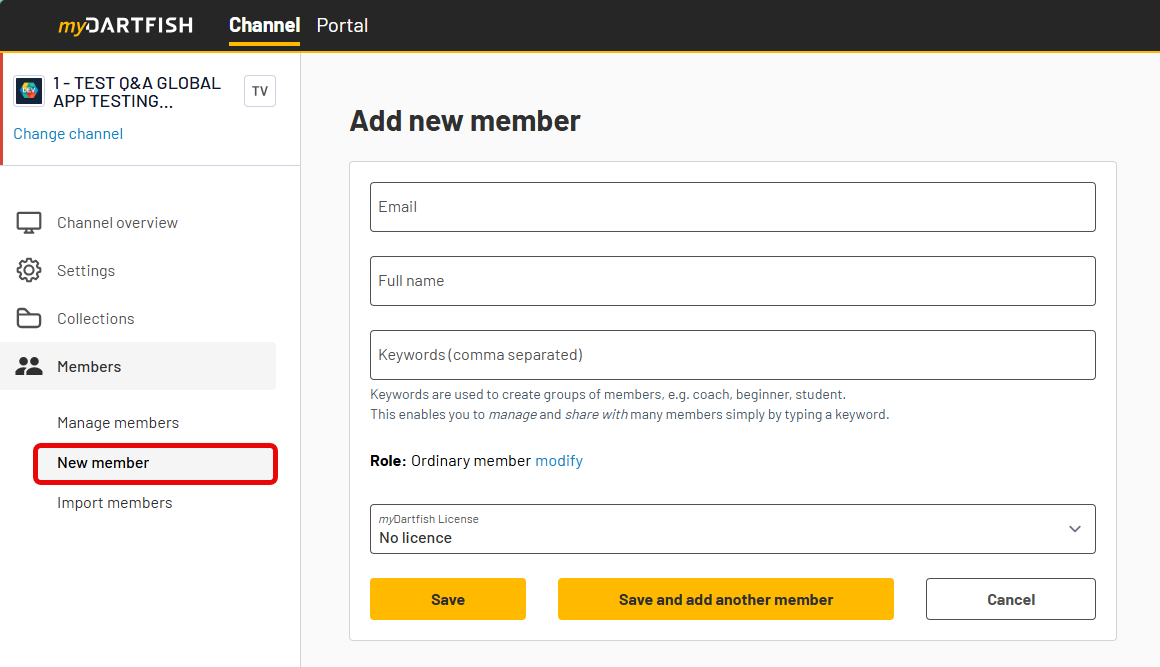
Use keywords to represent groups such as a team, age category, or staff function. For example, you might assign keywords such as U21 or Coaches.
Members can also be created indirectly when a collection is shared through Individual access with an email address that is not yet in the members list. Import members from a CSV file
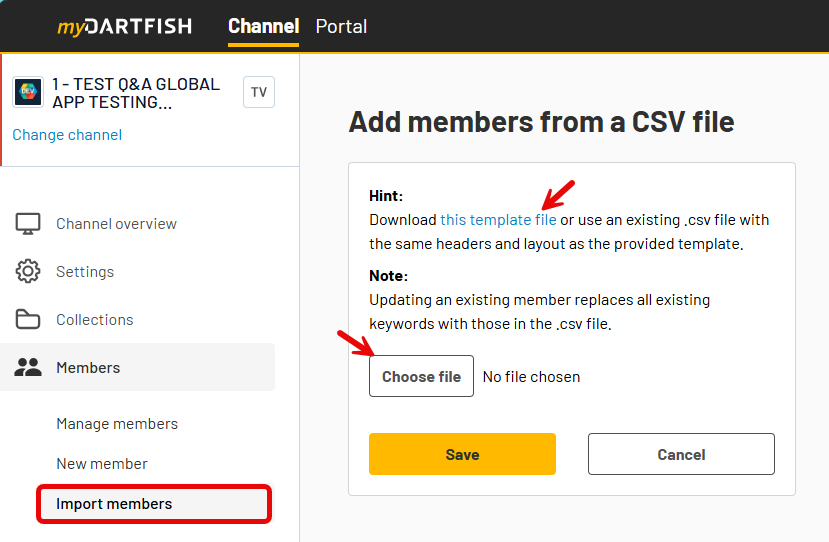
- Download the supported CSV template.
- Fill in the required and optional member information.
- Upload the file to create members in bulk.
You can use the CSV import to add the same types of information as in manual creation, including names, email addresses, keywords, roles, and licenses.
4. Manage a single member
- In the Manage members list, select a member.
- Open the available member actions.
- Choose the action you want to perform.
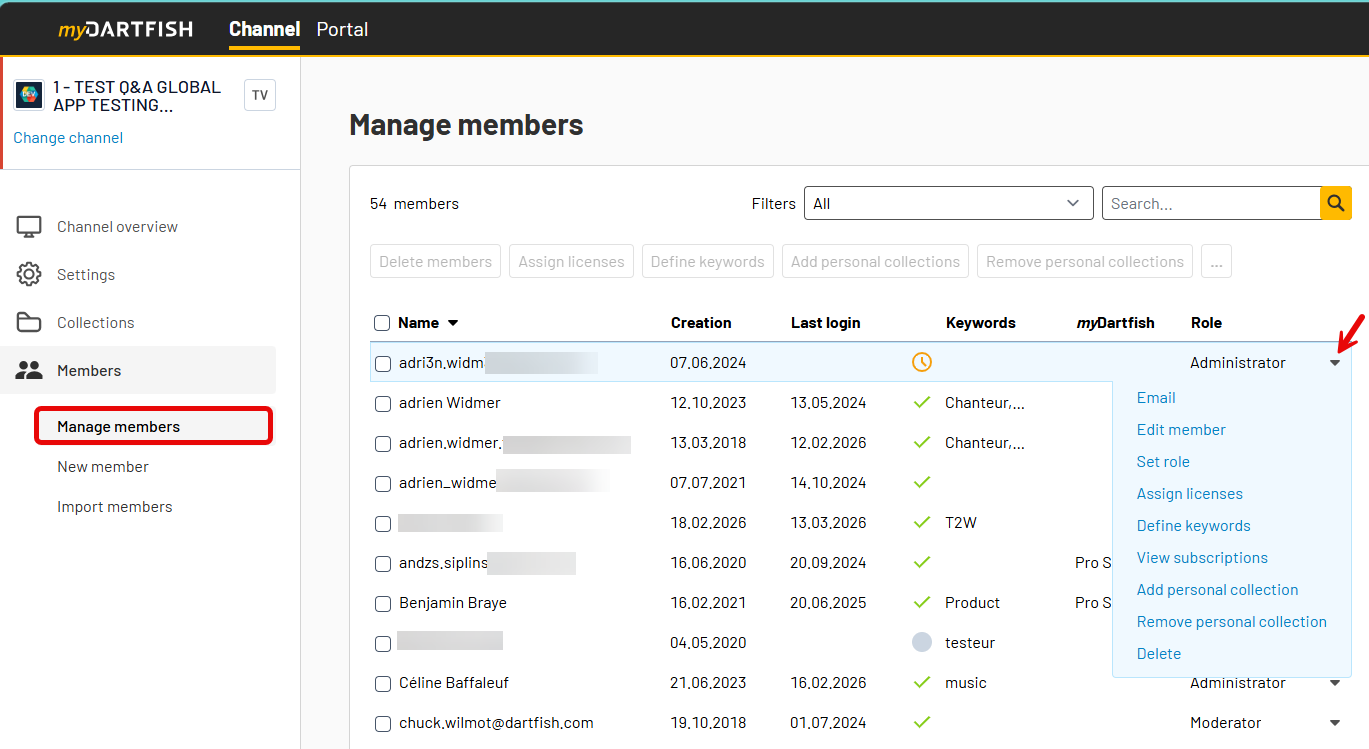
Available actions can include:
- editing the member
- setting a role, assigning licenses, defining keywords
- managing subscriptions
- adding/removing a personal collection
- deleting the member (and the related subscriptions)
Use these actions when you want to review or update one specific member.
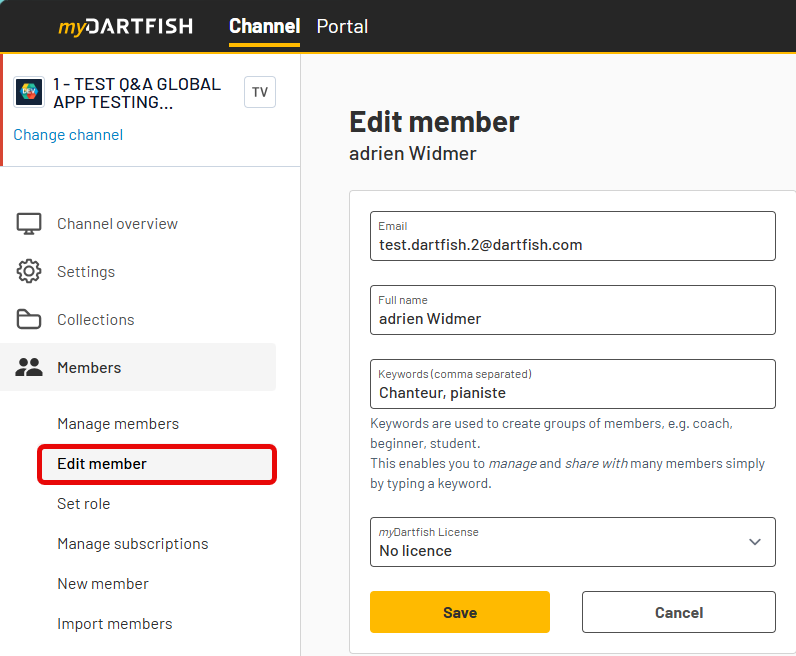
Edit member
Use Edit member to update the member record managed by the organization.
You can update information such as:
- full name, email address, keywords
- myDartfish license
Use keywords to represent groups and make members easier to organize, search, and share with. For example, you might use keywords such as U21 or Coaches.
Set role
Use Set role to assign or update the member’s role on the channel.
A role gives the member broader access on the channel than a collection subscription. Depending on the selected role, the member may be able to:
- view all collections’ content
- manage collections’ content and keywords
- access the administration section
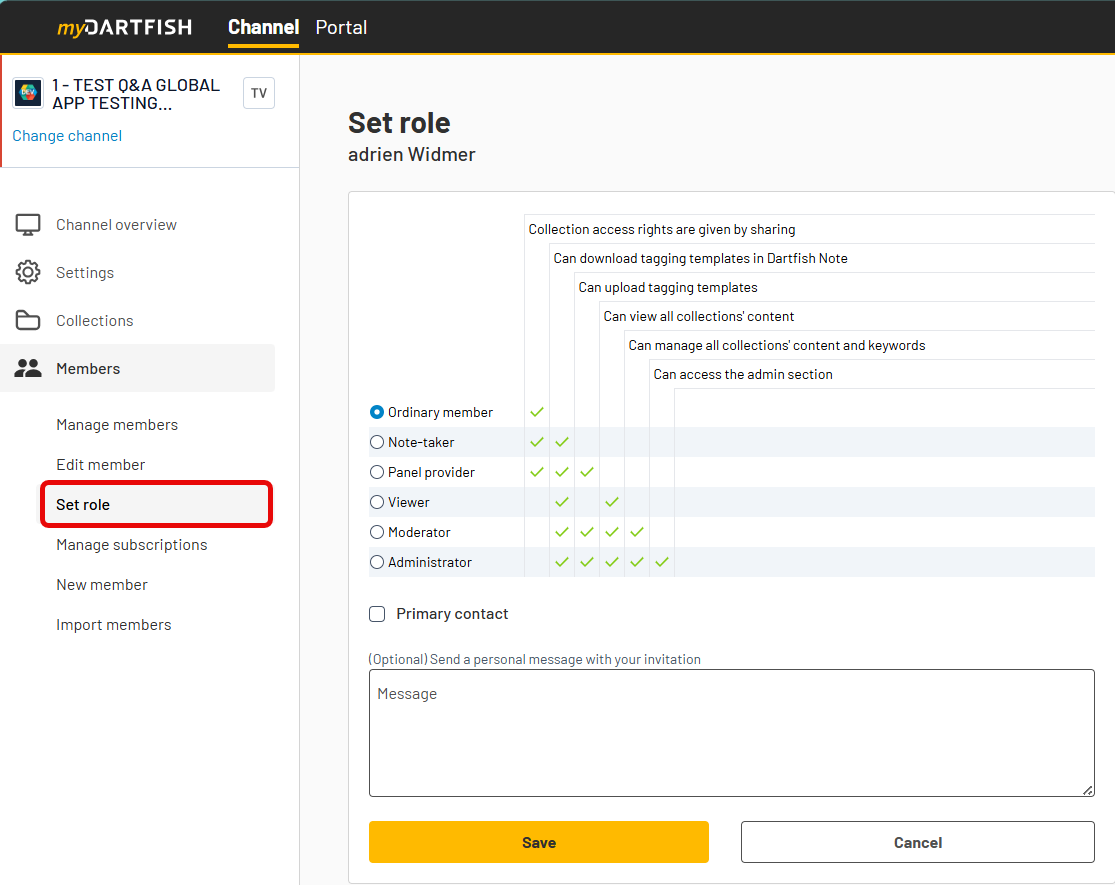
Collection access rights are granted separately through sharing. Use a role when access should apply more broadly across the channel.
If the member is marked as Primary contact, that person always has Administrator rights.
Manage subscriptions
Use Manage subscriptions to review the collection access already assigned to a member. It shows all subscriptions for the selected member. For each subscription, you can review details such as:
- collection name
- subscription type
- end date
- assigned rights
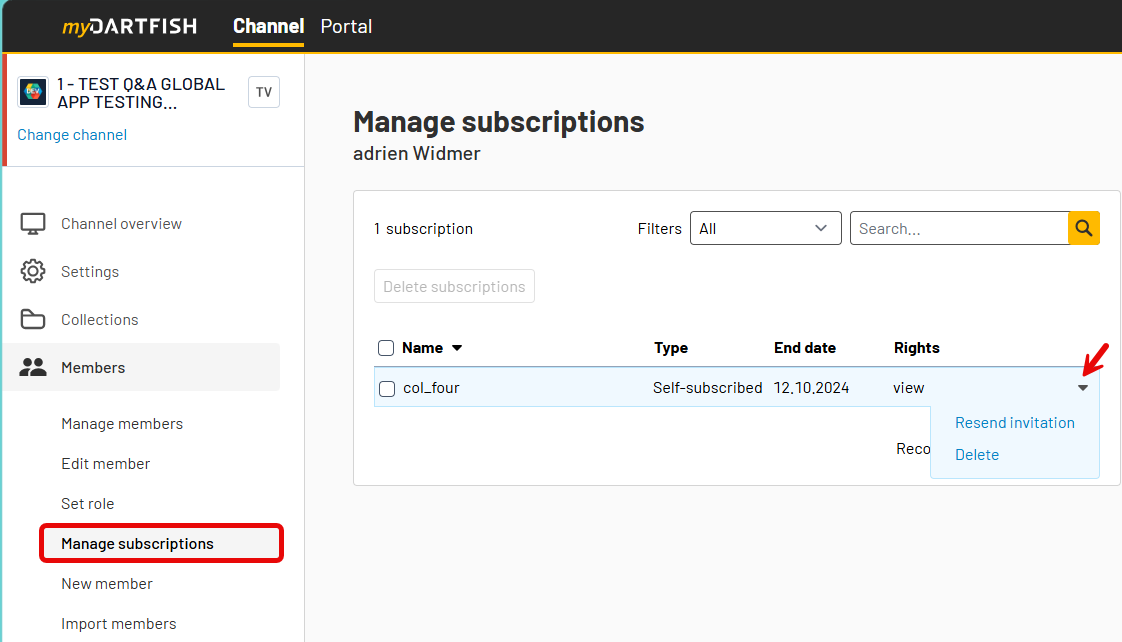
Use this page to verify which collections a member can access, what rights are assigned for each one, and, if needed, delete a subscription or re-send the invitation to access the collection.
5. Manage multiple members
- In the Manage members list, select multiple members.
- Use the bulk action buttons displayed above the list.
- Apply the action to the selected members.
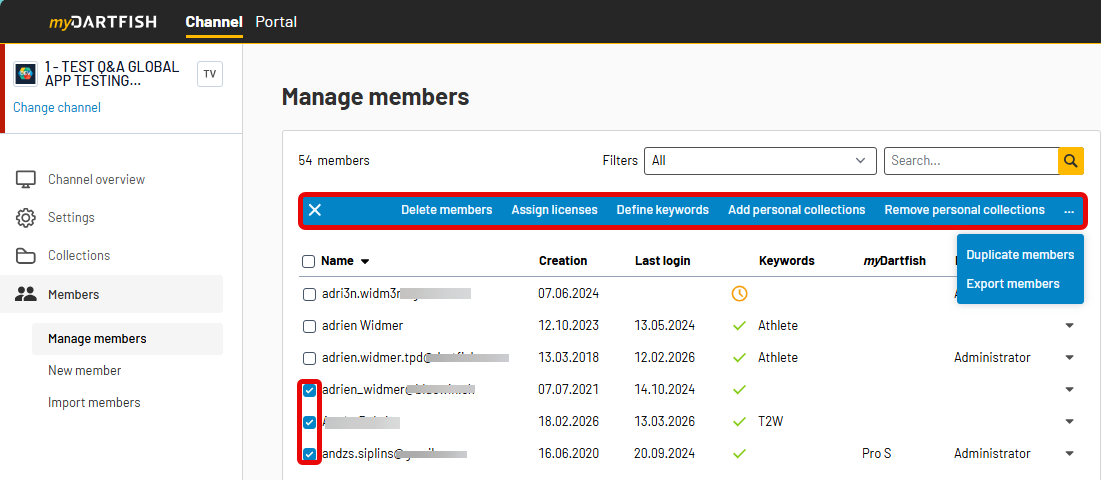
Bulk actions can include:
- deleting members
- assigning licenses
- defining keywords
- adding/removing personal collections
Use bulk actions when you want to update several members at the same time.
Export members
Use Export members to download member information from the current page of the Manage members list.
- Open the Manage members page.
- Optionally use search, filters, or sorting to refine the list.
- Select the members you want to export from the current page.
- Use Export members to download the selection as a CSV file.
The exported file includes the member information available in the list, such as name, email address, role, license, and personal collection links.
Use this action when you want to reuse member information outside dartfish.tv or keep a local copy of the selected records.
To increase the number of members available for export, change the number of items shown per page at the bottom of the list. Up to 1000 members can be displayed on one page. Limitations
- Adding a member does not automatically grant access to content. Access is granted only when the person is invited to a collection or assigned a channel role.
- A member record and a dartfish.tv user account is not the same thing. The organization manages the member record, but the invited person creates or signs in with their own dartfish.tv account when accepting the invitation, possibly with a different email address.
- Members can be exported only from the current page of the Manage members list. A global export across all pages is not available. Each page can show up to 1000 members.
Tips
- Keep member names and email addresses up to date so member records remain accurate and invitations reach the right people.
- Use keywords consistently to represent groups, such as teams, age categories, or staff roles. This makes members easier to search, filter, and manage.
- Remember that adding a member does not grant access by itself. To give access, invite the member to a collection or assign the appropriate channel role.
- Review roles carefully and assign them only when broader channel access is needed. Use collection invitations when access should be limited to specific content.
FAQ
What is the members list in dartfish.tv?
The members list is the list of people known to the organization and managed on the channel. It stores member information such as name, email address, keywords, role, license, and access-related details.
Why would I assign keywords to members?
Keywords help group members and make them easier to search, filter, and manage. They are useful for representing groups such as teams, age categories, or staff functions.
Can I add many members at once?
Yes. You can import multiple members at once by using the CSV import option with the supported template.
Does being on the members list automatically give someone access to content?
No. Adding a member does not grant access by itself. Access is granted only through an invitation to a collection or through a channel role.
What is the relationship between a member and a dartfish.tv account?
A member record is managed by the organization, while a dartfish.tv account is created and managed by the invited person. The invited person can use the same email address as the member record or a different one, and the link between the account and the member is created when the invitation is accepted.
Can I give someone access to all content on the channel?
Yes, by assigning a channel role when broader access is needed. Collection subscriptions are used for access to specific content only.
Why is the email address I used not in my members list, or why was no subscription created?
This usually happens when content was shared using Access by link. A member and subscription are created only when Individual access is granted to a collection.
Is there anything to watch out for on shared computers?
Yes. If another dartfish.tv user is already signed in when an invitation is accepted, the subscription may be linked to that signed-in account instead.