The Web Upload feature allows you to upload videos directly to your dartfish.tv channel using a web browser on your computer, tablet, or mobile device. This feature streamlines video publishing and supports a wide range of formats for ease of use.
Key Features
- Upload from Browser: Easily upload video files from your desktop, laptop, or mobile device via any modern browser using the dartfish.tv app.
- Format Support: Compatible with most popular video file types, including .mp4, .mov, .mts, and .m2ts.
- Fast Remote Encoding: Video encoding is handled remotely on our servers, ensuring a quick and efficient upload process.
- Multiple File Uploads: Add up to 4 video files to a single video document (e.g., periods of a game). Be sure to select the first period video file first.
- Editable Details: Customize the title, description, and video keywords after upload.
- Quality Options:
- Standard quality: 720p at 2.1 Mbps
- High Definition: 1080p at 5 Mbps (if the HD option is enabled on your channel)
Licensing Information
| License Type | Web Upload Availability |
|---|---|
| Giga | ✅ Included |
| Unlimited | ➕ Available as an add-on (contact your sales representative) |
| Entry | ❌ Not available |
How to Upload Videos via Web Upload
Follow these steps to upload your videos using the Web Upload feature:
- Open your dartfish.tv channel in a web browser.
- Navigate to the collection where you want the videos to be uploaded.
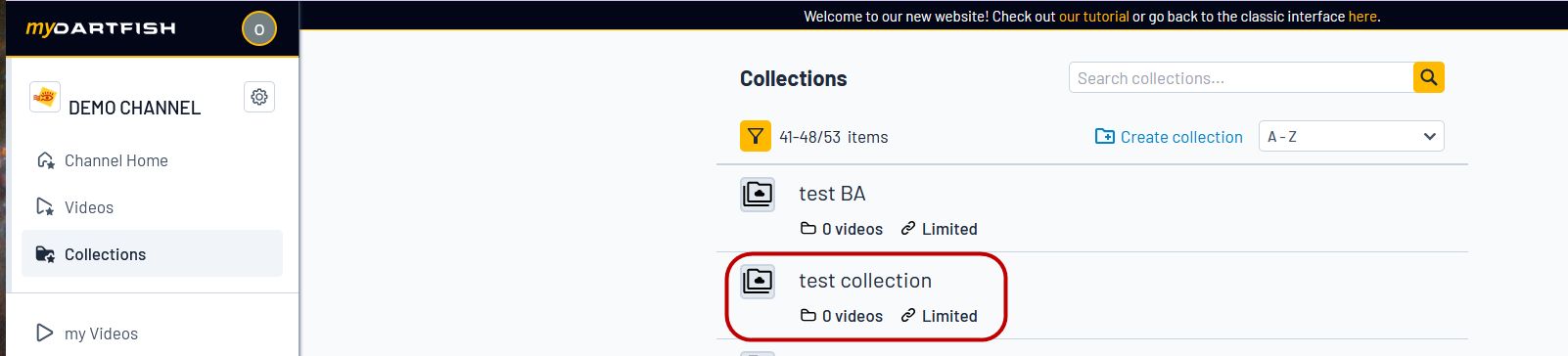
- Click the “Add a video” button

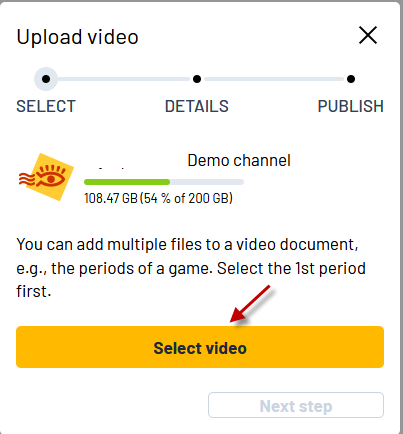
- Select up to 4 video files from your computer or device.
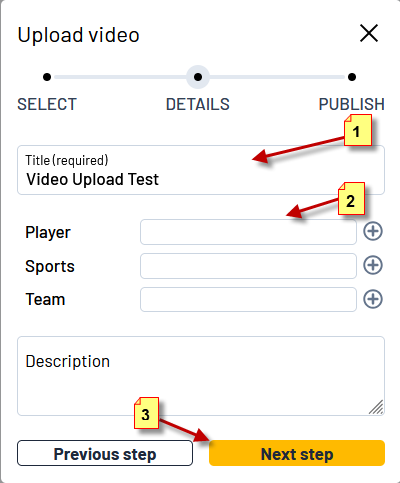
⚠️ Be sure to select the first period (or first video part) first if you’re uploading multiple files for one game. - Edit the video details:
- Enter a title, description, and keywords.
⚠️ Any required keywords must be filled in according to your channel settings.
- Enter a title, description, and keywords.
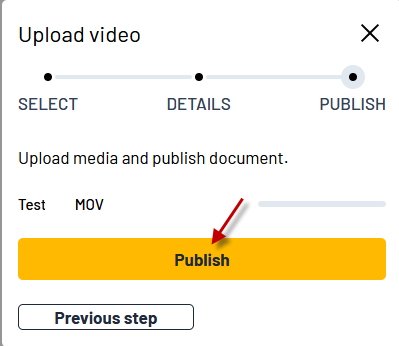
- Wait for the upload to complete.
Do not close the browser or navigate away until the process finishes.
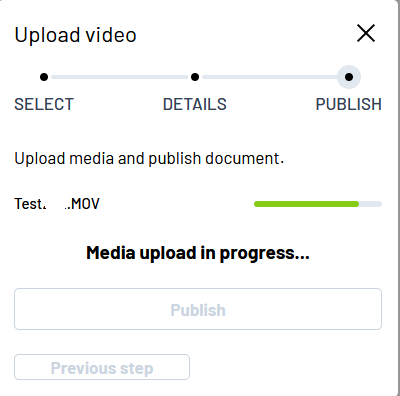
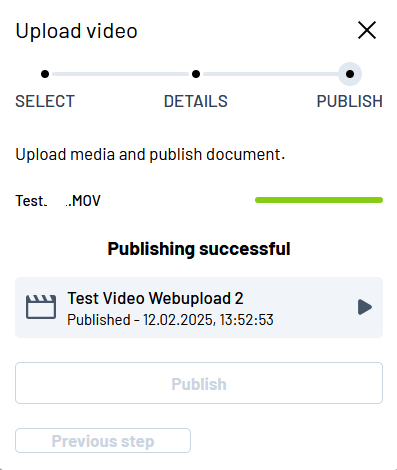
- Once the upload is complete, the video will be published to your channel.
- Initially, the video will display the message “video is processing.”
- Initially, the video will display the message “video is processing.”
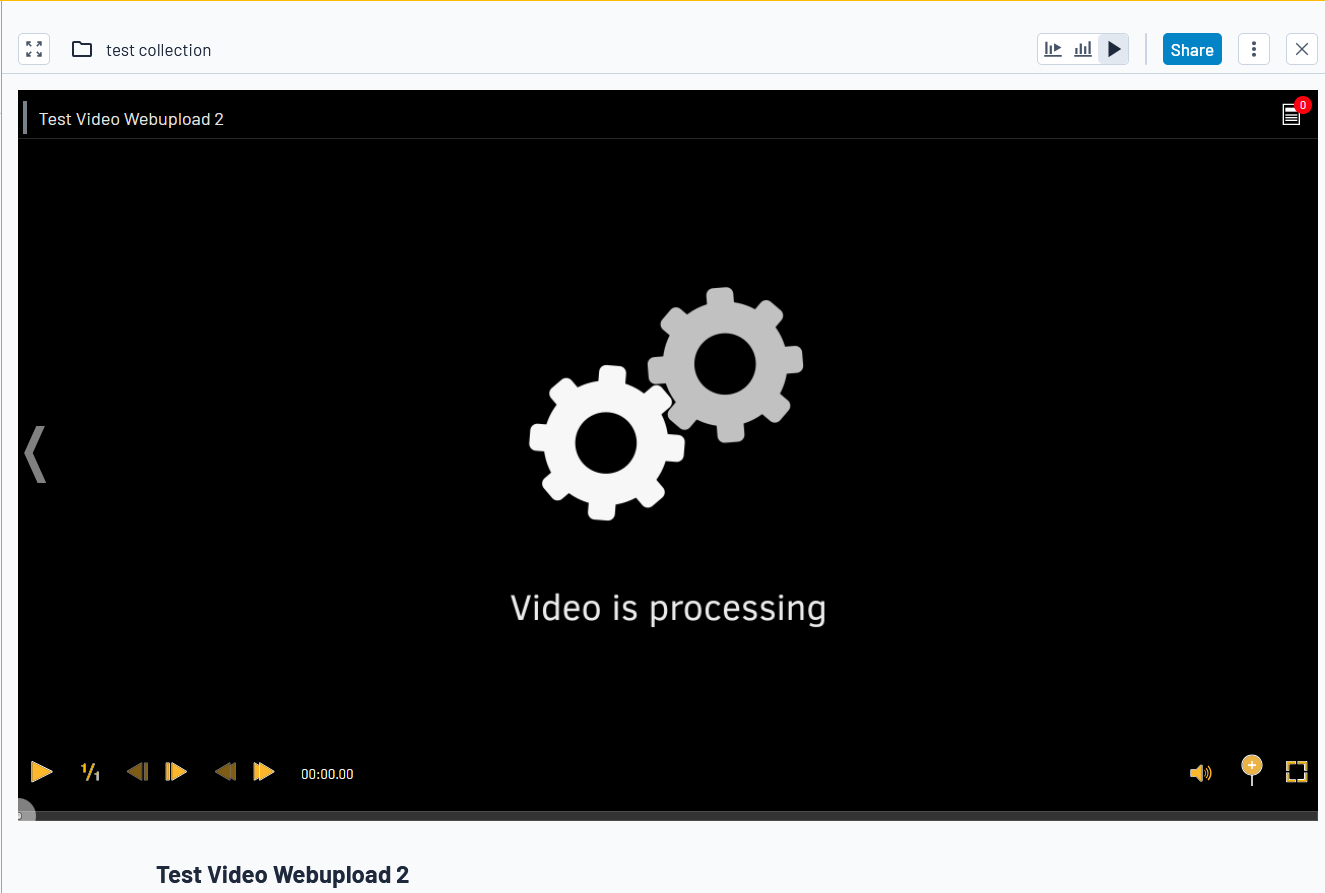
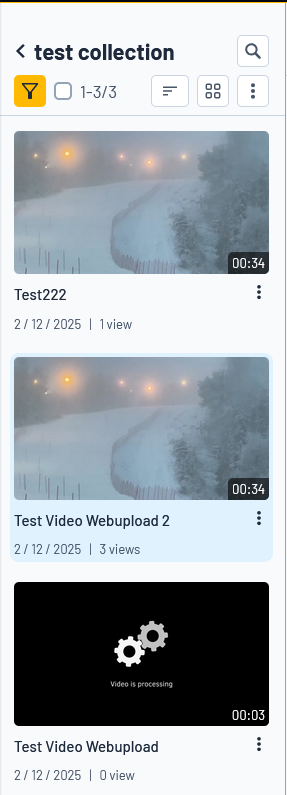
- Refresh the page. When the video thumbnail appears, the video is fully processed and ready to view.
Limitations & Considerations
- File Size Limit: Each uploaded video must not exceed 4 GB.
- You can upload up to 4 videos per session, for a combined total of 16 GB.
- Sequential Uploading: Only one upload can be processed at a time in the same browser.
- To upload multiple videos in parallel, use different browser windows or sessions.
- No Dartclip Tag Transfer: When uploading via Web Upload, Dartclip tagging information is not transferred with the video. Tags must be added manually post-upload if needed.
Was this article helpful?
That’s Great!
Thank you for your feedback
Sorry! We couldn't be helpful
Thank you for your feedback
Feedback sent
We appreciate your effort and will try to fix the article
Didn't find what you were looking for?Our support team can help you directly.
Submit a ticket