
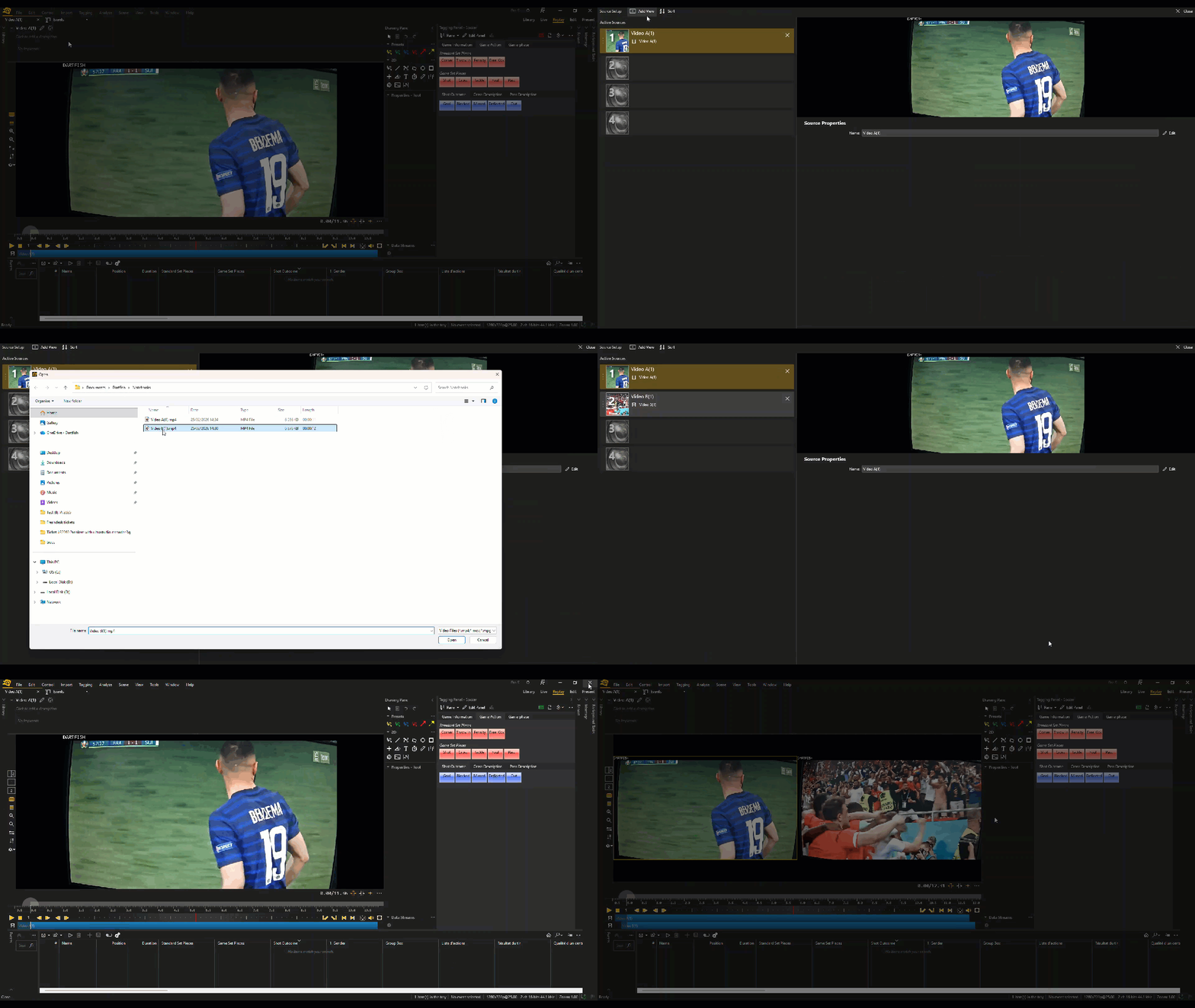
This article explains how to load and display a second video in split screen mode within Replay. This allows users to view two videos simultaneously while tagging a game.
Prerequisites
You need a Pro S license for this feature.
Steps to follow
Step 1: Load the First Video
- Open Dartfish and go to the Replay workspace.
- Load your primary video as you normally would.
- Confirm that the video is playing correctly in the video player.
Step 2: Open the Active Source Window
- Click on the Cog Wheel (⚙) icon.
- The Active Source window will open.
Step 3: Add the Second Video
- In the Active Source window, click Add View.
- Browse to the location of the second video (Video B).
- Select the file.
- Close the Active Source panel.
Step 4: Enable Split Screen Layout
- After closing the panel, a new icon labeled Split Layout will appear.
- Click on Split Layout.
- Both videos will now display in the video player in split screen mode.