
The Library has been redesigned in Dartfish 2026 to integrate online browsing and editing capabilities directly into the application, allowing users to:
Browse local and online documents from the same interface
Open and edit remote documents
Synchronize changes with dartfish.tv
Manage collections more efficiently
Work offline with cached documents
Main Library Components
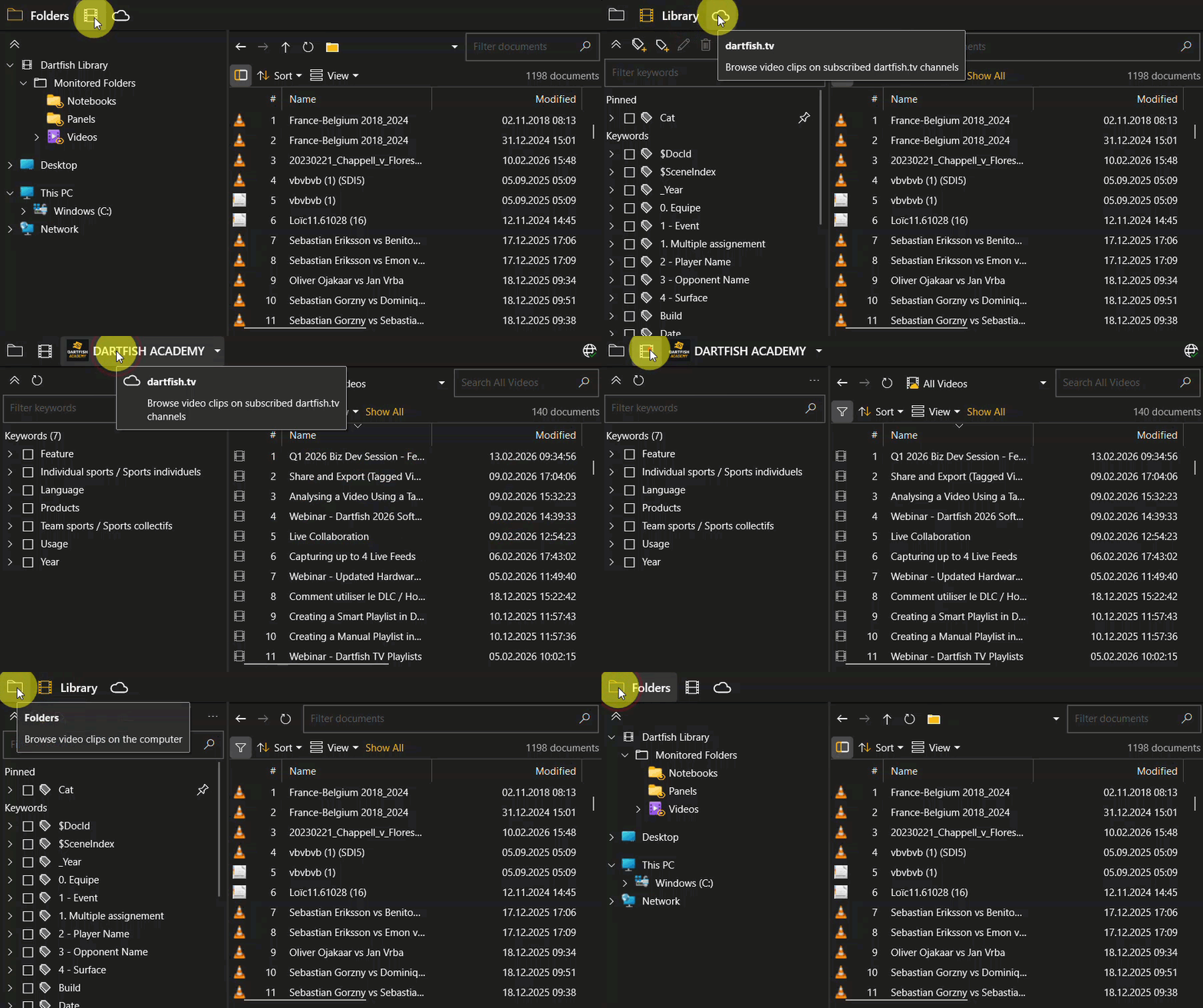
The Library pane contains three main views
- Folders View – Access computer folders.
- Library View – Manage monitored folders and keywords.
- Online Library View – Browse personal cloud, subscribed channels and collections.
Navigation
View Selector
The View Selector allows navigating between the different views.
The Tray
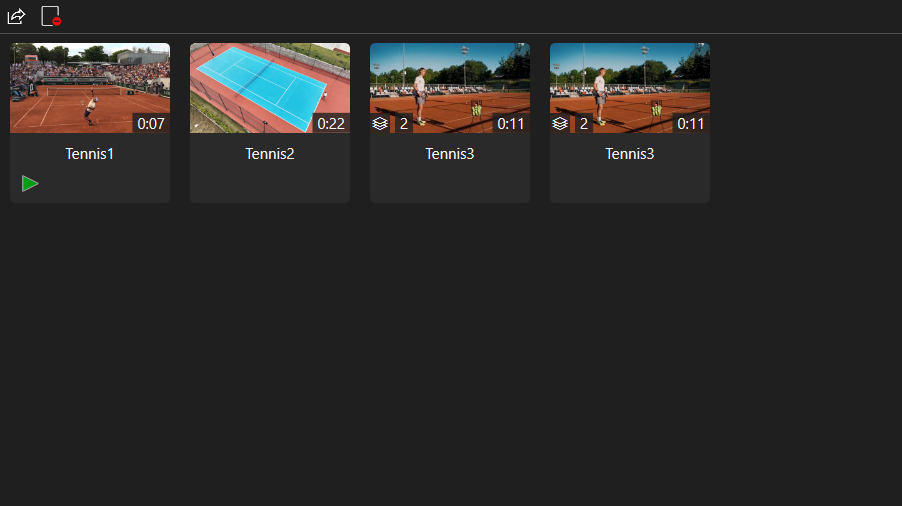
The Tray is used to:
Hold opened documents
Manage documents before publishing
Prepare bulk publishing, preserving the ordering of the videos
When working on a remote document locally, a local version of the document is stored
in the local application data folder (%LOCALAPPDATA%).
The files are stored per dartfish user’s account id.
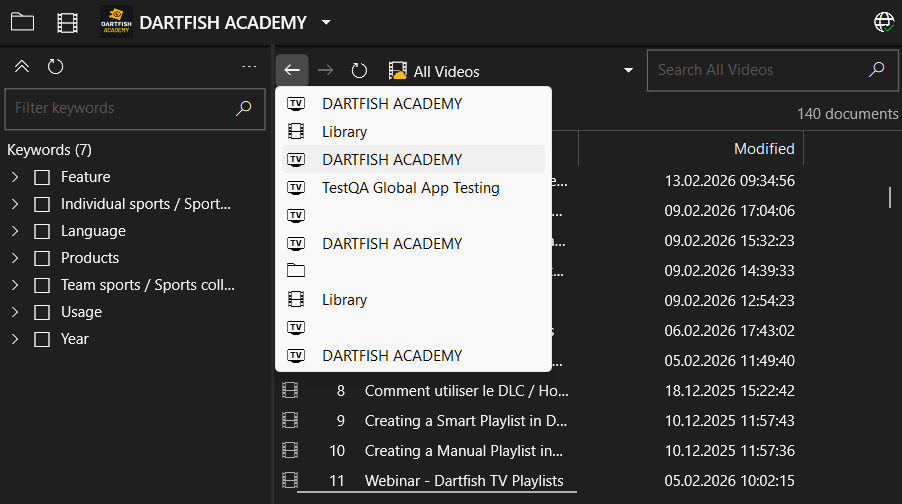
Navigation history
The Library supports a navigation history similar to a web browser.
You can:
- Navigate back to the previous pane
- Navigate backward and forward in the history
- Right-click to display recent navigation entries
Up to 10 items are displayed in the navigation history.
Searching for items does not affect the navigation history.
Folders View
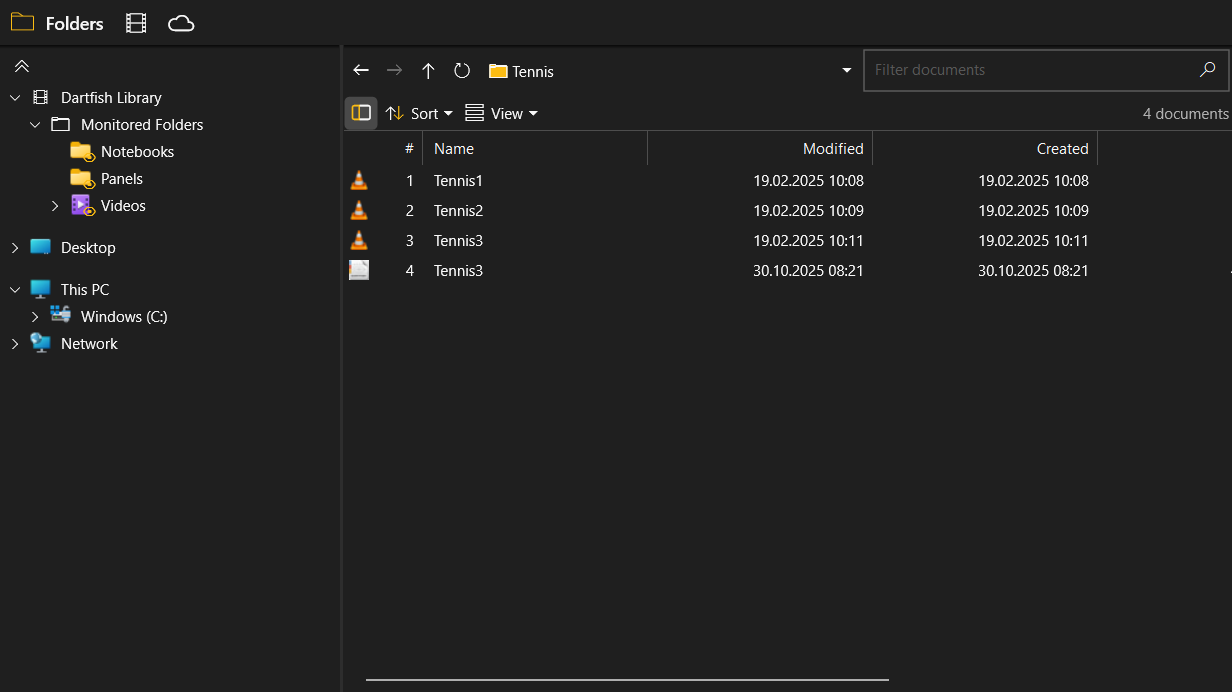
This view behaves like Windows Explorer inside Dartfish.
Dartfish Library
List the local library’s monitored folders. Monitored folders are annotated with a small eye icon. Childs folders of a monitored folder are automatically monitored.
This PC
List the computer folders. Monitored folders are also indicated.
Network
List the network shared folders.
Library View
This view is designed to help users organize and find documents stored in the monitored folder efficiently. It uses keywords to organize and filter content.
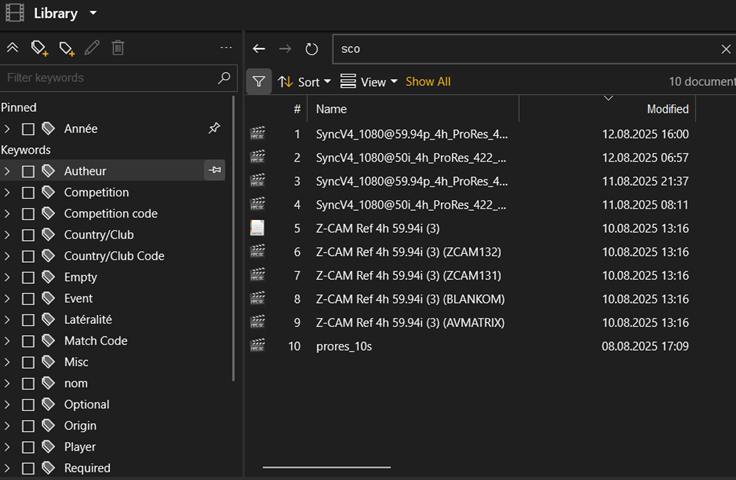
Keyword Management
The Library includes a keyword manager.
In the keyword manager, you can:
- Create new categories
- Create new keywords
- Edit keywords
- Delete keywords (removes from all local documents)
- Import/export keyword sets
Remove unused keywords
Categories can be pinned at the top of the pane. The pinned categories persist across work sessions.
Checking and unchecking categories and/or keywords will filter the list of items.
The keyword filtering follows this logic:
- OR within the same category
- AND across different categories
Online Library View
The online library displays documents from:
- Subscribed channels
- Collections
- Smart Cloud
Online Library features require:
Valid dartfish.tv account
Active subscription
Valid license activation

Only documents where the user have editing rights are supported.
Editing is possible in the Library video player and in the Edit and Replay workspaces.
When the user is not signed in, for example when using a device-based license, the
remote library is not accessible.
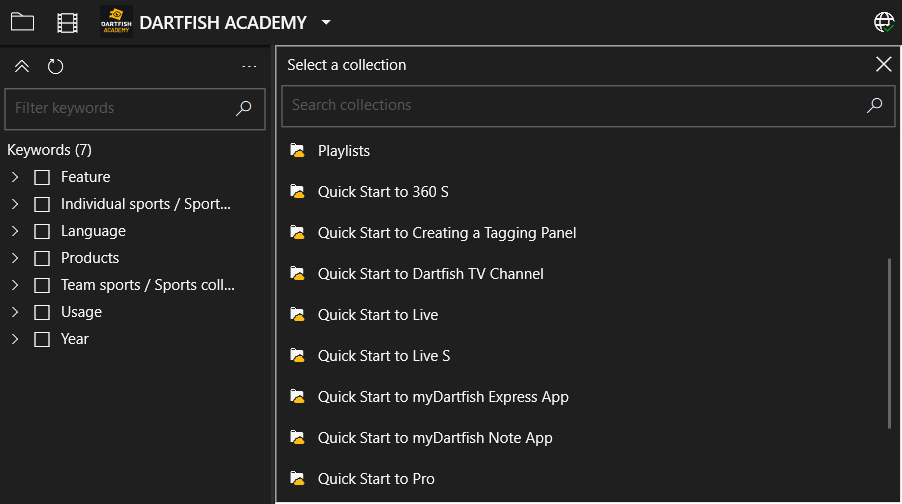
Collection Picker
The Collection Picker allows you to:
- Search for a collection by name
- Pin collections for quick access
- Select All Videos (if subscribed to the full channel)
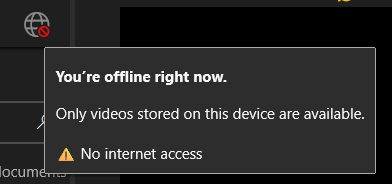
Working Offline
The offline mode allows users to continue working without internet access.
When working offline:
- Only locally cached versions of documents are visible.
- The Collection Picker shows a special Offline Videos collection.
- Online Synchronization is not possible.
For more detailed information, please check this article : Explore online videos directly in Dartfish Software