
Dartfish Software 2026 extends editing capabilities to online video content, allowing you to work on remotely stored documents with the same familiar workflow used for local files. You can access content from your dartfish.tv channel or personal cloud, open it in Replay, make updates to tagging, keywords, or event data, and then synchronize those changes back to the online version. This makes it easier to keep your online content accurate and up to date without downloading and reuploading files, while still allowing you to review changes before saving them online.
This short video gives you a brief overview of the feature
Overview
Starting with Dartfish Software 2026, you can access online video content directly from the software and update it just as you would with local videos, either through the tagging panel or by importing events from a CSV file.
This article explains the main workflow for opening, editing, and synchronizing online content.
Licenses and permissions
This feature is available to users with a myDartfish 360 S license or above. It is especially relevant for users of 360 S, Live S, and Pro S working with tagged events.
To update online content, you must have editing rights on the collection where the remote video is stored.
Main workflow
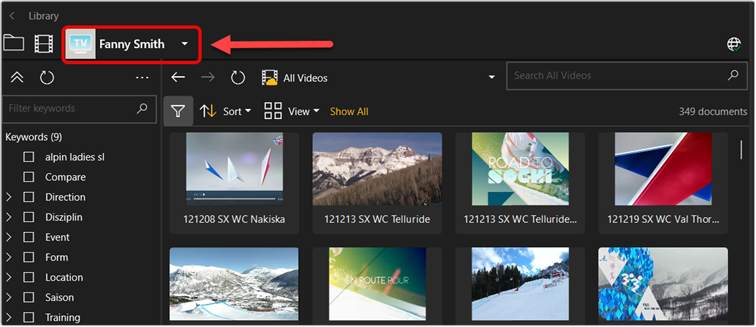
1. Select your online context in Library
The workflow starts in Library.
From there, choose the online context you want to work with:
- your dartfish.tv channel,
- your personal cloud.
2. Find the video you want to edit
Once the online context is selected, the next step is to locate the video you want to work on.
There are several ways to do this:
- open the relevant collection and browse to the video,
- use the standard Search,
- use Keywords to filter the content.
When you find the video you want, add it to the Tray.
3. Open the video in Replay
Once the video is in the Tray, continue in the Replay workspace.
At this point, the video is available for editing in Dartfish Software.
4. Edit the content
From Replay, you can work with the document in the same way you would work with local content.
This may include:
- modifying existing tagging,
- adding new events from the tagging panel,
- updating keywords associated with existing events,
- importing events from a CSV file.
The important point is that the editing experience remains part of the normal Dartfish Software workflow.
5. Synchronize your changes
When your work is complete, use the Sync button.
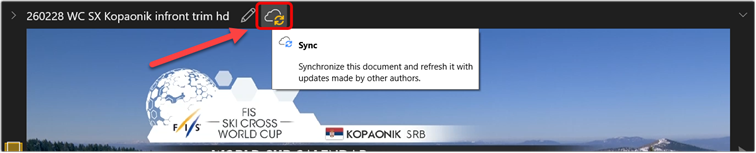
In the normal workflow, the Sync Document window opens and offers three options:
- Save changes — Apply your changes to the online version
- Show differences — Review your changes before syncing
- Undo local changes — Your local changes will be lost
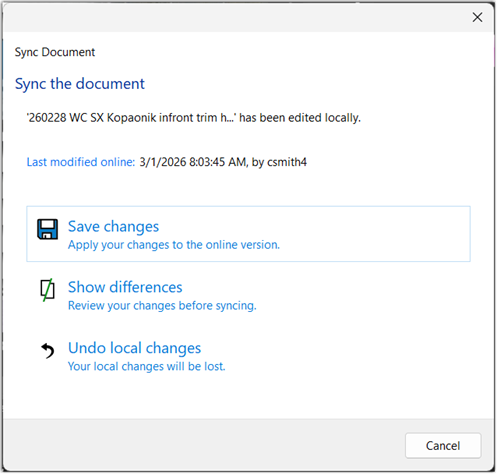
In the standard case, choose Save changes.
The document is then synchronized, and you can use the provided link to check online that your changes have been applied successfully.
At that point, the basic process is complete: the online document and the local document are aligned again.
About synchronization
The normal workflow is simple, but synchronization is still a controlled process.
Your work is done locally in Dartfish Software and then synchronized to the online version. In some cases, additional review may be needed before synchronization is completed
For more details about synchronization behavior, document differences, and conflict handling, refer to the technical article:
Online Editing and Synchronization in Dartfish Software 2026