
This article explains how collections are used in dartfish.tv to control access to content by defining a clear collection structure for different audiences, choosing the right access type for each collection, adding content to the appropriate collection, and sharing that collection with the right people. It also clarifies that collections are primarily an access-control tool rather than a simple folder structure, and shows how new collections can be created as part of setting up a clean and scalable channel organization model.
Purpose and Scope
This article explains how to use collections in dartfish.tv to control who can access specific content. It focuses on the access logic behind collections, how to separate audiences, when to use public, private, or limited collections, and how to configure collections to match your publishing model. It also introduces the main collection settings that support access control.
Requirements
- Administrator role on the dartfish.tv channel
- A clear understanding of which audiences need access to which content
- Content ready to be organized into collections
Step to organize your channel
1. Understand how collections control access
In dartfish.tv, a collection is not only a way to group content. It is also the main way to control who can access that content. Instead of managing access video by video, you define a collection structure, choose the appropriate access type for each collection, and then place content in the right location.
A collection should not be seen as a simple folder. In dartfish.tv, collections are used primarily to control access to content, while keywords help users navigate and filter what they are allowed to see.
For this reason, it is important to plan the collection structure first: identify the audiences, decide which content should be public or restricted, and then create the collections that match that model. Each distinct audience should normally have its own collection or clearly defined access path.
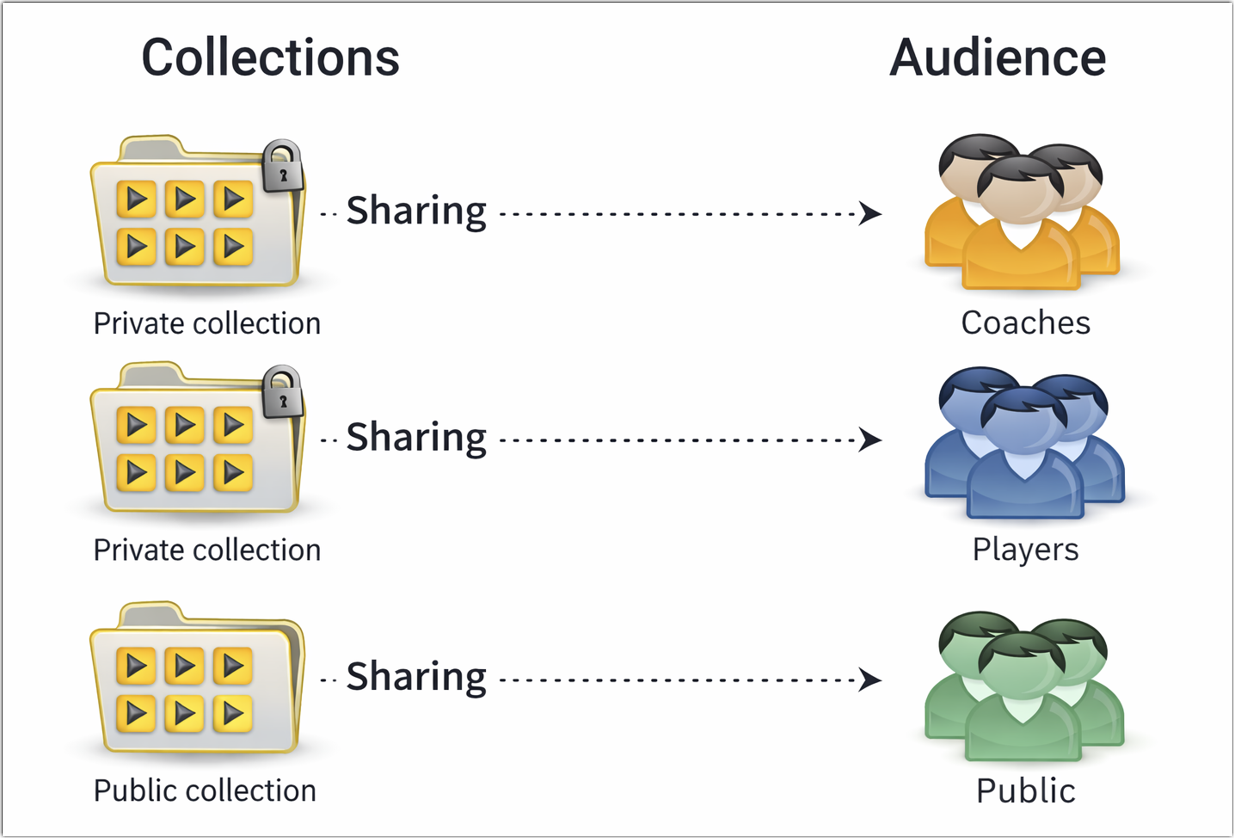
Public collections
Use a public collection when content should be visible to everyone without sign-in. Public collections are designed for openly browsable content and support broad sharing.
Private collections
Use a private collection when content should only be available to selected people. Access is granted by an administrator, making this the right model for internal or audience-specific content such as coach-only or player-only material.
Limited collections
Use a limited collection when content should be accessible through a shared link without being openly browsable. Limited collections sit between public and private access.
Before creating collections, identify the audiences that should not all see the same content. For example, coaches, players, and the public may each require different access. Each distinct audience should normally have its own collection or clearly defined access path.
2. Add content to collections
Once the collection structure is defined, add each video or event to the collection that matches the right audience.
Content can be added to collections in three ways:
- by publishing from Dartfish Software
- by using myDartfish Express
- by uploading directly from a web browser when the Web Upload option is enabled on the channel
Publishing from Dartfish Software is the most powerful option. It supports adding one or more videos, as well as edited content such as highlights, to collections during publication.
Before adding a large number of videos, confirm that the structure is still clear and that each audience receives only the content intended for them.
Uploading content to a collection requires the appropriate Upload permissions.
3. Share the correct collection with the correct people
Once the collection structure is in place, share each collection with the appropriate audience. A collection can be shared with existing members, with email addresses, or with groups of members identified by keyword.
Member roles can provide broader channel-level access. Use collection sharing to control access to specific collections.Adding collections
Once the collection structure has been planned, the next step is to create the collections you need in dartfish.tv. Create one collection for each audience or use case that requires its own access model.
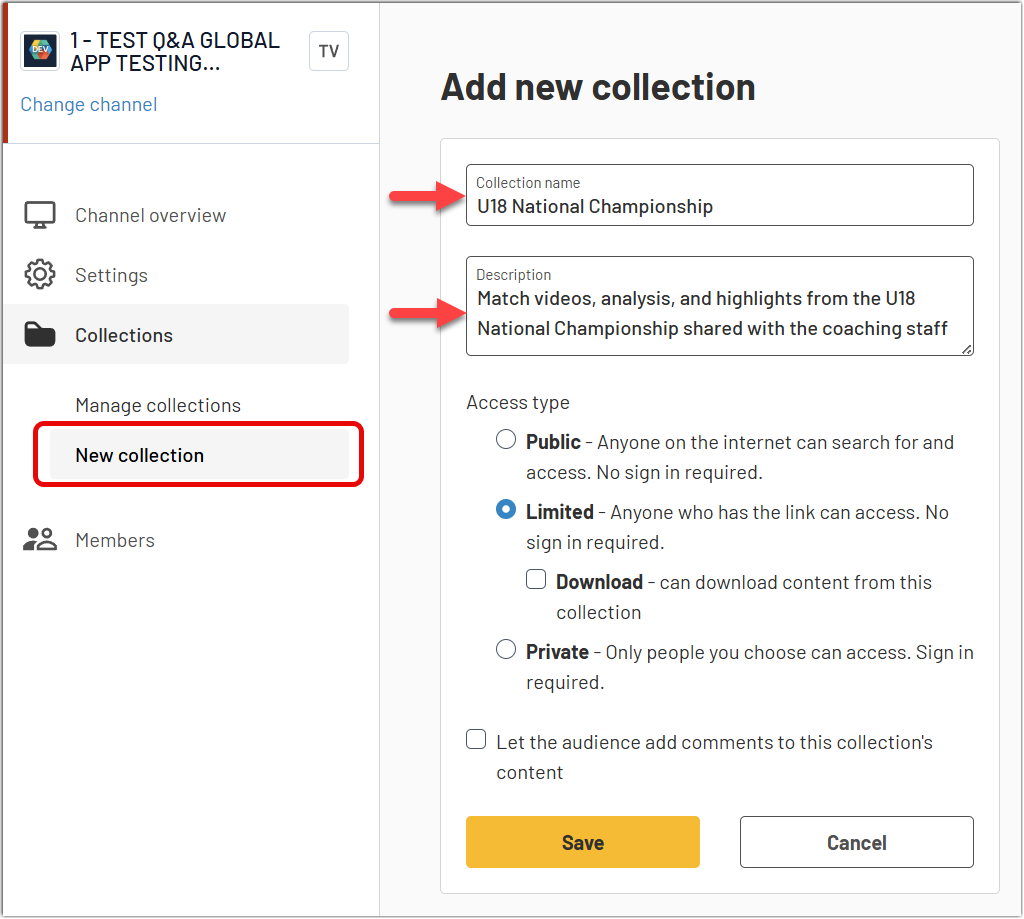
To add a new collection, open the Collections section and create a New collection. Then complete the basic fields:
- Collection name: enter a clear name that helps users understand the purpose of the collection
- Description: add a short description to explain what the collection contains
- Access type: choose how the collection should be accessed
- Comments: optionally allow the audience to add comments to the collection’s content
When the information is complete, select Save to create the collection.
You can also create a collection directly from the dartfish.tv front-end, without going through the admin section.FAQ
Is a collection like a Windows folder?
Not exactly. In dartfish.tv, collections are used primarily to control access to content, not to organize navigation in the same way as a folder structure. Keywords are then used to help users navigate and filter the content they are allowed to see.
Can I create a sub-collection?
No. If you feel that you need sub-collections, the collection structure may be too complex. In most cases, it is better to keep collections simple and use keywords to help users navigate through the content they already have access to.
It is, however, possible to organize collections by assigning keywords to them. This allows users to filter the list of collections by keyword.
Is it the same for collections in myDartfish Smart Cloud?
No. MyDartfish Smart Cloud sharing uses only limited collections, created in the apps or directly from the my Collections page in dartfish.tv.