
This article explains how collections are shared in dartfish.tv. It gives an overview of the main sharing methods, the role of collection access types, and the permissions that control what recipients can do once access is granted. It also clarifies that sharing can be managed either centrally by an Administrator or directly by a user who has the Invite right on a specific collection. The article then outlines the key steps of the sharing process, from selecting the collection and recipients to assigning permissions and giving recipients access to the shared content.
- Purpose and Scope
- Share a collection from the Admin area
- Share a collection from your channel
- Best practices
- FAQ
Purpose and Scope
This article explains how to share collections in dartfish.tv. It covers both administrative sharing from collection management and operational sharing from the front end by users who have permission to invite others to a collection.
Use this article to understand
- how collection access types affect sharing
- how administrators can share a collection from the Admin area
- how users with the Invite right can share a collection directly from the channel
- how to assign the right permissions to recipients
- what recipients need to do to access the shared collection
Requirements
To share a collection, one of the following must apply:
- you are an Administrator on the dartfish.tv channel
- or you already have access to the collection with the Invite permission
Before you start
Before sharing a collection, make sure you understand its access type.
In dartfish.tv, collections can use different access types:
- Public collections can be browsed openly
- Private collections are generally accessed through subscription
- Limited collections are intended for selected recipients and are accessed through a shared link
The collection access type affects how the collection is accessed and how sharing should be managed.
Share a collection from the Admin area
This method is typically used by channel administrators managing collections centrally.
1. Open collection management
Sign in to dartfish.tv with an account that has the required rights.
Open the Admin area, then go to the collection management page to display the list of collections.
2. Locate the collection
In the list, find the collection you want to share.
3. Open the sharing panel
From the collection list, open the collection action menu and select Share collection.
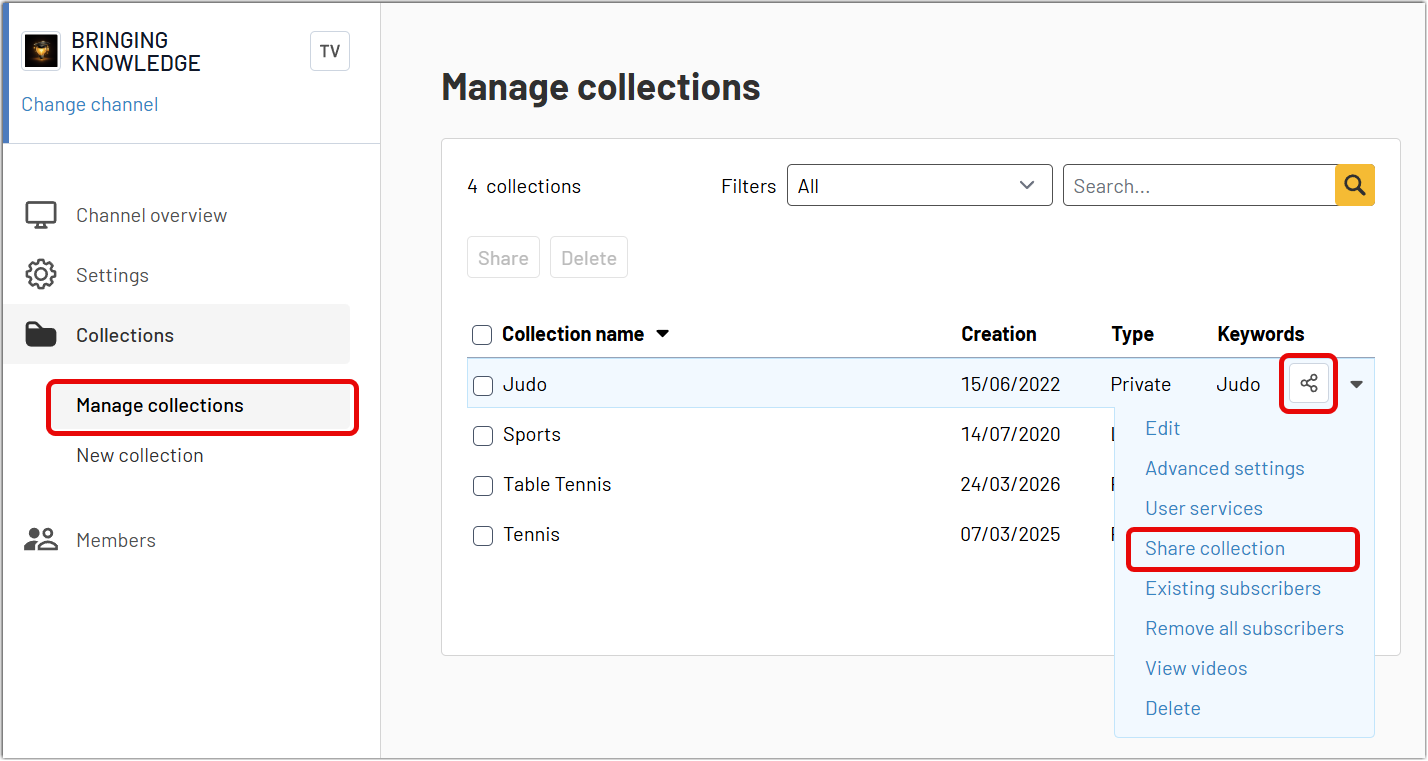
You can also open the sharing panel directly from a sharing icon.4. Add recipients
In the recipient field, enter the name or email address of the person you want to invite.
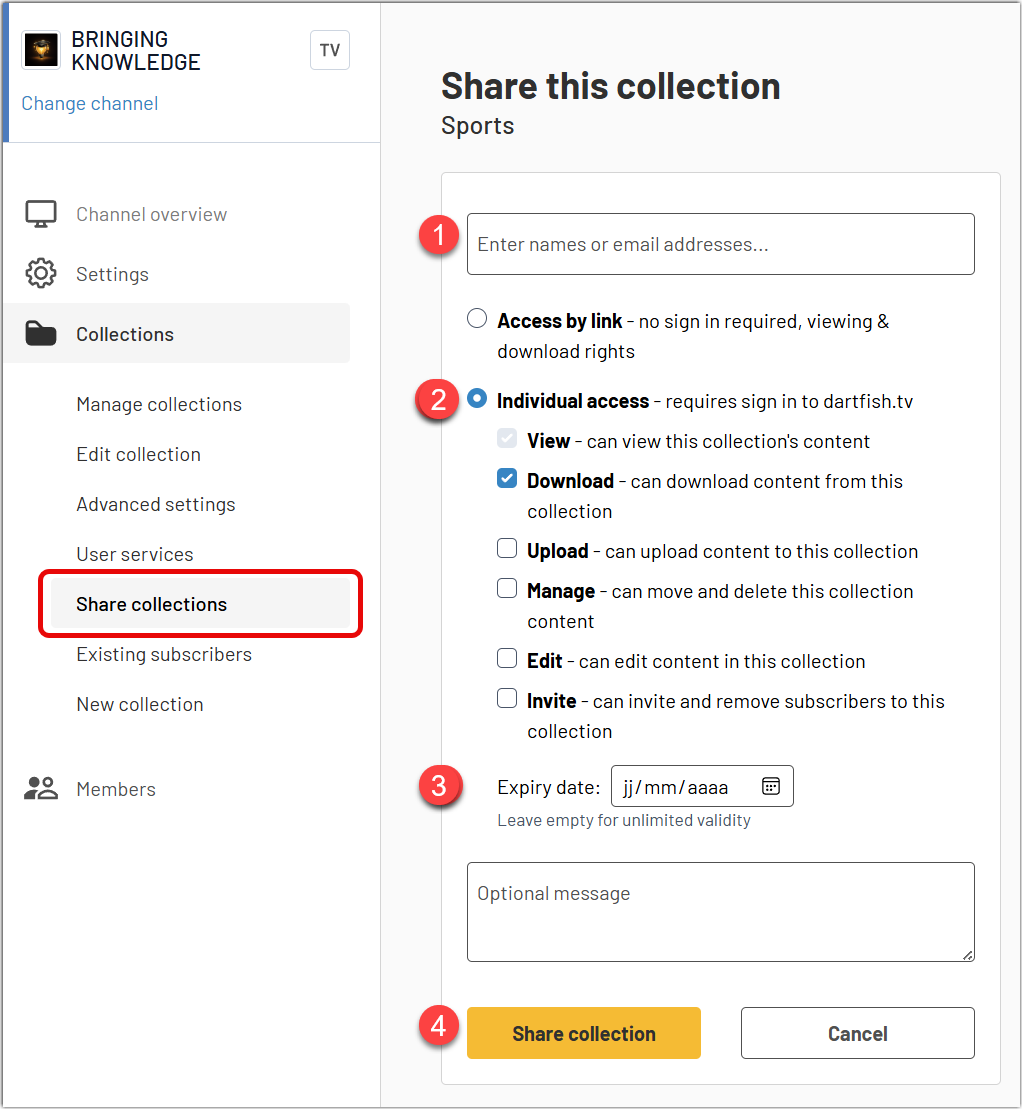
As you type, dartfish.tv may suggest existing users. Select the correct user if available, or continue entering the full email address or a group via its keyword.
You can add one or more recipients.
5. Assign permissions
Select the permissions that recipients need for their work.
- View – can view this collection's content
- Download – can download content from this collection
- Upload – can upload content to this collection
- Manage – can move and delete this collection content
- Edit – can edit content in this collection
- Invite – can invite and remove subscribers to this collection
6. Send the invitation
Add an optional message if needed, then click Share collection.
When a collection is shared, the recipient receives an email invitation with a link to the collection.
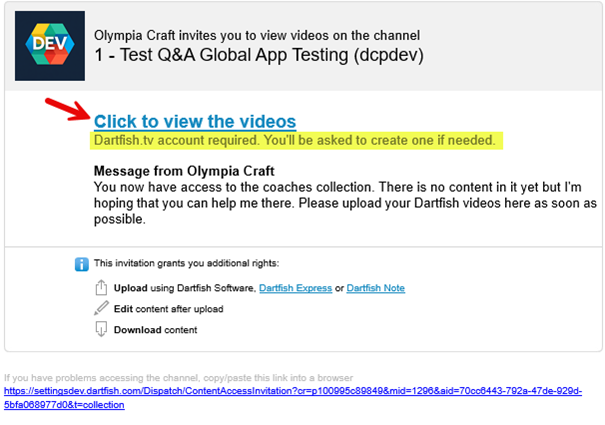
They can:
- sign in with an existing dartfish.tv account
- or create an account if they do not yet have one
After signing in, they can access the collection according to the permissions assigned to them.
Share a collection from your channel
Collections can also be shared directly from the front end of dartfish.tv.
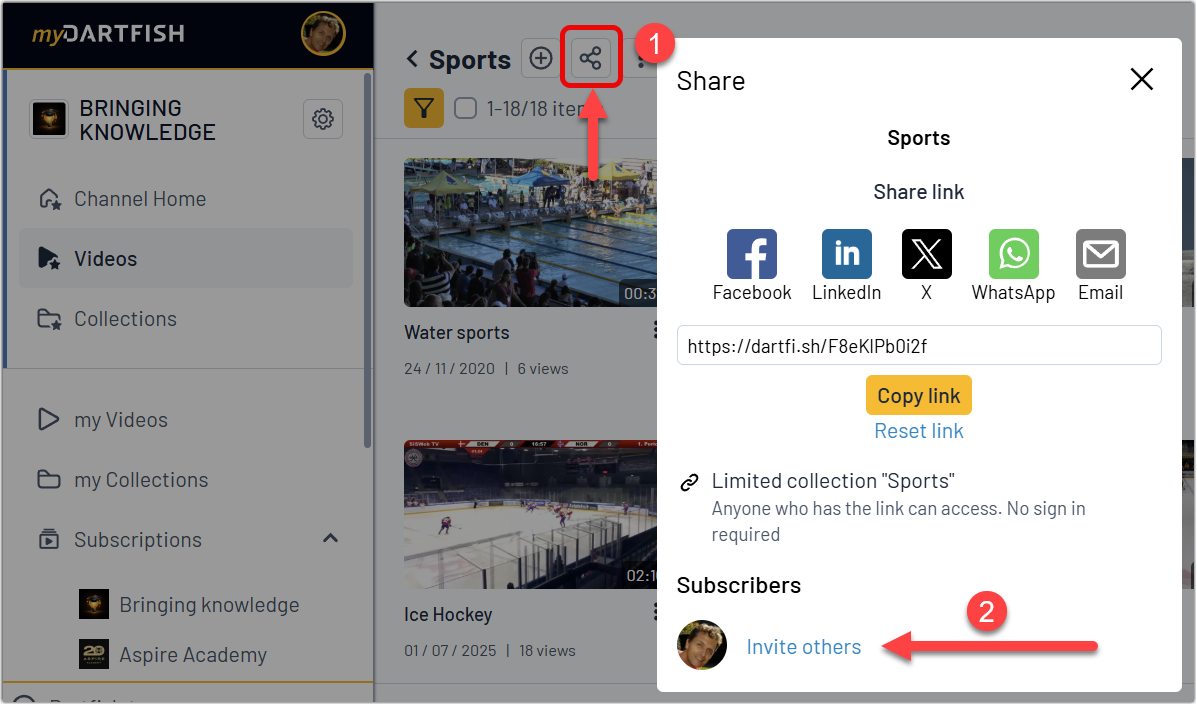
This option is not limited to administrators. A user can share a collection if they already have access to it with the Invite permission.
This makes it possible to delegate sharing to the people who manage a group on a daily basis, without requiring an administrator to handle every invitation.
For example, an administrator may create a collection for an under-21 team, then allow the under-21 coach to invite players directly to that collection. In this case, the coach does not need to be a channel administrator. They only need access to that collection with the Invite right.
What recipients do
When a collection is shared, the recipient receives an email invitation with a link to the collection.
They can:
- sign in with an existing dartfish.tv account
- or create an account if they do not yet have one
After signing in, they can access the collection according to the permissions assigned to them.
Best practices
- Share collections only with authorised recipients.
- Apply the minimum access level needed.
- Use Private or Limited collections when tighter control is required.
- Grant the Invite permission only to trusted users who are expected to manage access for others.
- Use delegated sharing when access needs to be managed by coaches, staff, or team leaders rather than by channel administrators.
- Review subscriptions regularly and remove access that is no longer needed.
FAQ
Can I share a collection with someone who does not yet have a dartfish.tv account?
Yes. The recipient can use the invitation flow to create an account before accessing the collection.
Do I need to be an administrator to share a collection?
No. Administrators can share collections from the Admin area, but a user can also share a collection from the front end if they already have the Invite permission on that collection.
What is the Invite permission used for?
The Invite permission allows a user to invite other people to a collection and create subscriptions for them. It is designed for delegated access management without giving full channel administration rights.
Can I allow someone to view content without allowing download?
Yes, where that permission combination is available. Assign only the rights that are needed for the recipient’s task.
Should I use a public collection or a private collection?
Use a Public collection for broad access. Use a Private or Limited collection when access should be restricted to selected recipients.
What if a recipient cannot access the shared collection?
Check that:
- the invitation was sent to the correct email address
- the recipient completed sign-in
Can I re-invite someone?
Yes. If needed, a recipient can be re-invited from the subscription management options. This is useful when an invitation is still pending or when the user did not complete the access process.