
Channel administrators can now select the encoding profile used to process uploaded videos. This article explains the available profiles, the trade-offs between them, and how to change the setting in channel settings
- Purpose and Scope
- Understanding the available profiles
- Step-by-step guide
- Notes
- Tips and best practices
- FAQ
Purpose and Scope
Dartfish encodes every video uploaded to a channel according to an encoding profile. The profile determines the resolution and bitrate of the processed video, which in turn affects visual quality, upload time, streaming smoothness, and storage use.
Previously, the profile was determined by your subscription tier and could not be changed. Channels on the Standard plan used a 720p fixed-bitrate profile; channels with the HQ option used a 1080p fixed-bitrate profile. This setting is now configurable: channel administrators can choose among the profiles available to their subscription, and change the selection at any time.
This article covers the new profile selection feature for channel administrators. It does not cover video player settings, per-video quality settings, or subscription upgrades.
What you can do
- View the encoding profiles available to your channel.
- Select the profile that best matches your workflow and audience.
- Change the profile at any time from channel settings.
Requirements
You must have channel administrator rights to access and change the encoding profile setting.
The profiles available to you depend on your subscription:
- Standard plan — Standard 720p and Standard 1080p.
- Premium plan (formerly the HQ option) — Premium 720p, Premium 1080p, and Premium 1440p.
In a nutshell
- Every profile got better. Dartfish has increased bitrates and modernised encoding across the board. Even if you change nothing, your videos will look better than before.
- Standard customers now have a second option. You previously had one profile (720p). You now also have 1080p — sharper and more detailed, ideal for viewing on computers or large screens.
- Premium customers now have 1440p. A new, higher resolution tier for detailed technical analysis on large screens.
- The trade-off is simple. Higher quality means larger files and longer uploads. Good connection and large screens → go higher. Mobile uploads and phone viewing → stay at 720p or 1080p.
- You can change it anytime, with zero risk. The profile only affects new uploads. Existing videos are never touched.
Understanding the available profiles
What changed from the previous profiles
All new profiles use variable bitrate (VBR) encoding and automatically scale the bitrate to match the frame rate of the source video. This produces better image quality than the previous fixed-bitrate profiles at equivalent or higher resolutions, and introduces new resolution options.
Standard | Previous | New 720p | New 1080p |
Resolution | 720p | 720p | 1080p |
Bitrate (at 30 fps) | 2.1 Mbps (fixed) | 2.6 Mbps (VBR) | 4.4 Mbps (VBR) |
| Bitrate (at 60 fps) | 3.15 Mbps (fixed) | 3.9 Mbps (VBR) | 6.6 Mbps (VBR) |
Premium (HQ option) | Previous | New 1080p | New 1440p |
Resolution | 1080p | 1080p | 1440p |
Bitrate (at 30 fps) | 4.8 Mbps (fixed) | 6.4 Mbps (VBR) | 10.9 Mbps (VBR) |
| Bitrate (at 60 fps) | 7.2 Mbps (fixed) | 9.6 Mbps (VBR) | 16.4 Mbps (VBR) |
Channels are automatically migrated to the equivalent new profile at the same resolution, so existing workflows continue without any change.
High frame rate content
Dartfish automatically adjusts the bitrate when the source video has a high frame rate. A 60 fps video is encoded at a higher bitrate than a 30 fps video at the same resolution, preserving the additional motion detail. This happens automatically; you do not need to configure anything.
Profile descriptions
- Standard 720p
Resolution up to 1280×720. Faster uploads and smaller files. Suitable for review sessions, quick feedback workflows, and situations where connection speed or device capability may be limited. - Standard 1080p
Resolution up to 1920×1080. Better detail for coaching and performance analysis, at the cost of larger files and longer upload times. Recommended as the default for most Standard plan channels. - Premium 720p
Resolution up to 1280×720 with a higher bitrate than Standard 720p. Useful when 720p delivery is preferred but maximum image sharpness at that resolution matters. - Premium 1080p
Resolution up to 1920×1080 with a significantly higher bitrate than Standard 1080p. Recommended for detailed biomechanical analysis, large-screen viewing, or any workflow where fine image detail is prefered. - Premium 1440p
Resolution up to 2560×1440. The highest quality profile available. Suited to workflows that routinely involve large displays, slow-motion footage at high frame rates, or very detailed technical analysis. Requires more bandwidth to stream and produces the largest files.
Profile comparison
The table below uses 60 fps as the reference frame rate, consistent with the values shown in the profile selection dialog. Actual file sizes vary depending on the source video and its frame rate — lower frame rates produce smaller files. Dartfish always aims to preserve the best possible quality from your source video.
Profile | Resolution | Bitrate (60 fps) | File size per hour | Upload 1 hour @ 10 Mbps | Upload 1 hour @ 50 Mbps | Min. viewer bandwidth |
Standard 720p | 1280×720 | 3.9 Mbps | ~1.7 GB | ~23 min | ~5 min | 4 Mbps |
Standard 1080p | 1920×1080 | 6.6 Mbps | ~2.9 GB | ~40 min | ~8 min | 7 Mbps |
Premium 720p | 1280×720 | 5.1 Mbps | ~2.2 GB | ~31 min | ~6 min | 6 Mbps |
Premium 1080p | 1920×1080 | 9.6 Mbps | ~4.2 GB | ~58 min | ~12 min | 10 Mbps |
Premium 1440p | 2560×1440 | 16.4 Mbps | ~7.2 GB | ~98 min | ~20 min | 17 Mbps |
All figures are approximate reference values at 60 fps. Files encoded at 30 fps are roughly half the size. Upload times assume the full connection speed is available for the upload.
How to choose a profile
The right profile depends on three factors: your analysis needs, your network conditions, and the devices your viewers use.
Analysis needs
If your primary use is live review, quick clip sharing, or feedback on general movement patterns, Standard 720p is adequate. If you regularly analyse fine technical details — contact points, equipment positioning, biomechanical angles — or display videos on large screens, Standard 1080p or a Premium profile will serve you better.
Upload and streaming bandwidth
Higher profiles produce larger files and require more bandwidth to stream. At 10 Mbps upload, an hour of Premium 1080p footage takes nearly an hour to upload — the same footage at Standard 720p uploads in about 23 minutes. If athletes or coaches upload from venues with limited connectivity, or if viewers stream over mobile networks, a lower profile reduces the risk of slow uploads and buffered playback.
Resolution and viewer devices
A 1440p or 1080p video shows more detail than 720p, but only if the viewer's screen and connection can take advantage of it. On a smartphone, the difference between 720p and 1080p is often difficult to see. On a large monitor or TV used for detailed analysis, higher resolution makes a noticeable difference.
Storage
Most channels operate under Dartfish's fair-use storage policy, so storage is rarely the deciding factor. If your channel has a fixed storage quota, higher profiles use significantly more space — Premium 1440p uses roughly four times the storage of Standard 720p per hour of footage.
Step-by-step guide
Selecting an encoding profile
- Open your channel on dartfish.tv and navigate to Settings.
- Select Choose video quality.
- Review the available profiles. Tap the ⓘ icon next to any profile to see its bitrate, estimated storage use, and a description of its intended use.
- Select the profile you want to apply.
- Click Save.
Result: The selected profile is applied to all videos uploaded to this channel from this point forward.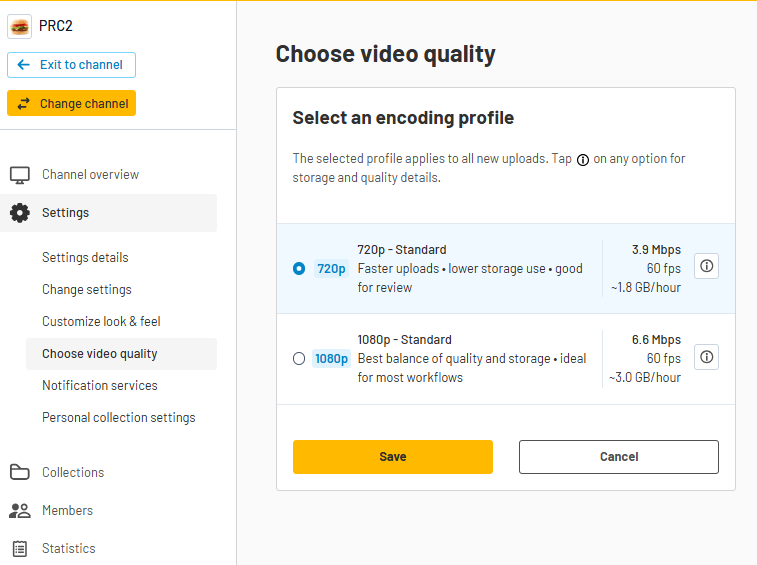
Notes
- The selected profile applies only to videos uploaded after the change. Videos already on the channel are not affected.
- Dartfish always aims to preserve the best possible quality from your source video. The actual file size and bitrate of a processed video may differ from the profile reference values depending on the source.
- Bitrates shown in the profile selection dialog are reference values at 60 fps. Dartfish automatically adjusts the bitrate for different frame rates and content complexity.
Tips and best practices
- The quality of your source video matters. Dartfish preserves the best possible quality from what you upload — a sharp, well-exposed source recorded at a high frame rate will always produce a better result than a compressed or low-quality one, regardless of the profile selected. If quality is a priority, start with the best recording your camera can produce. Start with the profile that matches your most common workflow, then review actual upload times and playback quality before making a permanent change.
- If your channel serves a mix of audiences — some on mobile, some on large screens — Standard 1080p is a good all-round choice.
- When switching to a higher profile, run a test upload before a time-sensitive session to confirm that upload speeds are acceptable at your venue.
- Discuss the profile choice with the coaches or analysts who view footage on large screens — they are best placed to judge whether the quality improvement justifies longer upload times.
- You can change the profile at any time. A change only affects future uploads, so there is no risk to existing content.
FAQ
Can I switch profiles freely without affecting existing content?
Yes. Changing the profile only affects future uploads. Existing videos on the channel remain as they were.
My channel was previously on the HQ option. What happened to my profile?
Your channel has been automatically migrated to the Premium 1080p profile, which matches your previous resolution and delivers a higher bitrate than before. You can change the profile at any time from channel settings.
Will a higher profile always look better?
Not necessarily. A higher profile produces more data, but the visible improvement depends on the source footage, the viewer's screen, and their connection. Dartfish always preserves the best quality available from the source — if your source video is already high quality, the difference may be subtle. For most coaching and analysis workflows, Standard 1080p delivers excellent results.
Can viewers select a lower quality for playback?
The encoding profile controls the quality of the stored video. Dartfish's player may offer adaptive streaming options depending on the viewer's connection, but this is separate from the encoding profile setting.
The file sizes on my channel look different from the table in this article. Why?
The table is a reference based on 60 fps footage. Videos recorded at lower frame rates — such as 25 or 30 fps, which is common for match footage — produce smaller files. Dartfish also applies its own quality optimisation, which can result in files that differ from the reference values.