
This article explains how to use the Make Available Offline feature in myDartfish 360s and above to download a local copy of a video's media so you can continue working without an internet connection.
This short video gives you a brief overview of the feature
Purpose and Scope
When you drag a document from dartfish.tv into your tray, myDartfish creates a local copy of the document — including all its metadata, tagging, and analysis data. However, this local document still refers to the media (the video file) stored on the remote server. If your internet connection is unavailable or unreliable, the media itself cannot be streamed.
Make Available Offline solves this by downloading a local copy of the media to your computer. Once the media is available offline, you can continue working — tagging, re-tagging, or using analysis functions — regardless of your connection quality.
This article covers how to activate and manage the Make Available Offline feature, one document at a time, from the library or the tray.
What you can do
- Continue working on documents — tagging, analysis functions — without an internet connection
- Make a video's media available offline from the library items list or the tray context menu
- Toggle offline availability on or off for any document
- Browse all offline-available videos in the Offline Videos view
- Check your current connectivity status directly from the library
Requirements
- You must hold a myDartfish 360s license or higher.
- You must have download rights on the document.
Step-by-step guide
1. Make the media available offline
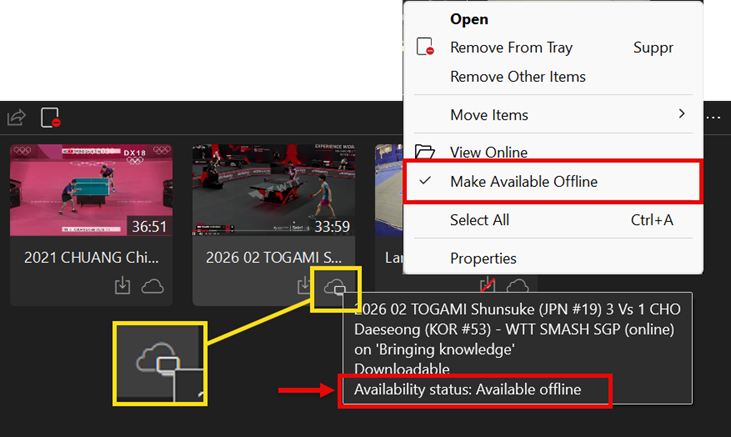
While connected to the internet, right-click a document — either in the library items list or in the tray — and select Make Available Offline.
This must be done before going offline. The feature downloads the media to your computer and requires an active internet connection to complete.
- The cloud + TV icon on the document thumbnail confirms the media is now available offline.
- Hovering over the document shows a tooltip with the document name and Availability status: Available offline.
- A checkmark (✓) next to Make Available Offline in the context menu confirms the feature is active.
The globe icon in the top-right corner of the library is a connectivity indicator. You can hover over it to see your current status — for example, "You're online. All your videos are available."

2. Browse offline videos
In the library, navigate to Offline Videos to see all documents whose media has been made available offline.

Offline Videos is not a dartfish.tv collection. It is a local filtering view and does not appear on your channel.
3. Turn off offline availability
Right-click the document in the library or tray and select Make Available Offline to uncheck it.
The local copy of the media is removed from your computer. The document remains in your tray but the media reverts to streaming from the remote server.
What you can do while offline
Once a document's media is available offline, you can work on it without an internet connection:
- Tag or re-tag a video — create, modify, or review tagging as usual
- Use analysis functions — for example, create a montage from events
When you reconnect, you can publish your work — for example, publish a montage or sync your changes — as you normally would. The transition back online is transparent for all operations that do not strictly require a connection.
Limitations
- Download rights required. If you have edit rights but no download rights on a document, you cannot use Make Available Offline and must remain connected to work.
- One document at a time. Make Available Offline is applied individually to each document.
- Publishing requires a connection. You cannot publish content — such as a montage or updated tagging — while offline. Publishing is only available once you are reconnected.
- Videos under 4GB only can be downloaded
Tips
- Make your videos available offline before you lose your internet connection. Once offline, it is too late to trigger the download.
- Use the Offline Videos view to confirm which documents have their media downloaded locally before you travel.
- Check the globe icon in the library to confirm your connection status before disconnecting.
FAQ
What is the difference between a local copy of the document and making it available offline? When you drag a document to the tray, myDartfish creates a local copy of its metadata and analysis data. However, the media (the video file) still streams from the remote server. Make Available Offline downloads the media itself so it is accessible without a connection.
Can I tag and analyze a video while offline?
Yes. Once the media is available offline, you can tag, re-tag, and use Expert functions such as creating a montage, exactly as you would when connected.
What happens to my offline work when I reconnect?
Your local edits are preserved. Once reconnected, you can publish your montage, sync your changes, or continue working online as usual.
Why is Make Available Offline greyed out or unavailable?
You may not have download rights on that document. Contact your dartfish.tv administrator to check your access rights for the relevant collection.