Learn how to use tagging panels to capture, organise, and analyse key events within your video.
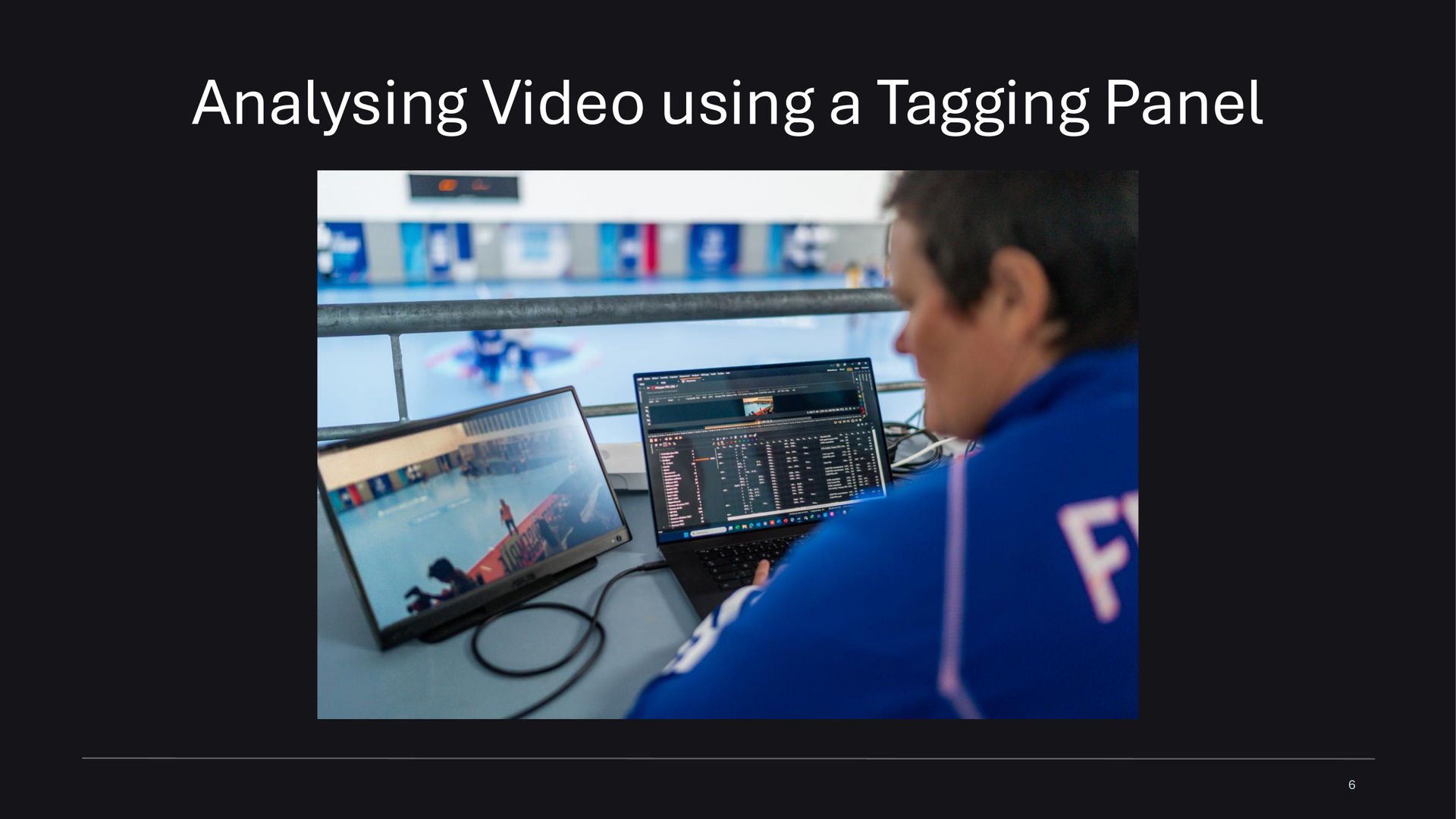
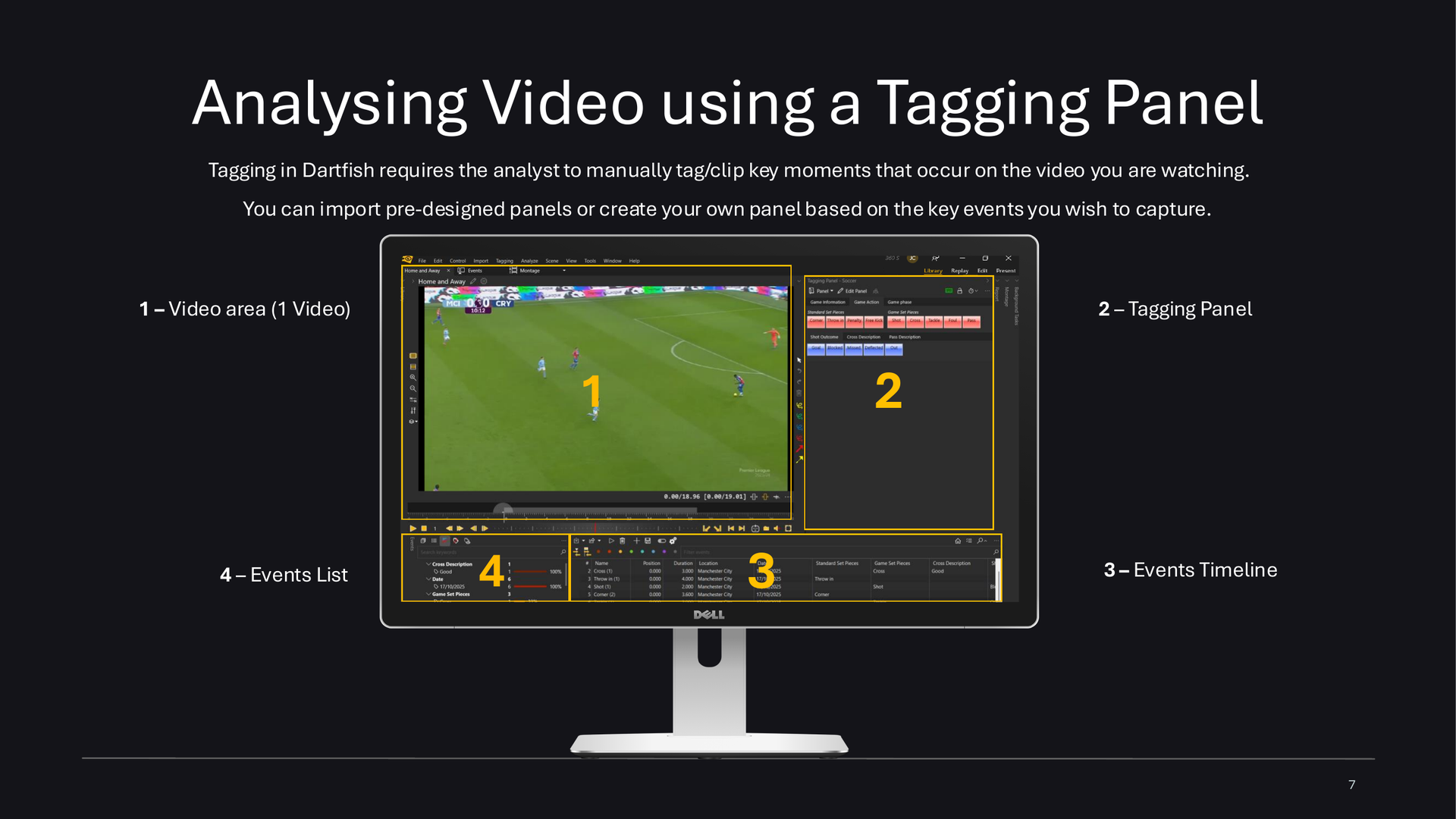
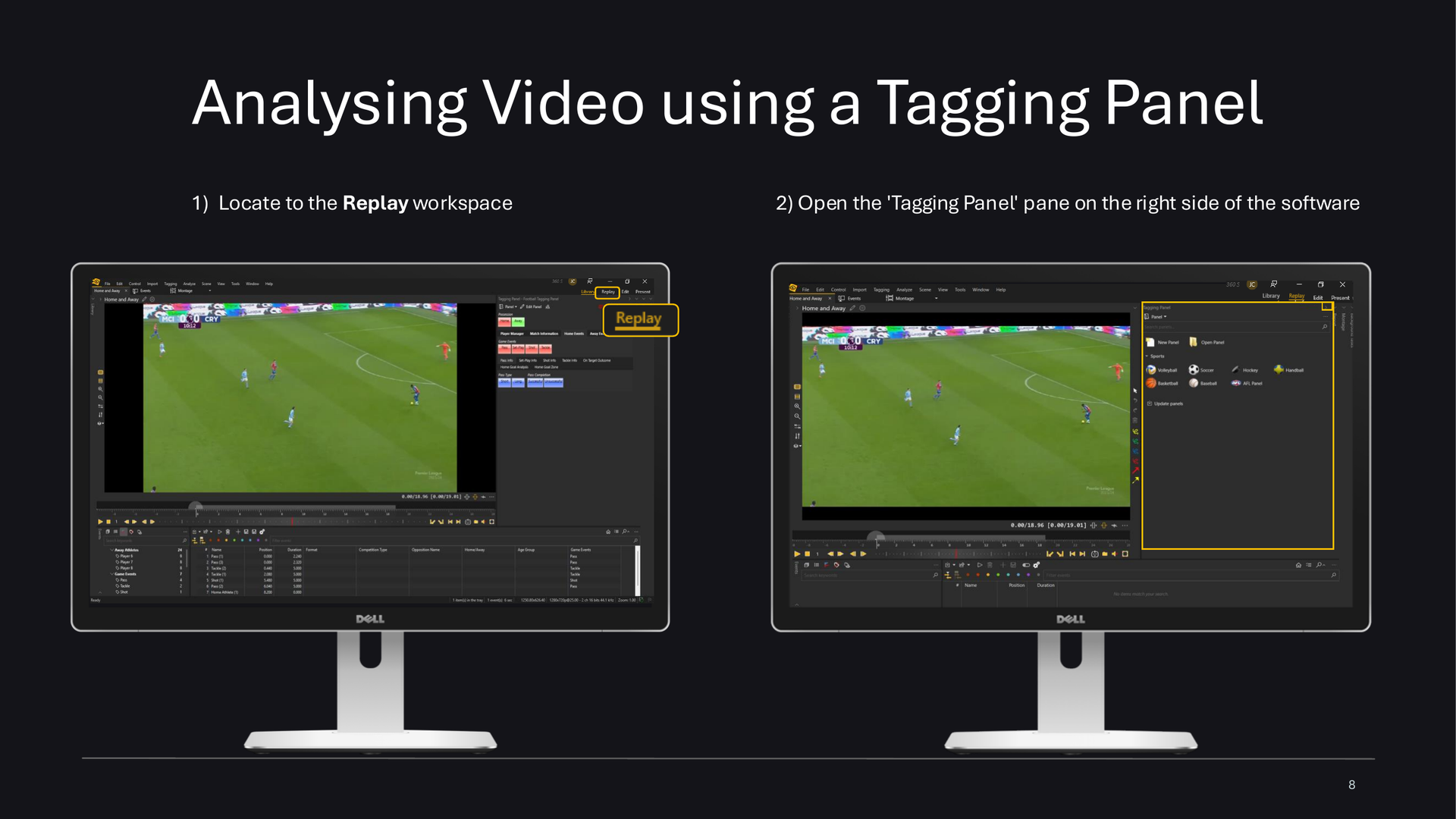
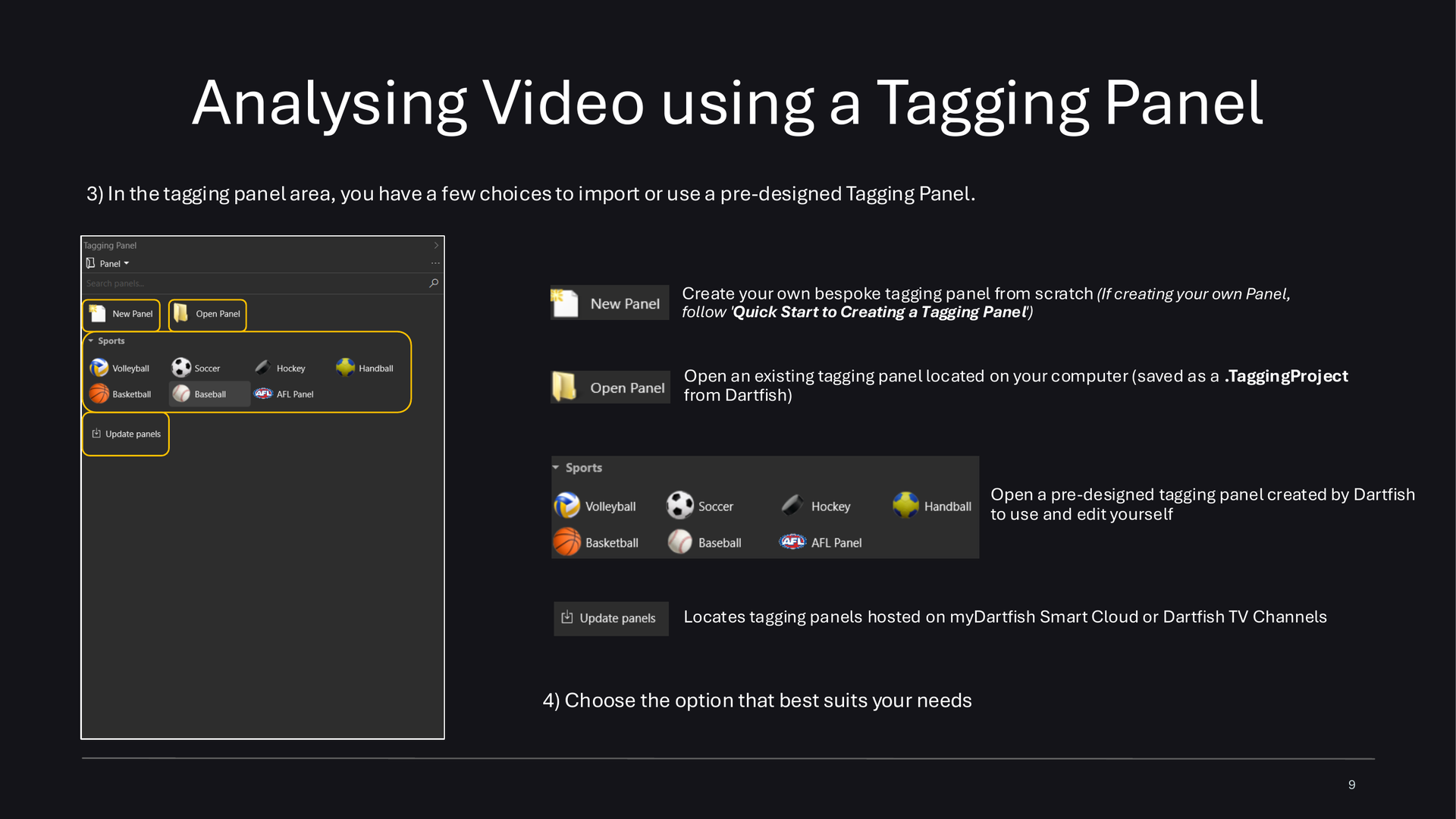
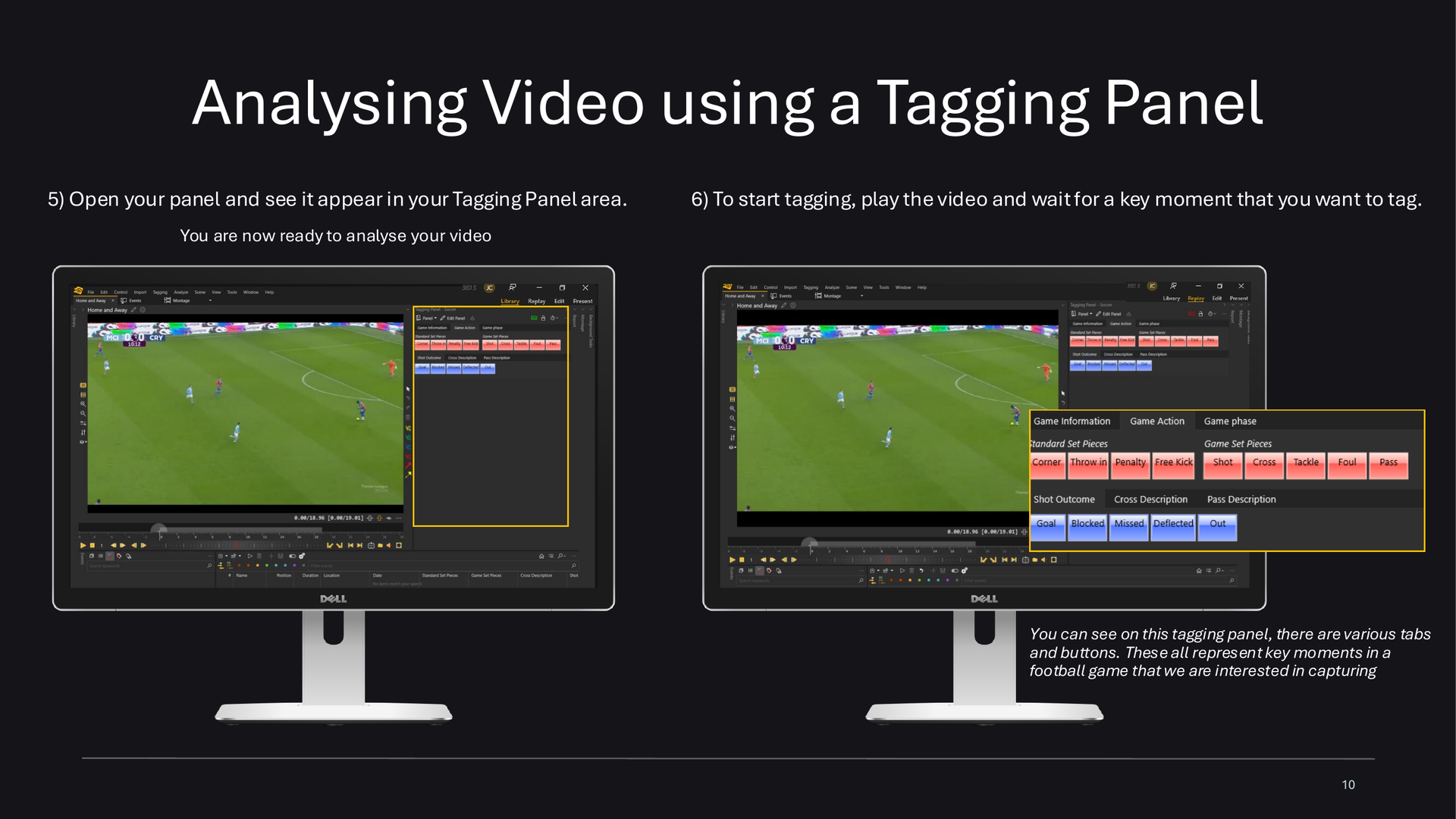
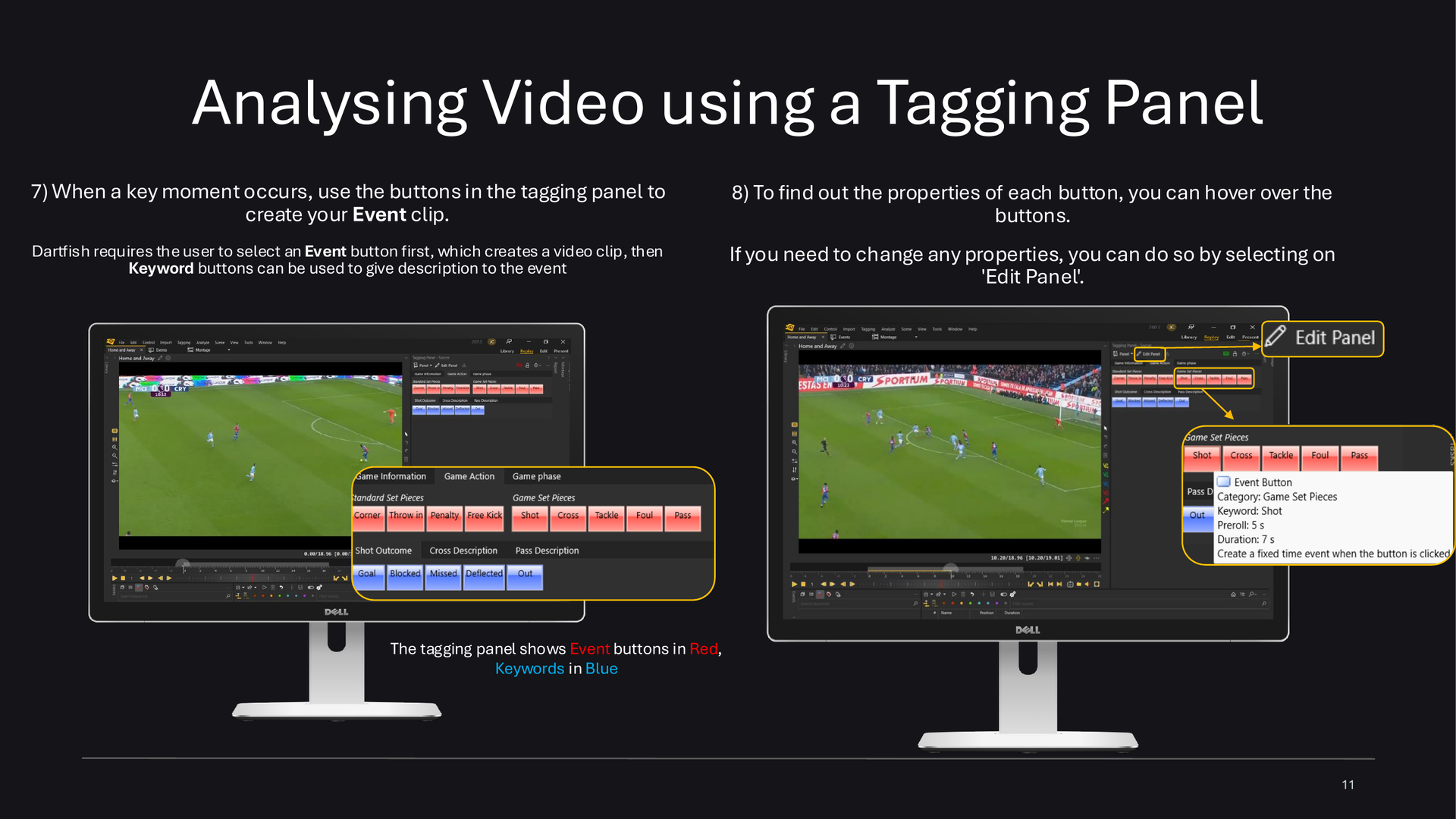
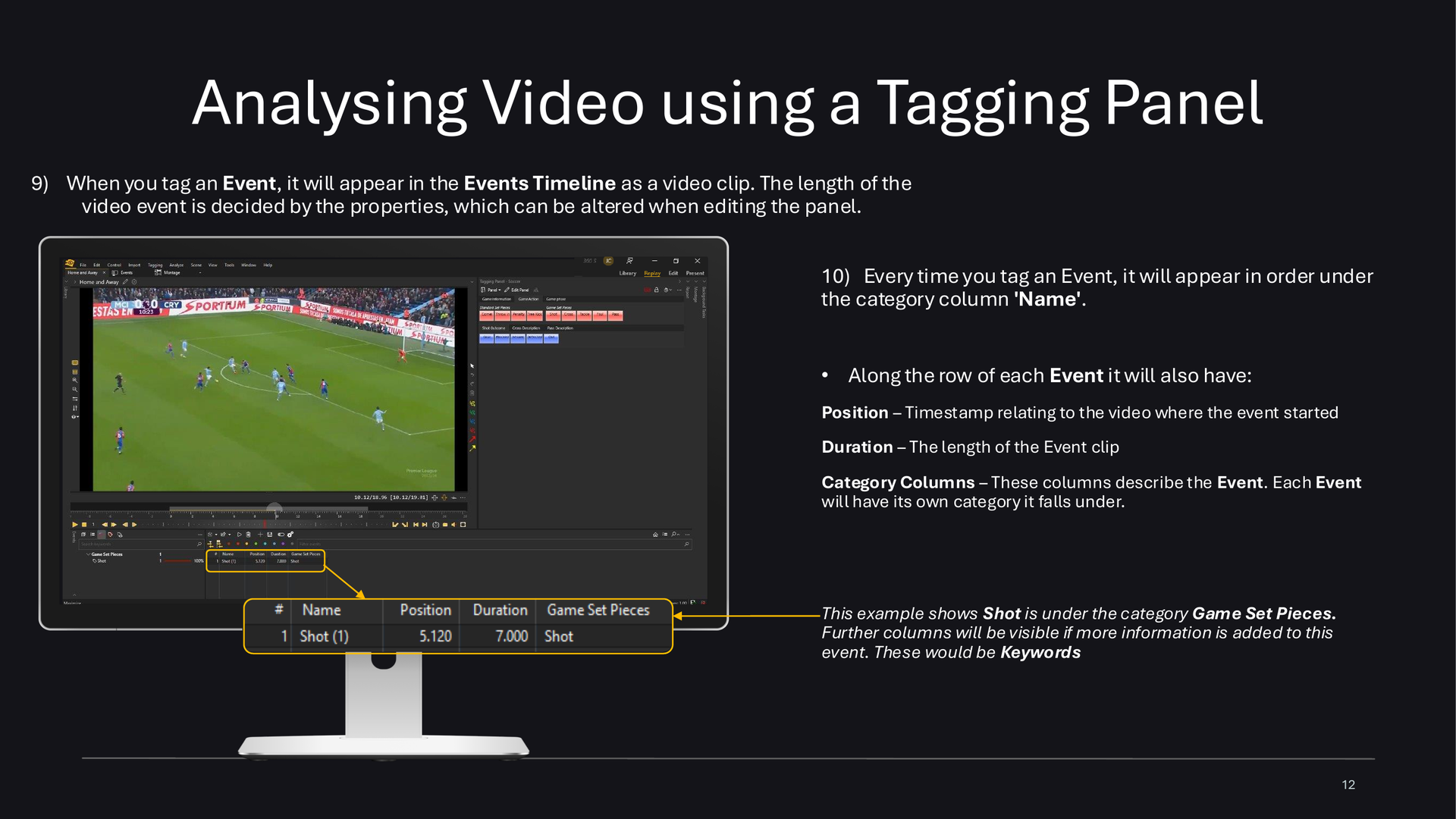
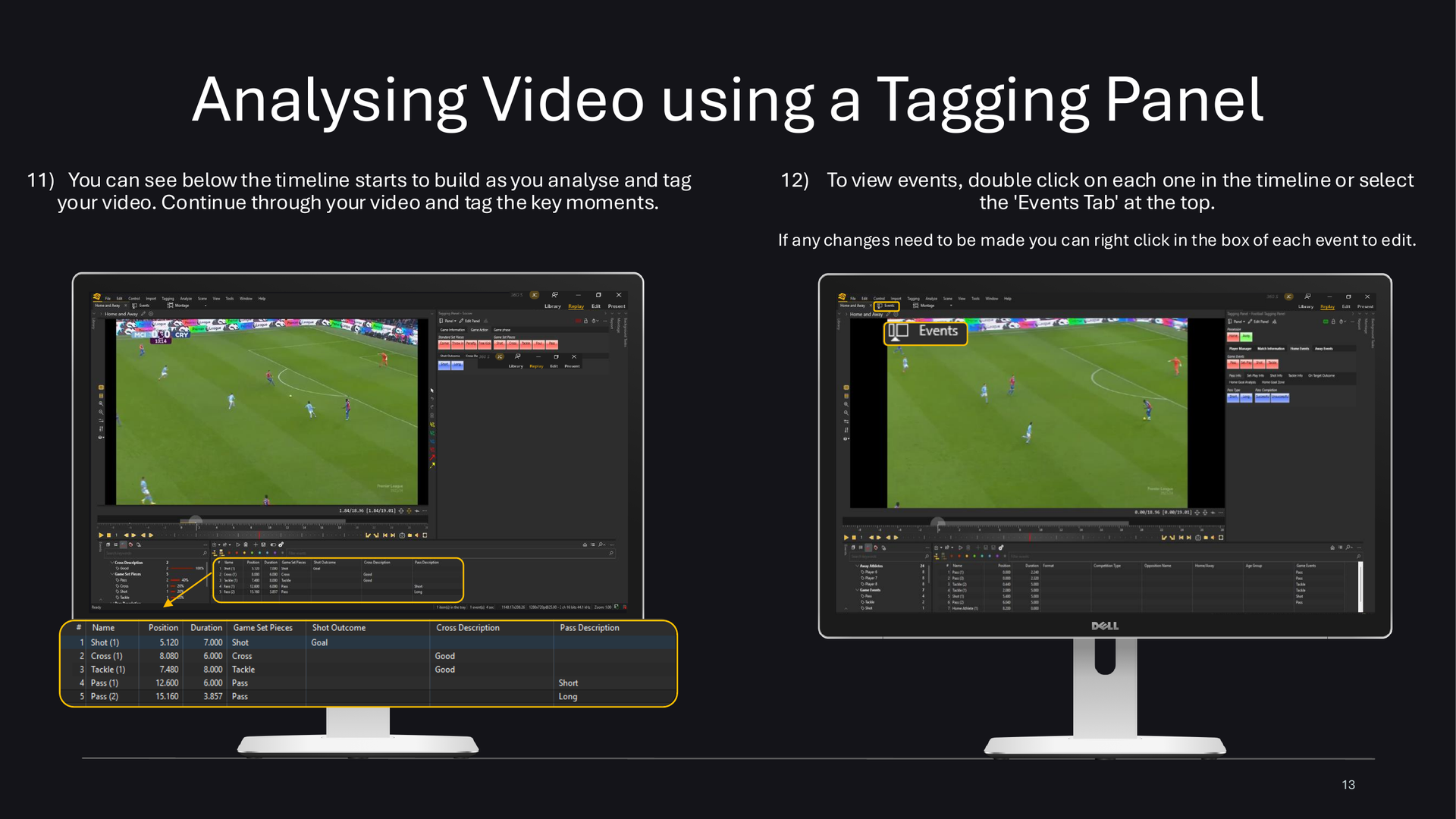
Analysing Video using a Tagging Panel – titleInterface overview: 1 Video area, 2 Tagging Panel, 3 Events Timeline, 4 Events ListSteps 1 and 2: go to the Replay workspace and open the Tagging Panel pane on the rightSteps 3 and 4: choose New Panel, Open Panel, a pre-designed sports panel or Update panelsSteps 5 and 6: open your panel, then play the video and wait for a key moment to tagSteps 7 and 8: create an Event clip with the red Event buttons, describe it with blue Keywords, and change button properties with Edit PanelSteps 9 and 10: tagged events appear in the Events Timeline with Name, Position, Duration and category columnsSteps 11 and 12: the timeline builds as you tag; view events by double-clicking them or via the Events tab