
This article explains how to publish and share content from a dartfish.tv channel directly from Dartfish Software 2026. Starting from remote videos loaded in the Tray, you can transfer content to another channel or to your myDartfish Smart Cloud, publish filtered events as a tagged highlights video, export individual clips, and extract event data as a CSV file — all without downloading the source media first.
This short video gives you a brief overview of the feature
- Purpose and Scope
- Working with the Export and Share wizard
- Use cases
- Notes / Limitations
- Tips / Best practices
- See also
Purpose and Scope
Once you have identified the remote content you want to work with, Dartfish Software 2026 gives you several ways to publish or share it. This article covers the workflows available from the Library and Replay workspaces, starting from content loaded in the Tray.
These workflows are distinct from editing online video content or making media available offline, which are covered in separate articles.
What you can do
- Filter events from a tagged video and publish them as a tagged highlights video
- Export filtered events as individual clips to your computer
- Export event data as a CSV file for use in external tools
- Transfer one or more remote videos to another dartfish.tv channel or to your myDartfish Smart Cloud
- Combine multiple remote videos into a single new video before publishing
- Control which keyword categories are included when publishing
Requirements
- You must have a myDartfish 360 S license or higher.
- You must have download rights on the remote content you want to publish or share.
Working with the Export and Share wizard
All publishing workflows in this article use the Export and Share wizard — the same wizard you already use when publishing local content. The steps, options, and destination choices work identically.
What is specific to remote content is the starting point:
- For Tray-level workflows (transferring videos, combining items), start from the Tray using the Share icon — this opens Export and Share Tray Items.
- For event-level workflows (highlights, individual clips, CSV), open the tagged video in Replay first, filter the events you want, then use the Share dropdown in the events list toolbar — this opens Export and Share Events.
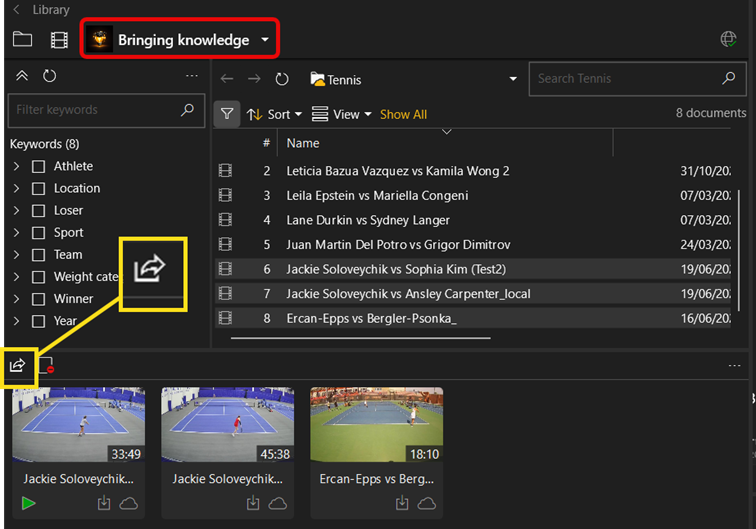
You can add multiple videos to the Tray to work across several games or sessions in a single operation.
Use cases
Transfer content to another channel or cloud
Start from the Tray. Select one or more remote videos and open Export and Share Tray Items.
You can publish each item separately or combine them into a single new video. When combining, you control how tagging is handled: Video and Events, Video Only, or Events Only.
Destinations: myDartfish Smart Cloud or a dartfish.tv Channel collection.
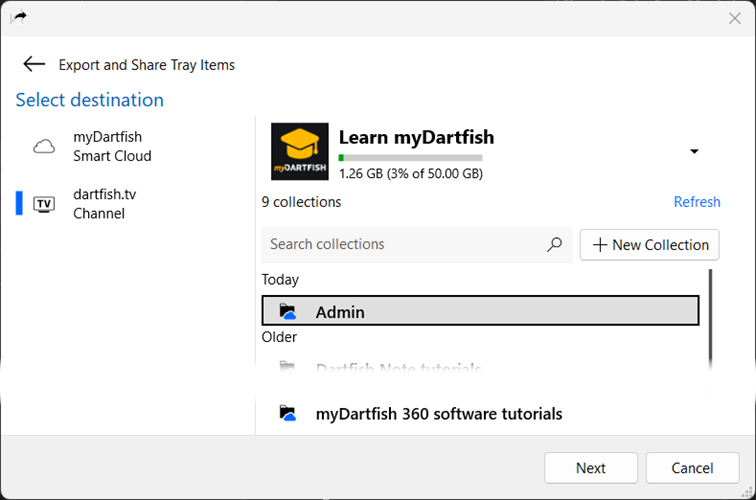
Every myDartfish license includes a personal myDartfish Smart Cloud. Transferring content from an organization channel to your personal cloud is a common way to keep a personal copy of relevant material.
Publish a tagged highlights video
Use this when you want to assemble a curated selection of events — for example, a specific action type across one or more games — into a single new video that recipients can filter and explore.
Start from the Replay workspace. Open the tagged video from the Tray, filter the events you want using the Events panel, then open Export and Share Events from the Share dropdown in the events list toolbar. Select One Video.
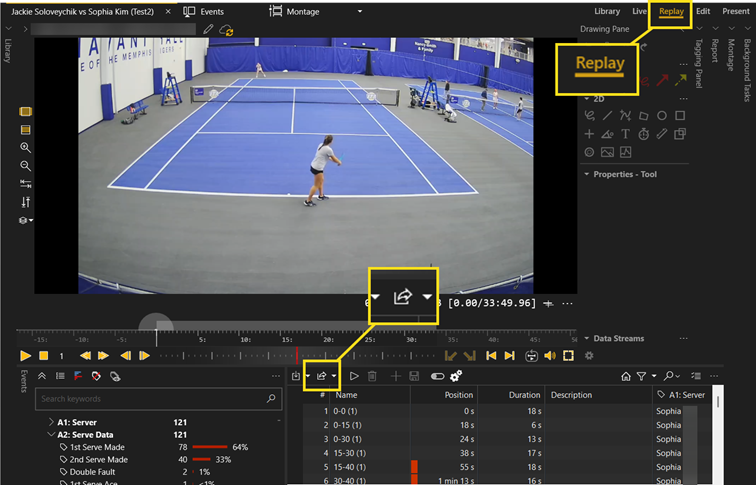
The result is a new tagged highlights document — not a plain video file. The events and their tagging are preserved in the destination collection.
Destinations: myDartfish Smart Cloud, dartfish.tv Channel, or My Computer.
Filtering events before sharing is optional. If no filter is active, all events from the video are included.
Export individual clips
Use this when you need separate video files — for example, for use in a third-party editing tool.
Start from the Replay workspace. Filter the events you want, then open Export and Share Events and select N Video(s). The wizard lets you configure the file naming convention and apply a presentation theme — for example, Basic ½ Speed to export each clip in slow motion.
Destination: My Computer only.
Export event data as CSV
Use this when you need the event metadata only — for example, to feed data into a spreadsheet or a reporting tool.
Start from the Replay workspace. Filter the events you want, then use Export Events Data (CSV) or Copy Events Data To Clipboard from the Share dropdown in the events list toolbar.
Destination: My Computer only (or clipboard).
Notes / Limitations
- Important:Download rights are required for all workflows in this article. If you do not have download rights on a remote document, the export and share options will not be available for that document.
- Filtering events before sharing is optional. If no filter is active, all events from the video are included in the export or share operation.
- When publishing to a dartfish.tv channel, you must have upload rights on the destination collection.
Tips / Best practices
- When publishing highlights for different audiences, use Select Events Keyword Categories to tailor the metadata included. Removing analytical categories that are not relevant to the audience keeps the result clean and focused.
- Use the One Video option to create a self-contained tagged highlights document that recipients can filter and explore. Use N Video(s) when you need individual clip files for editing in a third-party tool.
- Use Copy Events Data To Clipboard for a quick transfer of event data into a spreadsheet without generating a file.
See also
- Explore online videos directly in Dartfish Software
- Building a montage from remote content
- Edit Online Video Content from Dartfish Software 2026
- Make a remote video available offline