
This article explains how to build and publish a montage using remote content from a dartfish.tv channel in Dartfish Software 2026. You can draw from tagged events or raw remote videos — without downloading the source media first. The Export and Share wizard works the same way as with local content.
This short video gives you a brief overview of the feature
- Purpose and Scope
- Building a montage from remote content
- Notes / Limitations
- Tips / Best practices
- See also
Purpose and Scope
A montage built from remote content follows the same process as a montage built from local content. What is specific here is the source: the videos stay online and stream directly during playback and export, so you can start building immediately after adding them to the Tray.
This article covers how to populate a montage with remote content, how to enrich it in the Edit workspace, and how to publish the result. Montage editing tools are covered in detail in the montage documentation.
What you can do
- Build a montage from events of one or more remote tagged videos
- Build a montage from remote clips or raw videos
- Combine remote events and local content in the same montage
- Annotate clips with drawing tools and add still shots
- Publish the montage as a single video, as individual clips, or as still shot images
- Control the output format, keyword metadata, and destination when publishing
Requirements
- You must have a myDartfish 360 S license or higher.
- You must have download rights on the remote content you want to use in the montage.
Building a montage from remote content
Starting point
Add the remote videos you want to work with to the Tray from the channel view in the Library. You can add a single game, multiple games, or a mix of tagged videos and raw clips — whatever your montage requires.
Open a video in the Replay workspace to access its events. If the video is a tagged video, use the Events panel to browse and filter the events you want to include.
Adding content to the montage
You can add remote content to a montage in two ways:
- Drag and drop — drag one or more events (or the full video) from the events list or the Tray directly into the montage in the Edit workspace.
- Add to Current Montage — select the events you want in the events list, then use Add to Current Montage from the toolbar.
Both methods work identically to adding local content. The remote documents stream directly — no local download is required before or during editing.
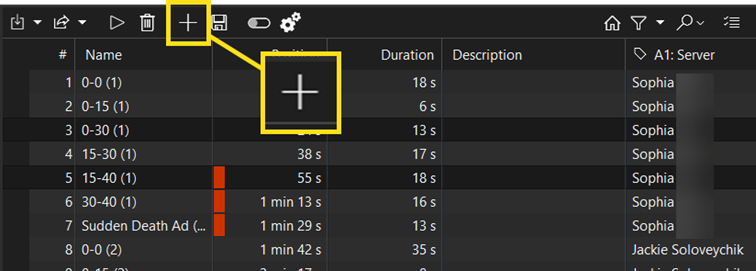
You can combine events from multiple remote videos in the same montage. Add each video to the Tray, open them in turn in Replay, and add the relevant events to the montage.
Enriching the montage
Once content is added, the full set of montage editing tools is available — the same tools you use with local content. You can annotate clips with drawing tools, add still shots with drawings on them, and use split screen to place a remote event side-by-side with a local clip. This gives you considerable flexibility in how you build and present the analysis.
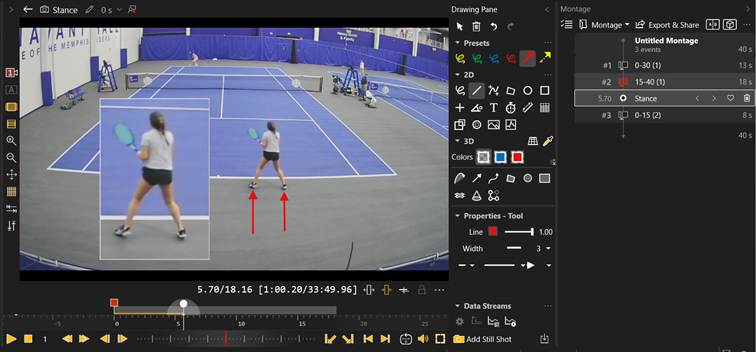
Still shots work particularly well with remote content. When added to a remote event, they are saved within the storyboard project file rather than with the underlying video, which keeps the remote source intact.
Publishing the montage
Once your montage is ready, use Export and Share Montage from the Edit workspace. The wizard works the same way as when publishing a montage built from local content.
When sharing, select how to output the montage:
- One Video — combines all montage items into a single video.
- N Video(s) — exports each montage item as a separate clip.
- Images — exports still shots in the montage as image files.
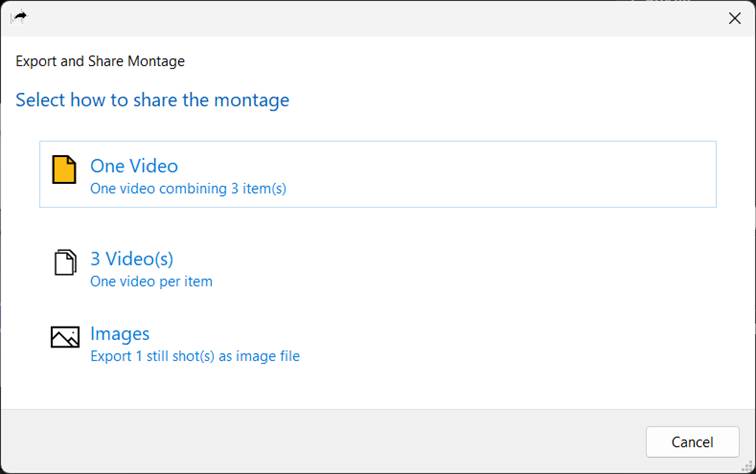
Destinations: myDartfish Smart Cloud, dartfish.tv Channel, or My Computer. For cloud and channel destinations, select an existing collection or create a new one.
The wizard also lets you configure the output format (Presentation Theme and Encoding Profile), set the title and description of the published document, attach a file, and review or edit the keyword metadata carried over from the source content.
Notes / Limitations
- Important:Download rights are required on all remote documents used in the montage. Without download rights, you cannot create or publish a montage that contains remote content.
- Note: Remote documents stream during montage playback and export. A stable internet connection is required throughout the process.
Tips / Best practices
- Filter events in Replay before adding them to the montage to keep the montage focused. It is easier to start with a curated selection than to remove items later.
- Use the Tray to stage content from multiple remote games before opening the Edit workspace — this avoids switching back and forth between workspaces while building the montage.
- Apply a Presentation Theme (e.g. Basic ½ Speed) at export time to produce slow-motion output without modifying the montage itself.