
When downloading or running the Dartfish Software installer, Windows may display SmartScreen security warnings. This article explains what these warnings mean and how to proceed safely.
Purpose and Scope
Microsoft Defender SmartScreen is a security feature built into Windows and Microsoft Edge. It monitors files downloaded from the internet and warns users before running applications that are not yet widely known to Microsoft's cloud-based reputation system.
The Dartfish Software installer is signed with a valid digital certificate issued to Dartfish SA (Fribourg, Switzerland). The warnings are not a sign that the installer is unsafe. They appear because SmartScreen assigns reputation scores based on download volume across all Windows users worldwide — a newly released or infrequently downloaded installer can trigger warnings even when it is fully legitimate and digitally signed.
This article covers two distinct situations: a warning that blocks the download in the browser, and a warning that appears when running the installer after download.
What you can do
- Allow the installer download when the browser flags the file
- Bypass the SmartScreen block to run a trusted installer
- Confirm the installer identity before proceeding
Requirements
- You must have local administrator rights on the computer to install Dartfish Software.
- The installer must be obtained from the official Dartfish download link provided to you by your organisation or by Dartfish support.
Step-by-step guide
1. Allow the download in your browser
Some browsers, including Microsoft Edge, may block the download before it completes and display a warning that the file "isn't commonly downloaded."
- Click the … (more options) icon next to the blocked file in the Downloads panel.
- Select Keep.
- If prompted with a second confirmation, select Keep anyway.
Result: The installer file is saved to your Downloads folder.
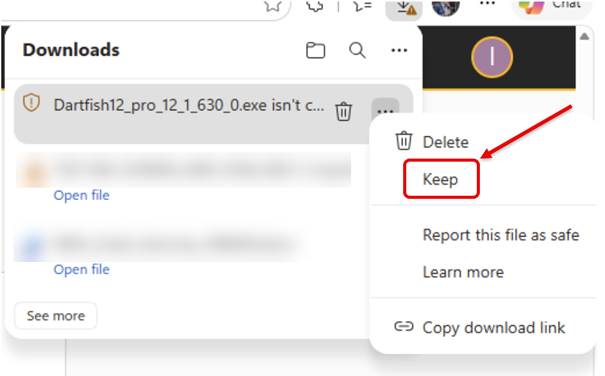
The Keep option confirms you trust the source of the file. Only proceed if you obtained the download link directly from Dartfish or your organisation's IT administrator.
2. Run the installer past the SmartScreen warning
After opening the installer file, Windows may display a blue SmartScreen dialog: "Windows protected your PC."
- Click More info in the SmartScreen dialog.
Result: The dialog expands and shows the application name and publisher.
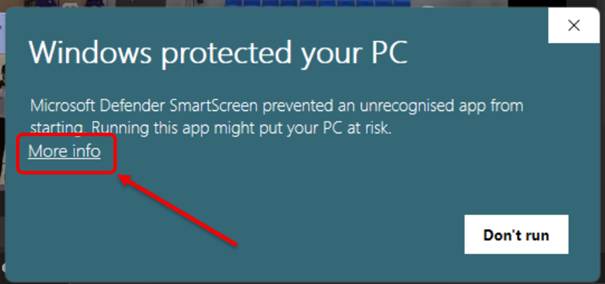
- Verify the details shown:
- Application: Dartfish12_pro_12_x_xxx_x.exe (version number will vary)
- Publisher: Dartfish SA, CH, Fribourg, Private Organization
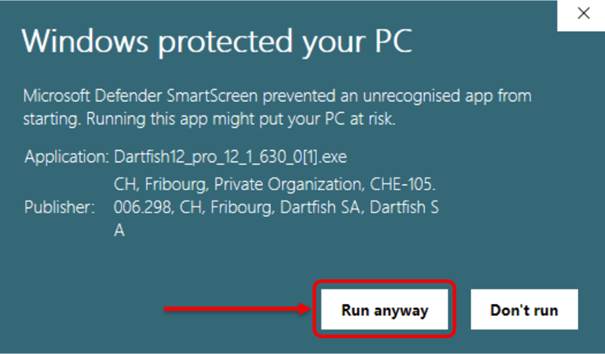
- Click Run anyway.
Result: The User Account Control (UAC) prompt appears.
3. Confirm the UAC prompt
Windows displays a User Account Control dialog asking: "Do you want to allow this app to make changes to your device?"
- Verify the details:
- App name: Dartfish 2026 Installer PRO SelfExtractable
- Verified publisher: Dartfish SA
- Click Yes.
Result: The Dartfish Software installer launches and proceeds with the installation.
FAQ
Why does Windows show this warning for a Dartfish installer? SmartScreen builds reputation scores based on how many Windows users worldwide have downloaded a given file. A newly published installer has a low score simply because not enough users have downloaded it yet, even if it is digitally signed and safe. The warning typically disappears in subsequent releases as more users install the same version.
Can I verify that the installer is safe before clicking Run anyway? Yes. In the expanded SmartScreen dialog, confirm that the publisher is listed as Dartfish SA and the organisation details reference Fribourg, CH. If the publisher field shows "Unknown publisher" or any other name, do not proceed and contact Dartfish support.
What if I do not have administrator rights on my computer? You will not be able to complete the installation. Contact your IT administrator and ask them to install Dartfish Software on your behalf.
What if the Run anyway button does not appear? Some organisations configure SmartScreen in enforced mode via Group Policy, which removes the Run anyway option entirely. In this case, contact your IT administrator. They will need to allow the installer through their endpoint security policy or install the software manually.