
This article explains when to use the Blackmagic UltraStudio Express Recorder 3G, its requirements and limitations, and how to configure it correctly with Dartfish.
- What is the UltraStudio Express Recorder 3G?
- Setting up the UltraStudio Express Recorder 3G for use with Dartfish
- Record a video playing on a PC
- Common issues and troubleshooting
What is the UltraStudio Express Recorder 3G?
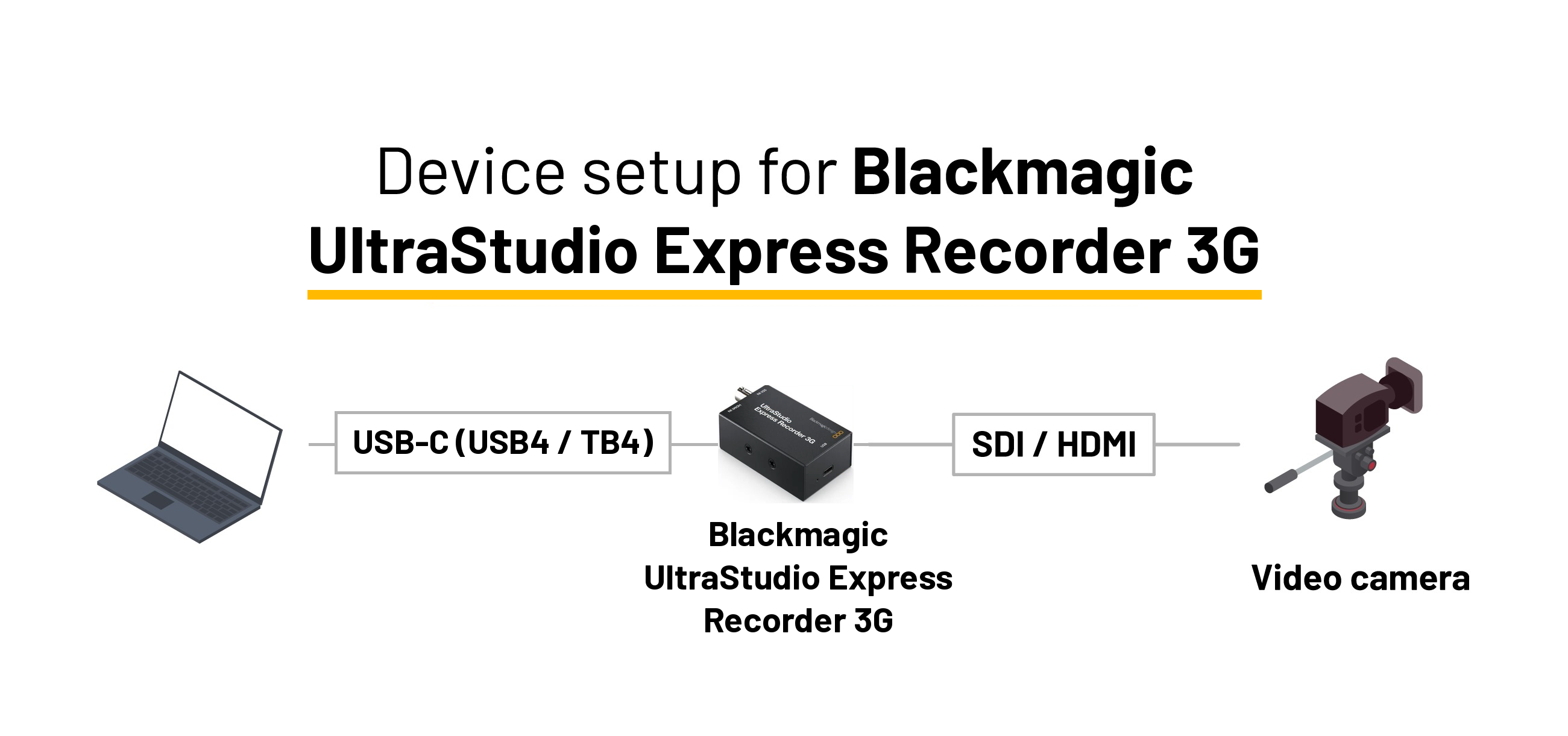
The Blackmagic UltraStudio Express Recorder 3G is a compact, professional capture device that allows you to ingest HDMI or SDI video into Dartfish using a USB4 or Thunderbolt 4 connection.
It replaces the Blackmagic UltraStudio Recorder 3G, which has been discontinued by Blackmagic. You can easily recognize the new model by its black casing.
It delivers:
Uncompressed 10-bit video
Up to 1080p at 60 FPS
Low latency, suitable for live capture and tagging
Already using the UltraStudio Recorder 3G?
Your device is still supported by Dartfish. You do not need to replace it.
Key characteristics
| Feature | Details |
|---|---|
| Inputs | HDMI and SDI |
| Max resolution | 1080p |
| Max frame rate | 60 FPS |
| Video output | Uncompressed (10-bit 4:2:2) |
| Connection to PC | USB-C cable to a USB4 or Thunderbolt 4 port (40 Gbps) |
| Power supply | Powered by the USB-C cable |
| Price | USD 180 (CHF 150) |
| Multi-camera | Up to 2* |
| Minimum Dartfish version | Dartfish 2026 Update 1 |
*Depends on the configuration and speed of the computer's USB ports.
Important
The device uses a USB-C cable, but standard USB-C ports (USB 3.x) are not sufficient. A USB4 or Thunderbolt 4 port is mandatory.
Differences with the UltraStudio Recorder 3G
| UltraStudio Recorder 3G | UltraStudio Express Recorder 3G | |
|---|---|---|
| Status | Discontinued, still supported by Dartfish | Current model |
| Casing color | Grey | Black |
| Connection to PC | Thunderbolt 3 or 4 only | USB-C to a USB4 or Thunderbolt 4 port (40 Gbps) |
| Power supply | Powered by Thunderbolt | Powered by the USB-C cable |
| Inputs | HDMI and SDI | HDMI and SDI |
| Max format | 1080p60 | 1080p60 |
Pros & Cons
Advantages
HDMI and SDI inputs on the same device
No Thunderbolt port required: a USB4 port is enough
No external power supply
Low latency, suitable for live tagging
High video quality (uncompressed)
Very competitive price for professional capture (USD 180 / CHF 150)
Limitations
Requires a native USB4 or Thunderbolt 4 port (older computers usually do not have one)
Uncompressed video requires:
High-performance CPU
SSD storage
Sufficient RAM
No 4K capture (maximum 1080p60)
Requires up-to-date Blackmagic drivers
The Blackmagic UltraStudio Express Recorder 3G relies on your PC performance.
Make sure your system meets the Dartfish system requirements.
Setting up the UltraStudio Express Recorder 3G for use with Dartfish
Step 1 - Install the drivers
Download and install the latest Blackmagic Desktop Video (required to switch between HDMI and SDI inputs):
Step 2 - Device set up
Connect your camera to the UltraStudio Express Recorder 3G using:
HDMI cable or
SDI cable
Connect the UltraStudio Express Recorder 3G to a USB4 or Thunderbolt 4 port of your PC using a USB-C cable
Confirm that the LED is ON
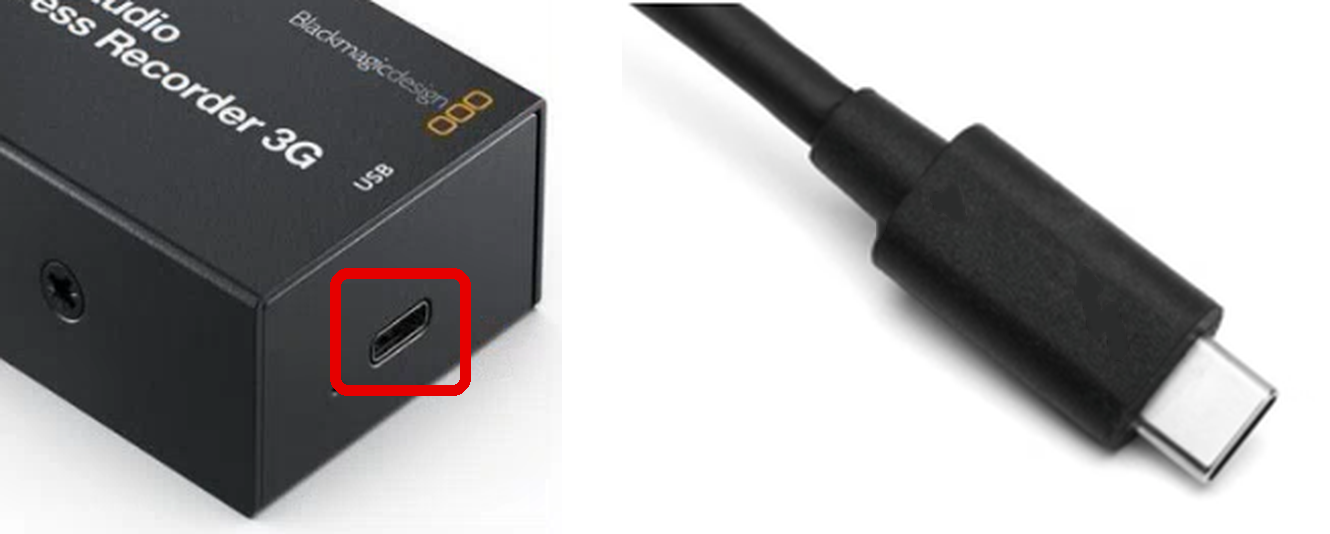
If the LED is off, the device is not powered or not connected to a USB4 / Thunderbolt port.
Step 3 – Configure input in Blackmagic Desktop Video
Open Blackmagic Desktop Video
Select the UltraStudio Express Recorder 3G
Choose the correct input:
HDMI or
SDI
Confirm that a valid video signal is detected
Step 4 – Select the device in Dartfish
Go to the Live workspace
Click on Source.
Select Blackmagic WDM Capture (the name assigned to the device by the Blackmagic driver)
Click on Apply in the device name window
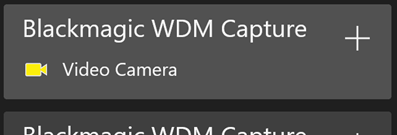
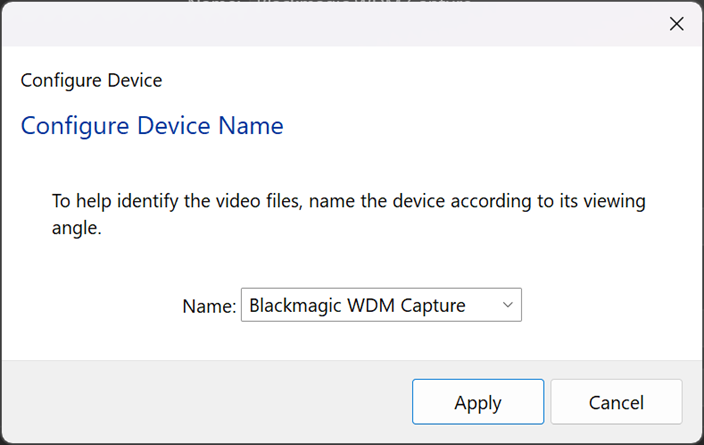
You are now ready to record, tag, and analyze.
Record a video playing on a PC
This scenario is particularly useful when you want to record a video that is streamed on the internet (i.e., one you can watch in a web browser). It allows you to record and tag games or live events without needing to be on-site. This setup works with the Blackmagic UltraStudio Express Recorder 3G, provided your computer has a USB4 or Thunderbolt 4 port and you connect it using an HDMI cable from your computer’s display output.
Overview
The Blackmagic UltraStudio Express Recorder 3G is used as a virtual second display.
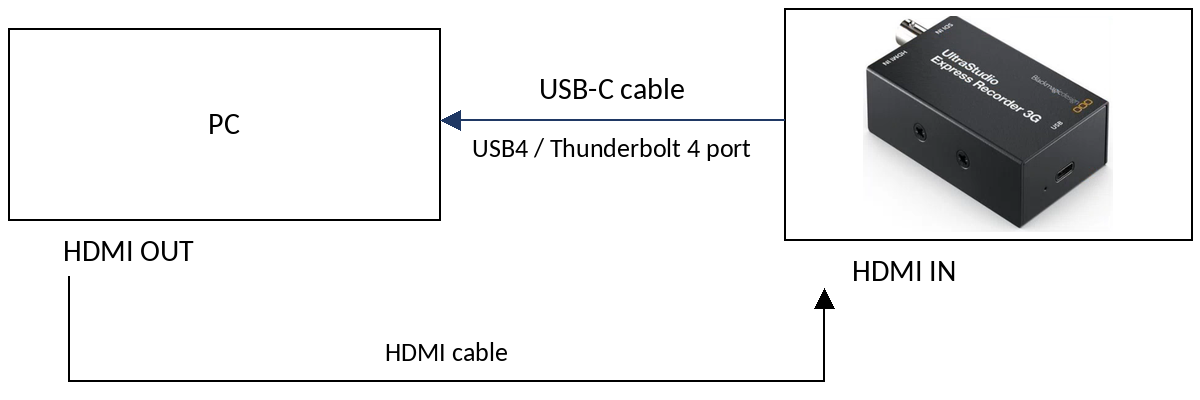
Set up
Connect the computer’s HDMI output to the UltraStudio Express Recorder 3G
Press Windows+P
Set display mode to Extend
Launch Dartfish and select Blackmagic WDM Capture
Move the browser or video player to the extended display
Set the video to full screen
Set audio output to UltraStudio Express Recorder 3G (otherwise no audio will be recorded)
Common issues and troubleshooting
| Issue | Solution |
|---|---|
| Device not detected | Confirm your PC has a USB4 or Thunderbolt 4 port. USB-C ≠ USB4. A standard USB-C port is not enough. |
| Video input not visible | Ensure your camera is sending a supported format (e.g., 1080p60). Use the correct cable (HDMI/SDI). |
| Dartfish doesn’t list device | Ensure you are using Dartfish 2026 Update 1 or later, that the device is connected to a USB4 or Thunderbolt 4 port, and that the latest Blackmagic Desktop Video is installed. Then restart Dartfish. |
| Audio not captured | Make sure the audio is embedded in the HDMI or SDI feed, and that the camera’s output includes audio. |
| Stream is not deinterlaced | In Setup → Video Format, manually set the stream to Interlaced – Top First or Bottom First, depending on the source. Ensure the PC uses an Intel CPU: deinterlacing is not supported on AMD and NVIDIA GPUs at this time. |