
This article explains when IP cameras are a good choice for Dartfish, their requirements and limitations, and how to configure them correctly for stable live capture and analysis.
- What is an IP camera?
- Supported protocols
- Setting up IP cameras for use with Dartfish
- Common issues & troubleshooting
What is an IP camera?
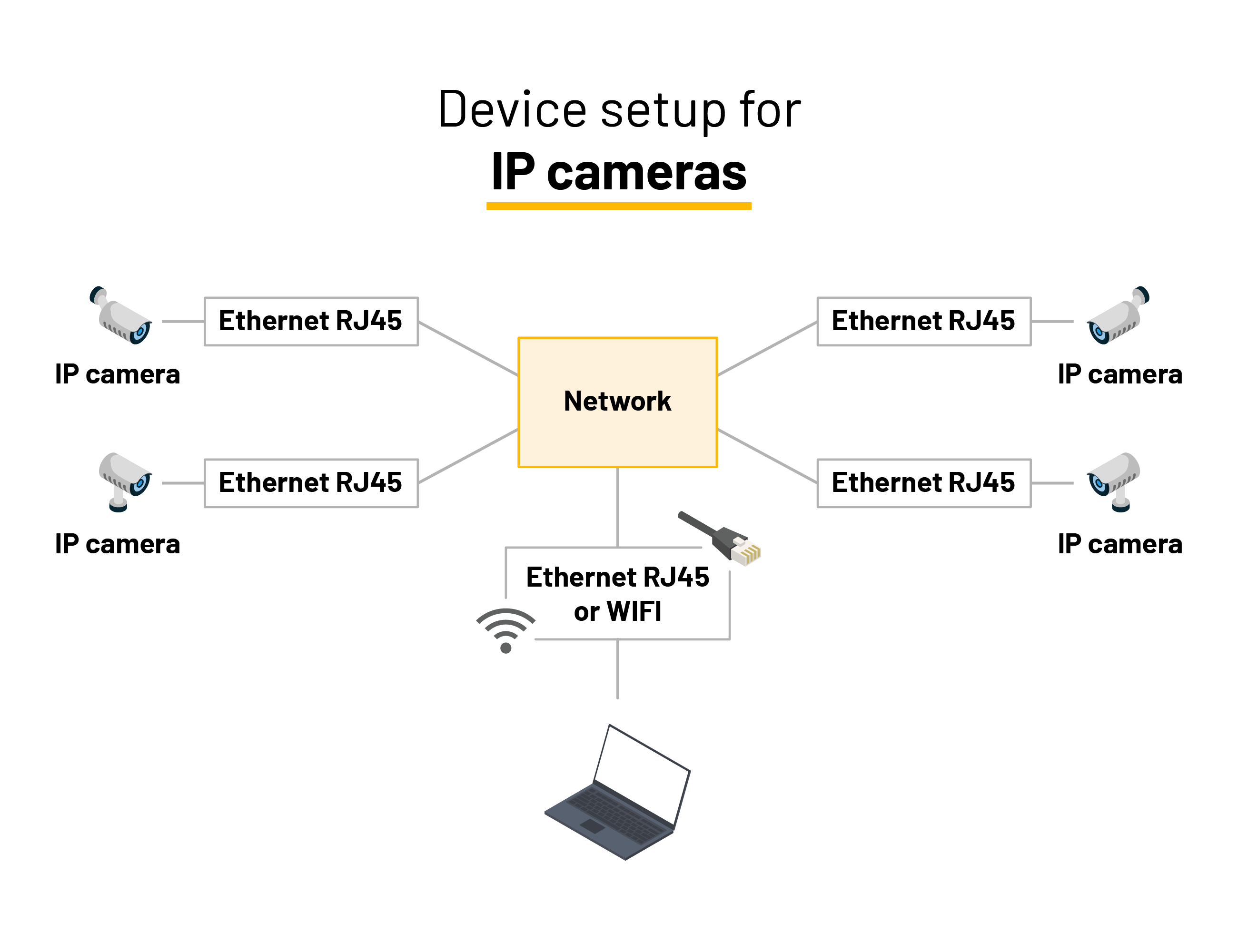
An IP camera streams video over a network (Ethernet or Wi-Fi) using standard internet protocols.
Unlike USB or HDMI capture devices:
the camera encodes the video itself
video is delivered to Dartfish via network streaming
multiple users or computers can access the same camera simultaneously
Many IP cameras also support PTZ (Pan-Tilt-Zoom) control.
Pros & Cons
Recommended for
Fixed installations (stadiums, gyms, courts, classrooms)
Multi-camera environments
Long cable runs (Ethernet up to 100 m)
Situations where cameras remain permanently installed
Environments requiring PTZ control
Scenarios where multiple users access the same cameras
Not ideal for
Portable or temporary setups
Users without basic network knowledge
Environments with unstable or congested networks
Users expecting plug-and-play simplicity
If you need a portable, simple setup, consider AJA U-TAP or UltraStudio Recorder 3G instead
Dartfish support policy for IP cameras
To set clear expectations:
- Dartfish supports only cameras that have been tested internally
- ONVIF implementations vary by manufacturer and firmware
- Dartfish does not provide support for network infrastructure issues
Premium or Platinum support is required for IP camera assistance.
Supported manufacturers (tested)
- Axis
- Bosch
- Merit LILIN
- Dahua
- PTZ Optics
- Hanwha Wisenet
Compatibility is firmware-dependent.
Always verify compatibility before purchasing an IP camera.
Supported protocols
Dartfish supports:
ONVIF (automatic discovery)
RTSP (manual stream entry)
ONVIF
Allows automatic camera detection
Enables PTZ control
Enables video configuration from Dartfish
RTSP
Requires manual stream URL
Configuration is done directly on the camera
No automatic discovery
Setting up IP cameras for use with Dartfish
At a high level, setting up an IP camera involves:
Connecting the camera to the network and power
Performing initial camera configuration
Verifying video stream outside Dartfish
Enabling and adding the camera in Dartfish
Configuring video profiles correctly
Details vary by manufacturer, but the principles remain the same.
Step 1 - Initial camera configuration
Before opening Dartfish, configure the camera via its web interface :
Update camera firmware to a Dartfish-tested version
Synchronize camera date & time with the PC
Set base frame rate to match local power frequency:
50 Hz (Europe)
60 Hz (US, Japan)
Create at least one ONVIF user (if applicable)
Incorrect base frame rate may cause flicker or unstable video.
Step 2 - Adding IP cameras in Dartfish
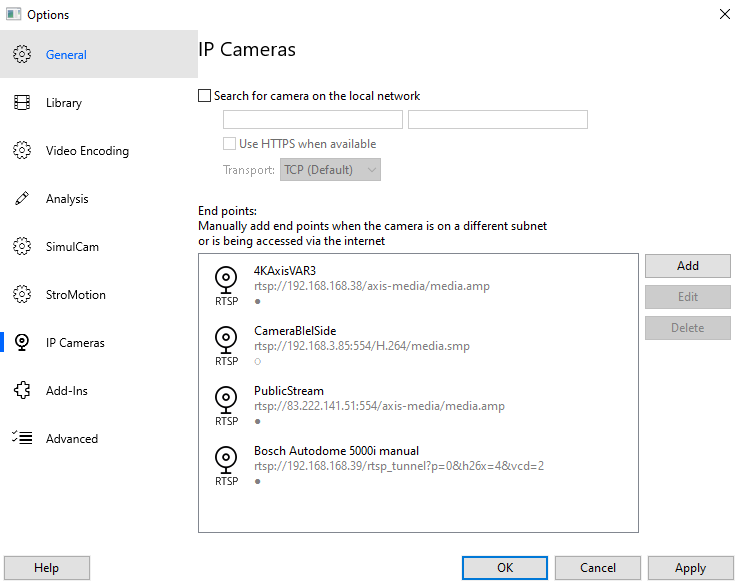
IP Cameras can be configured under Tools → Options → IP Cameras
ONVIF cameras
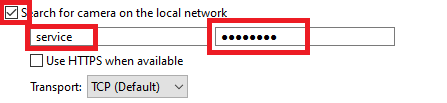
Enable Search for camera on the local network
Enter ONVIF user credentials
Dartfish detects cameras automatically
RTSP cameras
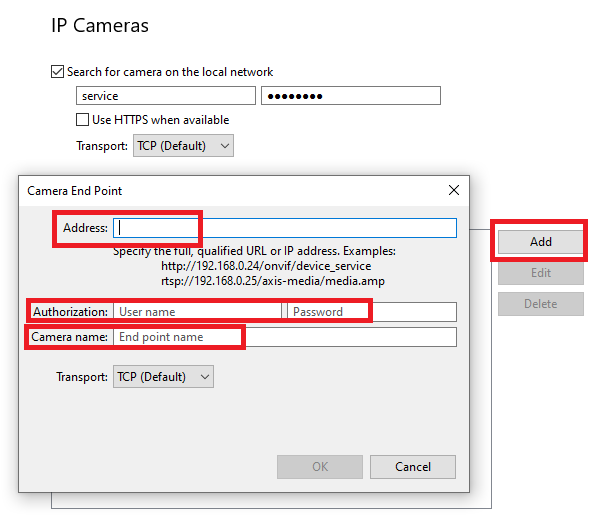
Click Add
Enter the RTSP stream URL (from manufacturer documentation)
Enter credentials if required
Apply and close
Step 3 - Selecting and configuring the camera
Open Live workspace
Click Source
Select the IP camera
Click Video Format
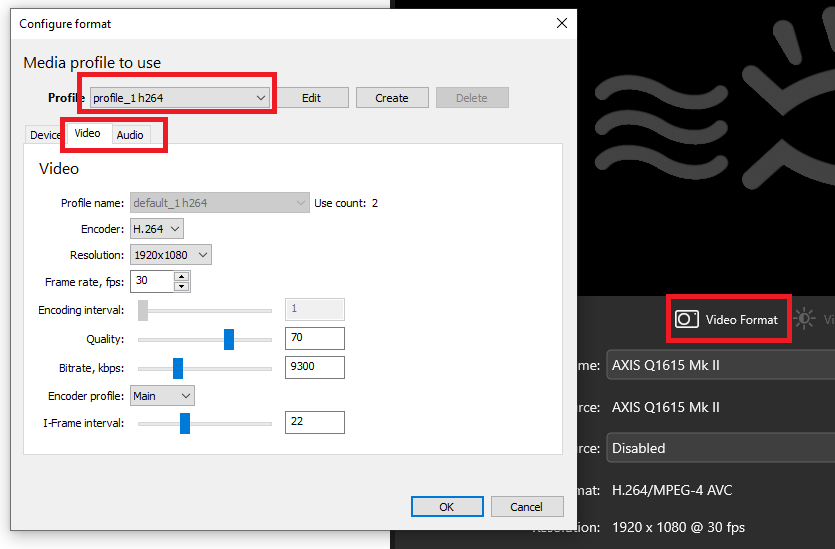
Recommended video settings
| Encoder | H.264 only |
| Resolution | based on analysis needs |
| Frame rate | match camera sensor capabilities |
| Quality | 80-100% (lower if network is limited) |
| Bitrate | SD: ~5 Mbps HD: ~8–12 Mbps |
| Encoder profile | Main |
MPEG-4 and MJPEG are not supported.
PTZ (Pan-Tilt-Zoom) control
If supported by the camera:
PTZ can be controlled directly from Dartfish
Preset positions can be defined
PTZ presets can be triggered via tagging panels
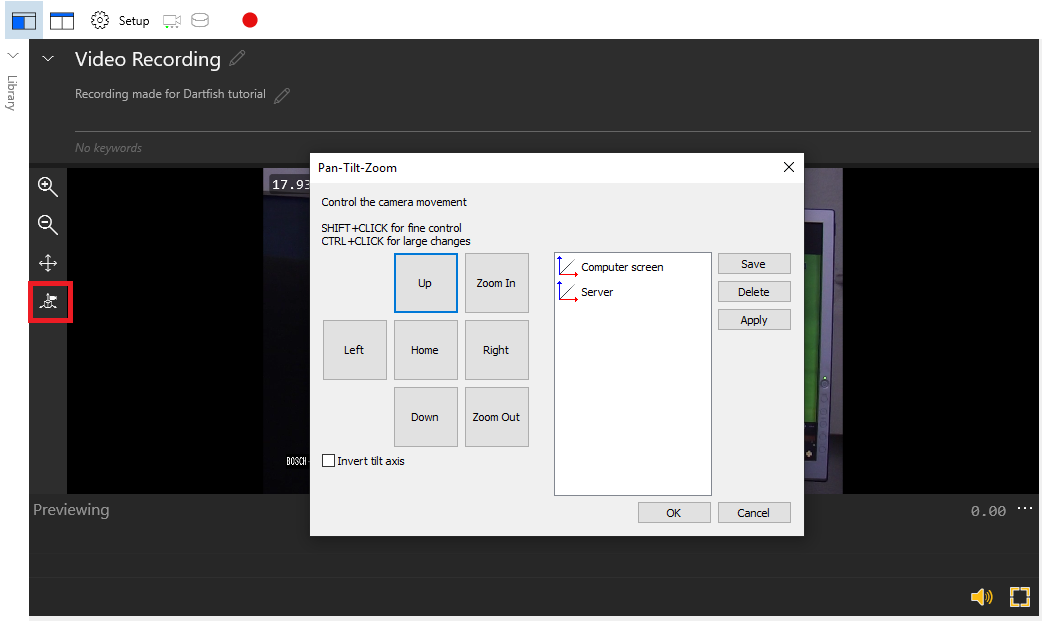
PTZ cannot be controlled during In-The-Action recording.

Select presets before starting capture.
Common issues & troubleshooting
| Issue | Likely cause | Solution |
|---|---|---|
| Camera not listed | Network or ONVIF issue | Verify stream in ONVIF Device Manager |
| Camera listed but no video | Firmware issue | Update the camera firmware |
| “E_NOT_AUTH” error | Time mismatch | Synchronize camera date & time |
| "Sender not authorised. 0x80043012" | Credentials issue | Check that you entered the correct camera or Onvif user credentials |
| Choppy video | Bitrate too high | Reduce bitrate or frame rate |
| Low FPS | Sensor limit | Match FPS to camera capability |
| No audio | Wrong codec | Use AAC audio encoder |
| Dual cameras not synchronized | i-frame issue | Check that the i-frame interval is identical on both cameras. |