
Dartfish Software 2026 introduces a major step forward by bringing the online video library directly into the software. Users with a compatible myDartfish license can now access the content they are allowed to edit on their organization’s channel or in their myDartfish Smart Cloud, without switching to the web application or downloading files first. From the library, they can define their working context through collections, search, or keywords, view and organize the matching videos, and open one or more of them instantly in streaming mode to start editing or analysis right away
This short video gives you a brief overview of the feature
- Objective and Scope
- Define your working context
- Work with the Items list
- Open videos and start working immediately
- What you can do next
Objective and Scope
Bringing online content directly into Dartfish Software
Starting with Dartfish Software 2026, the library becomes a more natural entry point for working with online video content. Until now, users mainly browsed videos stored locally or on network drives.
With this new evolution, dartfish.tv content can now be explored directly from the Library itself. Instead of using a separate download-focused window, users can browse dartfish.tv content in a more integrated way, open it directly, and start viewing or editing it from within the software.
The goal is simple: make dartfish.tv content immediately available inside Dartfish Software, so users can move more smoothly from content discovery to actual work.
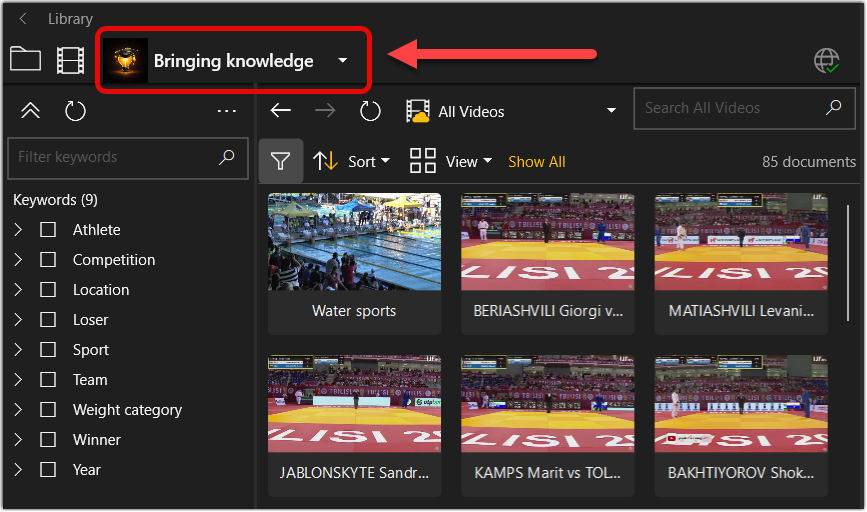
Availability and content visibility
Using this new online library depends on the following conditions:
- Software availability: the user must have a myDartfish 360 S license or higher.
- Dartfish.tv channel: online content appears if the user has editing rights, download rights, or both for at least one collection. Administrators and moderators automatically have all rights across all collections.
- myDartfish Smart Cloud: users can access their own personal cloud directly.
Define your working context
To find the right online content, start by defining the context you want to work in. In practice, there are three main ways to do this.
Browse by collection
A first option is to explore your channel through Collections. This is the most natural approach when you already know the part of the channel you want to work in.
You can:
- browse the list of collections available to you
- search for a specific collection
- pin frequently used collections so they appear first
Once you open a collection, that collection becomes your working context.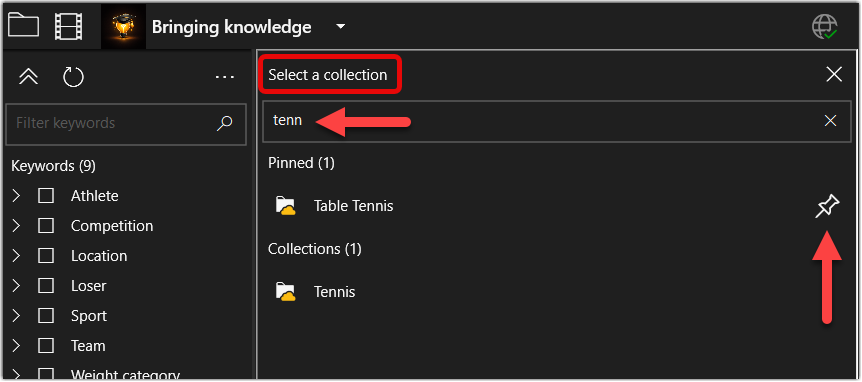
Search for videos or documents
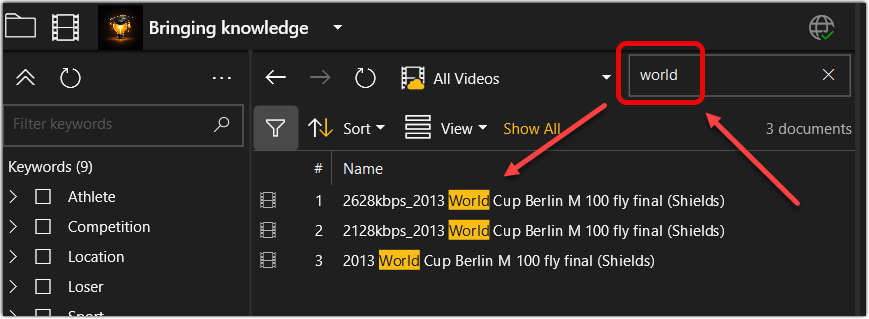
Another option is to use Search to find content more directly.
You can search:
- within a selected collection
- across all collections you are subscribed to
This is useful when you already know what you are looking for and want to reach it quickly.
Explore all videos with keywords
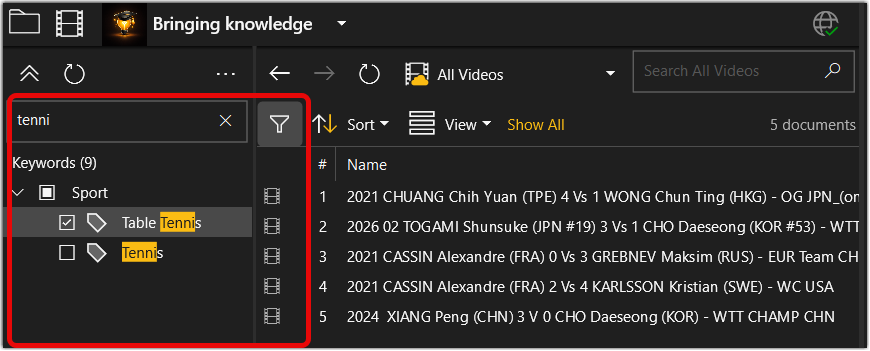
If your channel is organized with keywords, you can also define your context by starting from All Videos and filtering with Keywords.
All Videos groups the content of all collections you are subscribed to.
This is often the best approach when you want to explore content across collections in a more structured way. You can then refine the result further with search if needed.
A practical way to use this is:
- start with All Videos (or with a particular collection)
- filter by Keywords
- narrow down the result with Search if the result set is still too large
Work with the Items list
Once your context is defined, the library displays the matching videos or documents in the Items list.
At this stage, the goal is simple: help you review the result quickly and spot the content you want to open.
Choosing the right view
You can adapt the list to the way you prefer to work:
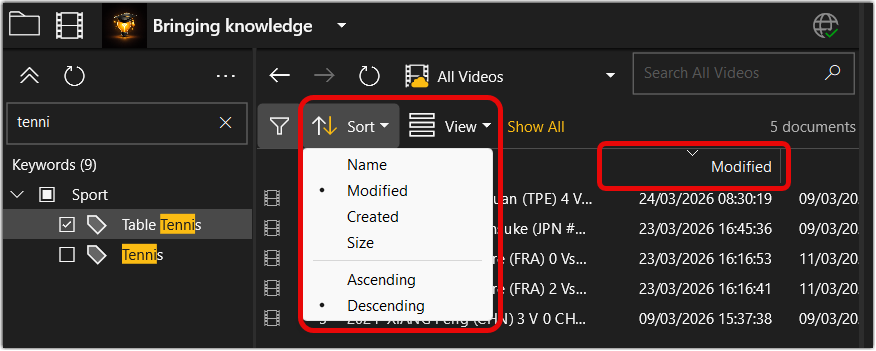
- switch between a Detailed, Icon, and Thumbnail Details view
- sort items in ascending or descending order
- choose which columns to display
This gives you different ways to read the same result, depending on whether you want a more visual overview or a more detailed one.
Sort the result
You can sort the displayed items based on the information that matters most to you, for example:
- name
- creation date
- modification date
- file size
This helps you bring the most relevant items to the top of the list.
Show the information you need
You can also choose which columns are visible in the items list by right-clicking on the column header in the Details view.
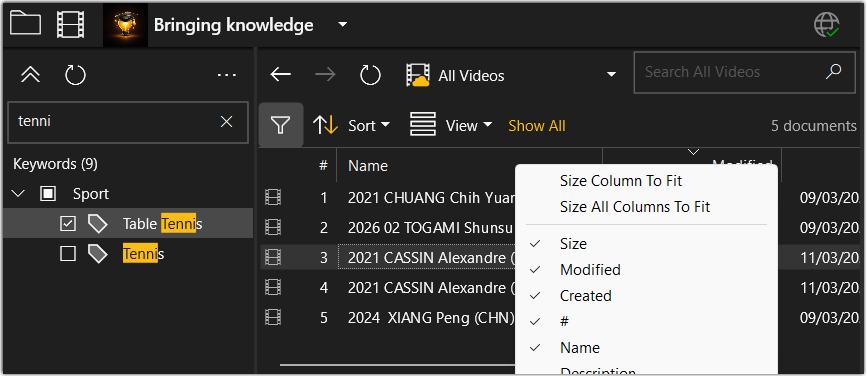
Alongside standard fields such as name, size, creation date, and modification date, you may also display additional information such as:
- description
- duration
- collection name
- number of views
This makes it easier to adapt the library to your own way of working and focus on the information that helps you decide what to open next.
Open videos and start working immediately
Once you have found the right videos, you can open them directly from the Items list:
- double-click a video to open it
- drag and drop one or more videos into the Tray
The videos stay online and open in streaming mode, so you can start working immediately without downloading them first.
You can open them in:
- the Library workspace
- the Replay workspace
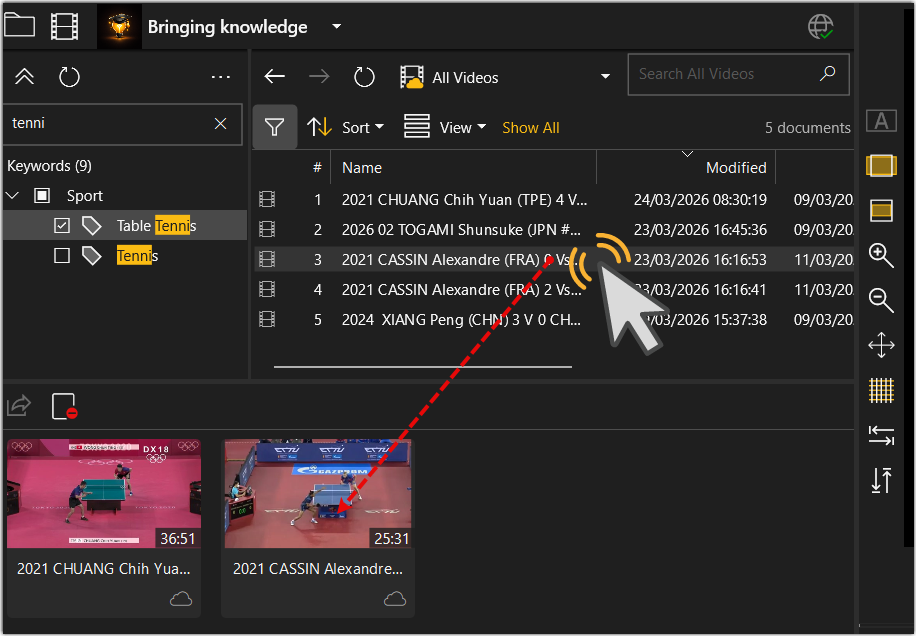
You can also drag and drop one or more documents from the Items list directly into a montage in the Edit workspace. The documents stay online and stream directly during playback and export. You must have download rights on the remote documents to create or publish a montage that contains them.
Monitor the status of remote documents in the Tray
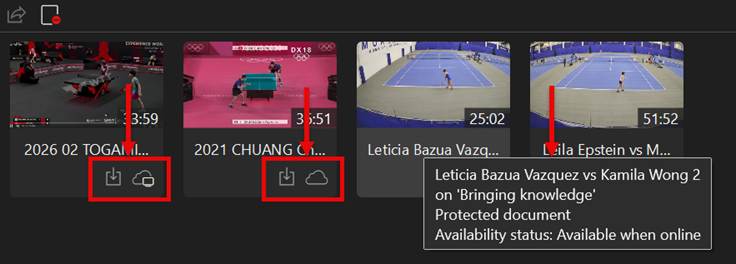
Once remote documents are added to the Tray, each thumbnail displays icons that indicate the status and rights of that document. This allows you to see at a glance, for example, whether a document is editable, downloadable, or available offline.
Hovering over a thumbnail shows a tooltip with further details, including the document name, channel, and availability status.
What you can do next
From there, you can use online videos in three main ways.
- Analyze one or more videos by working with events. This includes identifying actions of interest, filtering events, and reviewing the resulting events playlist. Users with download rights can go further and export events as separate clips, publish highlights, publish videos, create a montage with remote content, and publish a montage that contains remote content.
- Edit a video directly in the software and save your changes online
This is the main next step for many users and is covered in a separate article: Edit Online Video Content from Dartfish Software 2026
- Make the media of a remote document available offline. This allows you to download the media file locally so you can continue working without an internet connection.
This is covered in a separate article: Make a remote video available offline