
This article explains the essential steps to start using a channel on dartfish.tv as an administrator. It is intended as a quick onboarding guide and focuses on the minimum setup needed to begin organizing content and giving access to the right people.
Purpose and Scope
This article provides a quick setup path for new administrators on dartfish.tv.
Its purpose is to help you make a channel operational as quickly as possible, without going into the full detail of each administration feature. Rather than explaining every option in depth, it focuses on the core actions that are usually needed first: accessing the channel, preparing the initial user structure, organizing access through collections, defining a simple keyword structure, and starting to upload content.
What you can do
After following this guide, you will be able to:
- access your channel as an administrator
- create collections to organize access
- share collections with the right users
- define a basic keyword structure
- upload content in a structured way
Requirements
Before you begin, make sure you have:
- Administrator rights to the channel
- the email addresses of the people who need access
- a simple idea of how you want to organize content, for example by team, season, athlete, event, or content type
- content ready to upload
Step-by-step guide
Accept the administrator invitation
- Open the administrator invitation email you received.
- Click the invitation link.
- Sign in with your existing Dartfish account, or create one if needed.
Once the invitation is accepted, your account is linked to the channel and you can access its administration features.
Result: You can open the channel as an administrator.
Open the Admin area
- Sign in to dartfish.tv.
- Open your channel from Subscriptions.
- Open the Admin area.
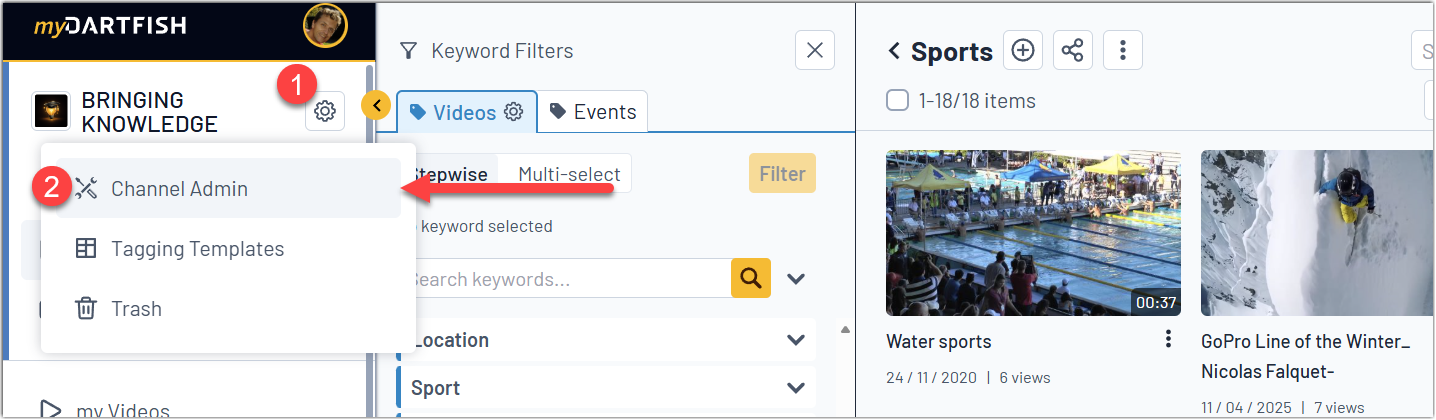
The Admin area is where administrators manage the channel structure, including members, collections, sharing, and keyword settings.
Result: You can access the main channel administration features.
Add members
- Open Members in the Admin area.
- Add members manually or import them in bulk with a CSV file.
- Enter the required information for each member.
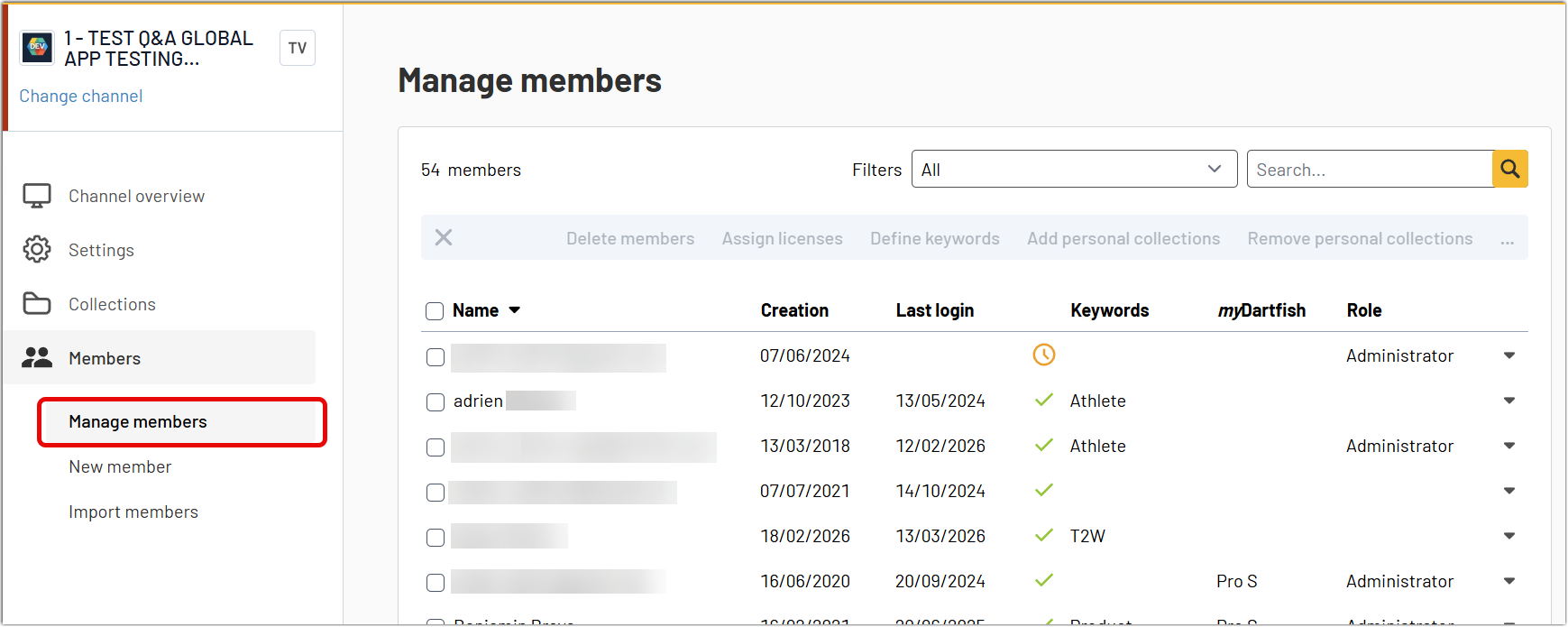
Adding members early makes the rest of the setup easier, especially when you start sharing collections.
Result: The people who will need access are available in your channel as members.
Create collections
- Open Collections in the Admin area.
- Create the collections you need for your content structure.
- Use clear names that reflect the audience or purpose of each collection.
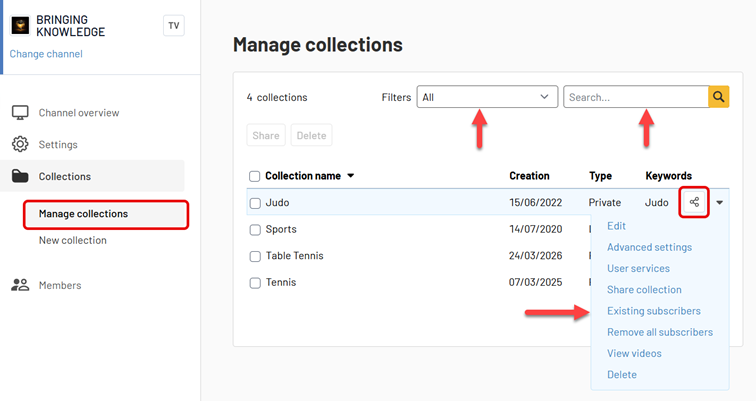
Collections help you organize access to content. In most cases, a collection represents a team, a group, a season, a project, or another logical audience.
Result: Your first content and access structure is in place.
Share collections
- Open the collection you want to share.
- Choose the members who should have access.
- Apply the sharing settings.
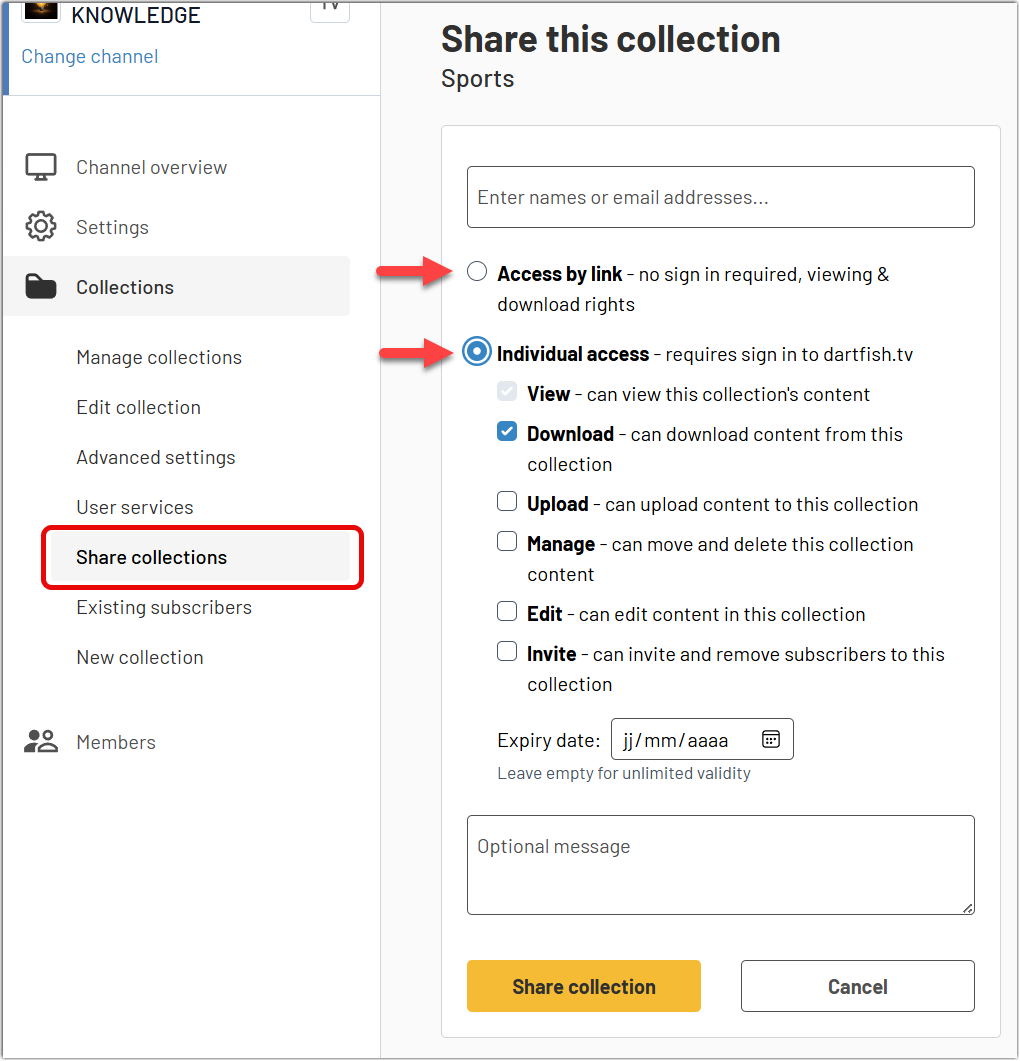
Sharing collections is the main way to give the right people access to the right content.
Keep the structure simple at the beginning. A small number of clearly defined collections is usually the best starting point.
Result: Members can access the collections that are relevant to them.
Set up keywords
- Open the keyword management area.
- Create the keyword fields that are essential for your workflow.
- Keep the structure simple and consistent.
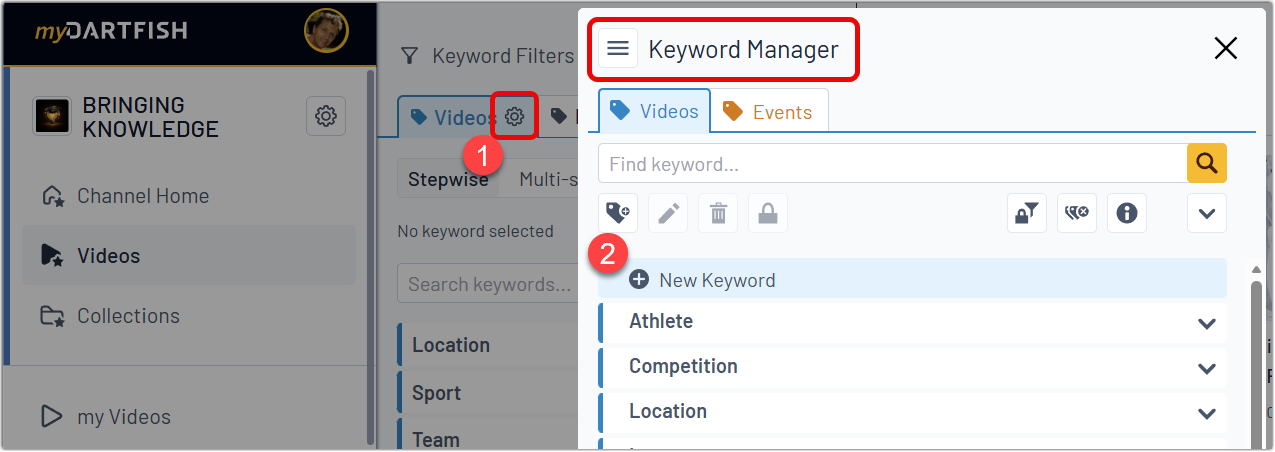
Typical examples include team, athlete, season, event, or content type.
Keywords help users classify, filter, and find content more easily. At the start, use only the fields that are truly needed.
Result: You have a basic metadata structure for consistent content organization.
Start uploading content
- Upload your first content to the channel.
- Apply the expected keywords consistently.
- Place content in the appropriate collections.
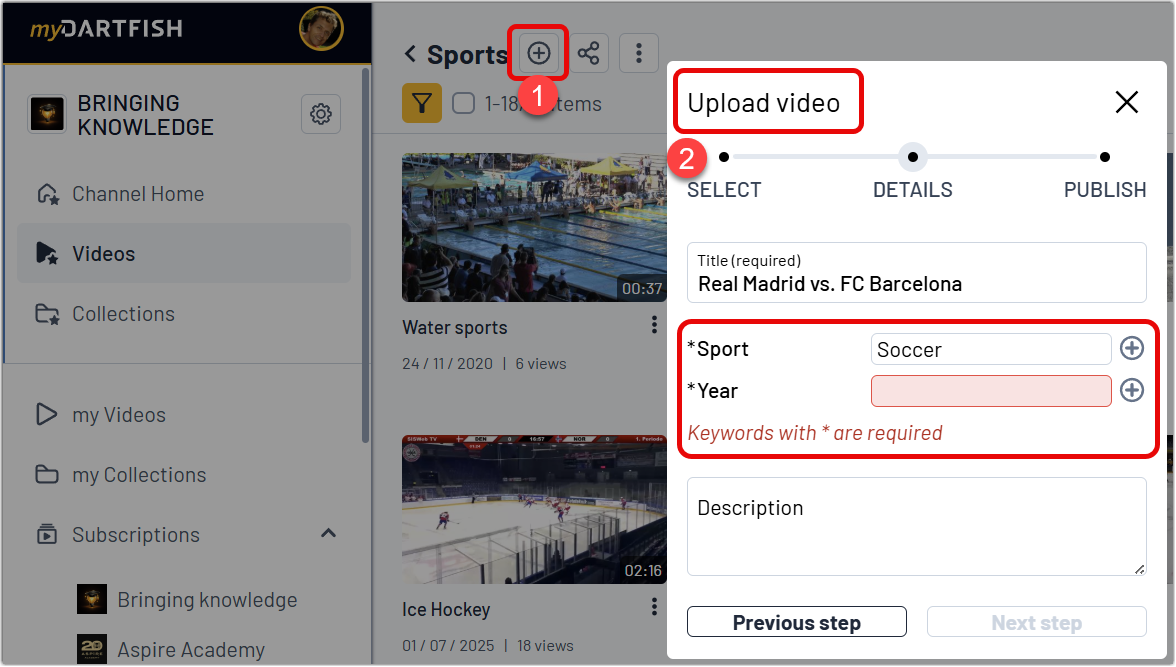
At this stage, your channel is ready for normal use.
Result: Your users can start accessing and working with content in a structured environment.
Tips / Best practices
- Start with a simple collection structure and expand it later only if needed.
- Add only the first members required for the initial rollout.
- Use a small number of meaningful keyword fields at the beginning.
- Keep names consistent across members, collections, and keywords.
- Use the detailed articles when you need more configuration or management options.