
The Manage collections page is the main administrative area for existing collections in dartfish.tv. It allows administrators to review the collections available in a channel, find them more easily through search and filters, update their settings, manage access, and perform actions on one or several collections.
This page is mainly used to keep the collection structure organized over time, ensure the right audience has access to the right content, and manage collections efficiently when working at scale.
Purpose and Scope
This article explains how administrators manage existing collections in dartfish.tv and why this page matters in day-to-day channel administration.
The Manage collections page is the central place to maintain the collection structure of a channel, control access to collection content, and keep collections organized over time. It is used to find existing collections, update their settings, manage sharing and subscribers, and apply actions efficiently when several collections need to be handled at once.
What you can do
With Manage collections, you can:
- search, sort, and filter the collection list
- share one or multiple collections with selected audiences
- update collection settings
- review and manage existing subscribers
- open a collection to view its videos
- delete one or more collections
Requirements
• You must have administrator rights for the relevant dartfish.tv channel.
Step-by-step guide
1. Open the collection list
In the left navigation menu, open Collections. The Manage collections page displays all existing collections in the current channel.
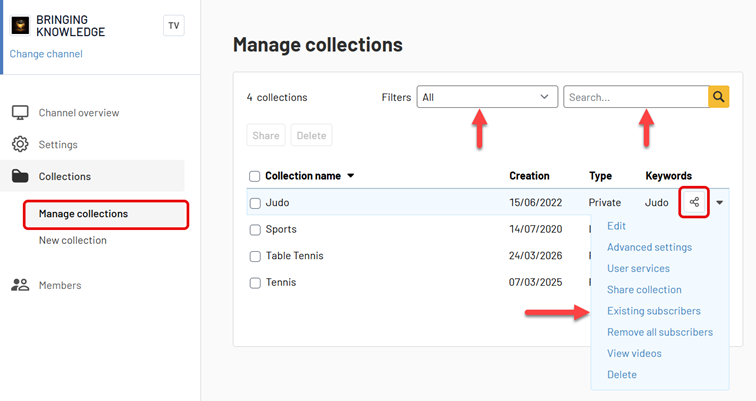
The list typically includes key information such as: Collection name, Creation date, Collection Type and Keywords.
2. Find a collection
Use the tools at the top of the list to locate the collection you want to manage.
- Use the Search box to look for a collection by name or other visible information.
- Use Filters to narrow the list.
- Use the column headers to sort the results.
This page works in a similar way to the members list, making it easier to manage large sets of items.3. Manage an individual collection
To manage a specific collection, open its action menu from the collection list.
The available options are used for different administrative needs, from updating basic collection information to improving how the collection is identified, accessed, and used.
Edit a collection
Use Edit when you need to update the main properties of an existing collection.
This is typically useful to:
- change the collection name
- update the access type
- add or modify the description
The Edit page also shows the collection URL, which can be useful when you want to send a direct link to the collection, for example via your favorite mailer.
Edit advanced settings
Use Advanced settings to improve how a collection is identified and how it is used in the channel.
This page can be used to configure items such as:
- Collection logo
- PowerBI Dashboard template
- Keywords
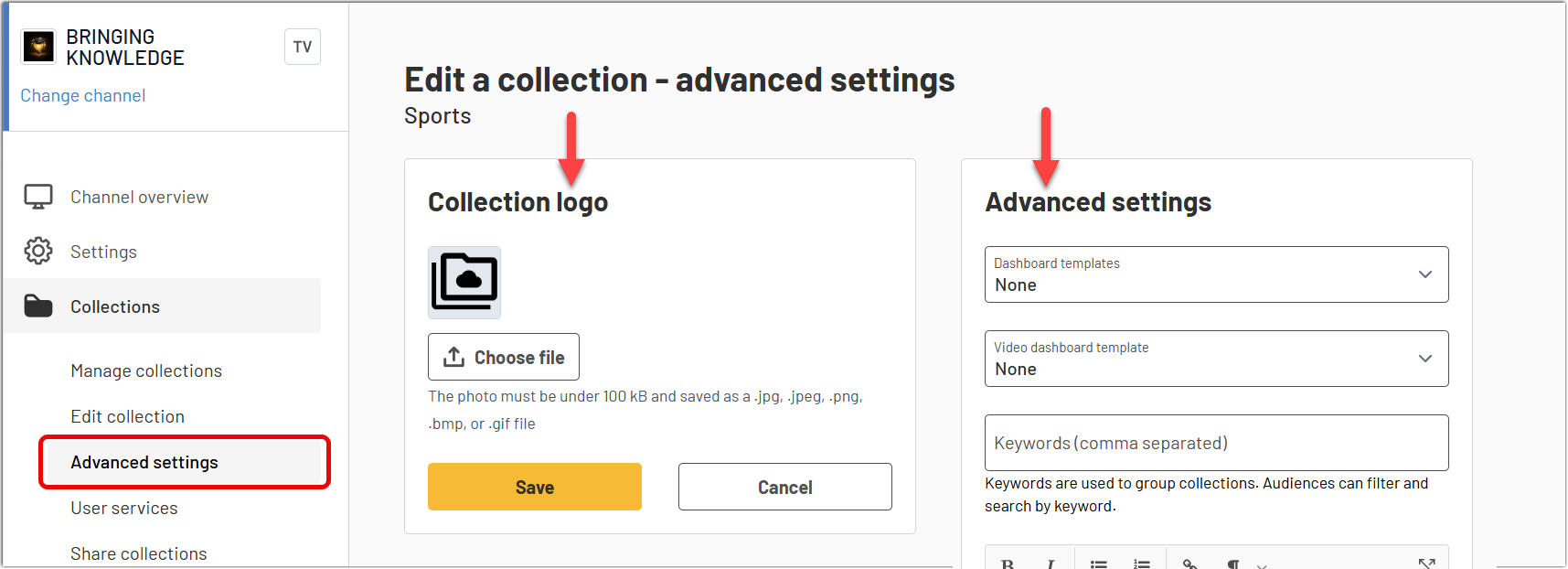
Adding a collection logo can make a collection easier to identify in the collection list on dartfish.tv, especially when many collections are available.
You can also associate PowerBI dashboard templates to a collection:
- a video dashboard template, which applies to individual videos and helps represent and filter the events of a video through its dashboard
- a collection dashboard template, which applies to the collection as a whole and can be used to generate a report based on the combined content of all videos in that collection
Keywords are especially useful when a channel contains many collections. They make it easier to organize and filter collections by theme. For example, keywords can be used to identify:
- a year, such as 2026
- a competition type
- an audience, such as Coaches
This helps users find the collections that are relevant to them more quickly.
Manage user services
Use User services to control whether users can subscribe to a collection themselves and whether subscribed users are allowed to download its content.
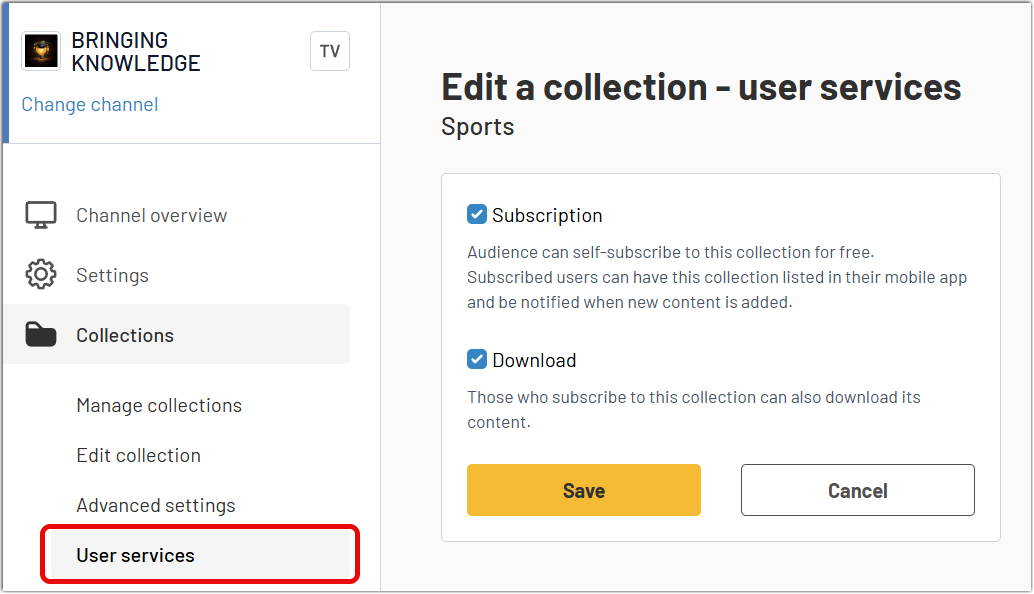
This setting is mainly relevant for public or limited-access collections.
When a user subscribes to such a collection, the subscription can be useful for two main reasons:
- the collection appears in the user’s subscriptions, making it easier to find again
- the user can receive notifications when new content is added
If downloads are allowed, self-subscribed users can also download the collection content.
For private collections that are explicitly shared with someone, access is granted through sharing, which already creates the subscription relationship.4. Share a collection
Use Share collection to give users access to a specific collection.
Sharing is the main way to control who can access collection content and with which rights. It is therefore a central part of collection management.
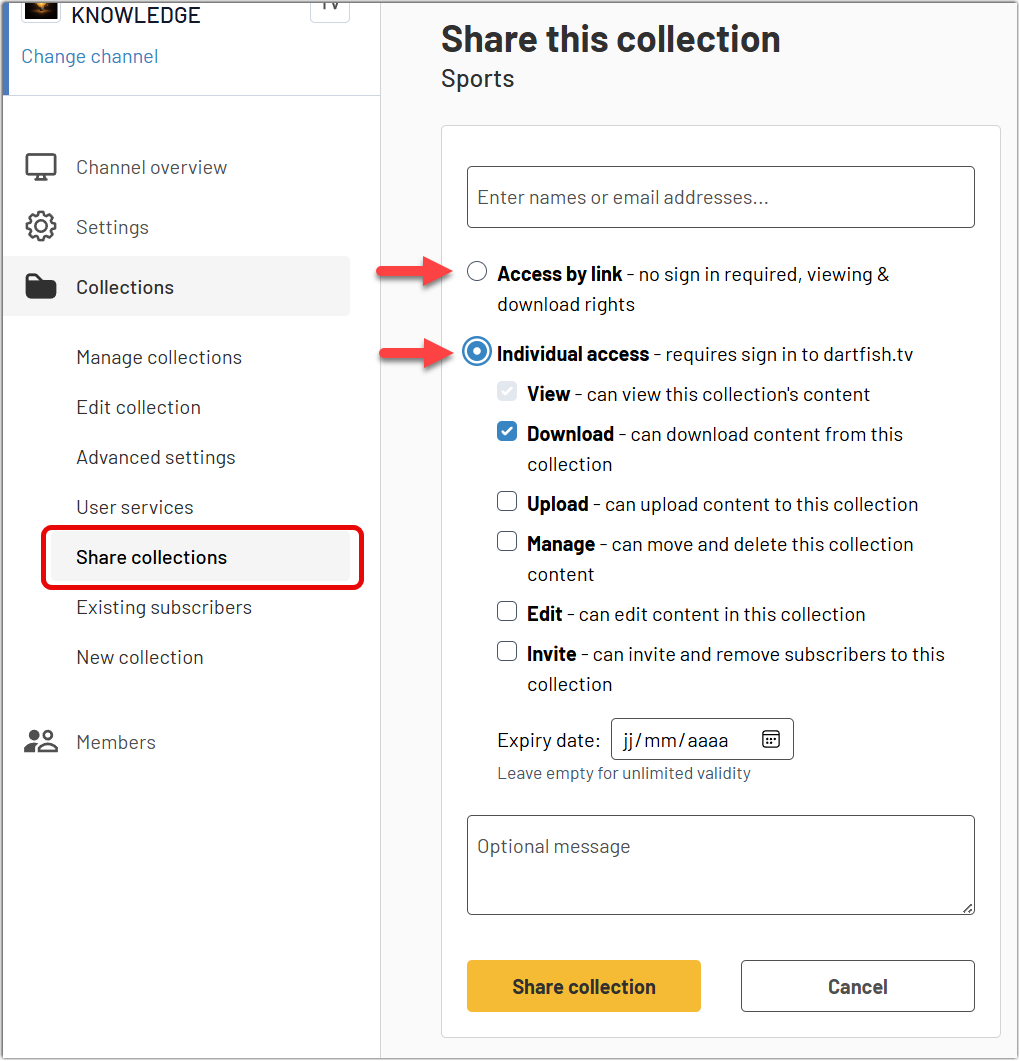
For private collections, sharing is required. A private collection is only accessible to the users or groups it has been shared with. For other collection access types, sharing can still be used when access needs to be granted in a more controlled way, for example to specific people or with specific permissions.
In practice, sharing is used to:
- grant access to the right audience
- define what subscribers are allowed to do in the collection
- manage access in a controlled and explicit way
Because sharing defines who can access a collection, it is often the most important action performed from the collection management page.
5. Manage existing subscribers
Use Existing subscribers to review and manage the users who already have access to a collection.
This page is useful when you need to understand how access is currently distributed, verify who can use the collection, or clean up subscriptions that are no longer needed.
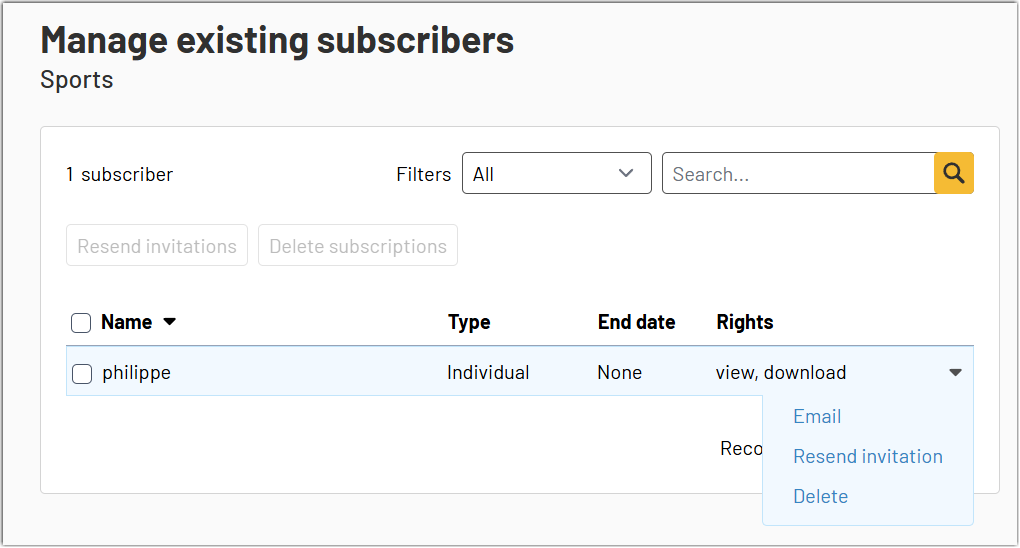
In practice, it helps administrators:
- review the current audience of a collection
- check the type and duration of existing subscriptions
- confirm which rights have already been granted
- maintain access over time as users or needs change
This is especially useful for collections that are shared with many users or that remain active over a long period of time.
Remove all subscribers - From the collection action menu, you can also select Remove all subscribers. Use this option when you want to clear all existing access to the collection at once.6. Open the collection content
- Open the action menu for the collection.
- Select View videos.
Result: You leave the administrative view and open the collection content in the front-end, where you can see the videos contained in the collection.
7. Delete a collection
- Open the action menu for the collection.
- Select Delete.
Important: The collection and all its content is removed. Delete a collection only when you are sure it is no longer needed.8. Perform bulk actions
Use bulk actions when the same action needs to be applied to several collections at once.
This is especially useful after narrowing the collection list with search or filters, then selecting the relevant collections and applying a single action to all of them.
Typical bulk actions include:
- Share, for example to grant access to a whole set of collections to the same audience
- Delete, for example to remove a group of collections that are no longer needed
Bulk actions help administrators manage collections more efficiently and apply the same action consistently across multiple items.
Tips
- Use keywords consistently to group collections and make them easier to find.
- Use filters and search before performing bulk actions, especially in channels with many collections.
- Prefer Individual access when you need controlled access and explicit rights assignment.
- Use an expiry date when access should be temporary.
- Review Existing subscribers regularly to keep collection access clean and up to date.
FAQ
Why do I not find a collection in the list?
Check the current Filters, use the Search box, and review the sorting order. The collection may also belong to another channel.
Can I share several collections at once?
Yes. In Manage collections, select multiple collections and use the available bulk sharing action.
Can I open a collection directly from the administration area?
Yes. Use View videos to open the collection content directly.
Can I remove all access to a collection?
Yes. You can either remove individual subscriptions from Existing subscribers, Remove all subscribers to clear all current access at once, or delete the collection.