Learn how to analyse performance live as events occur using Dartfish Live tools.
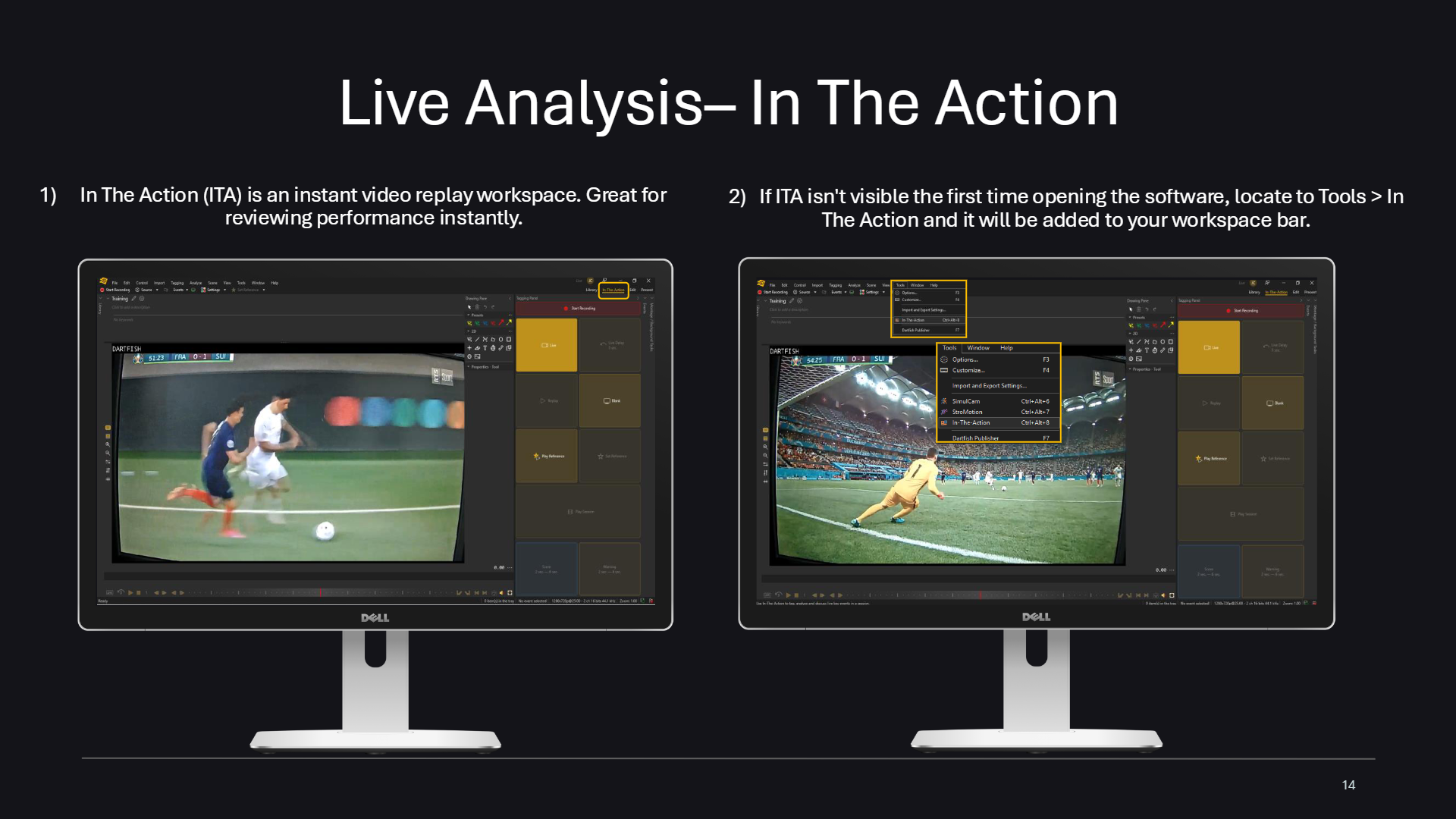
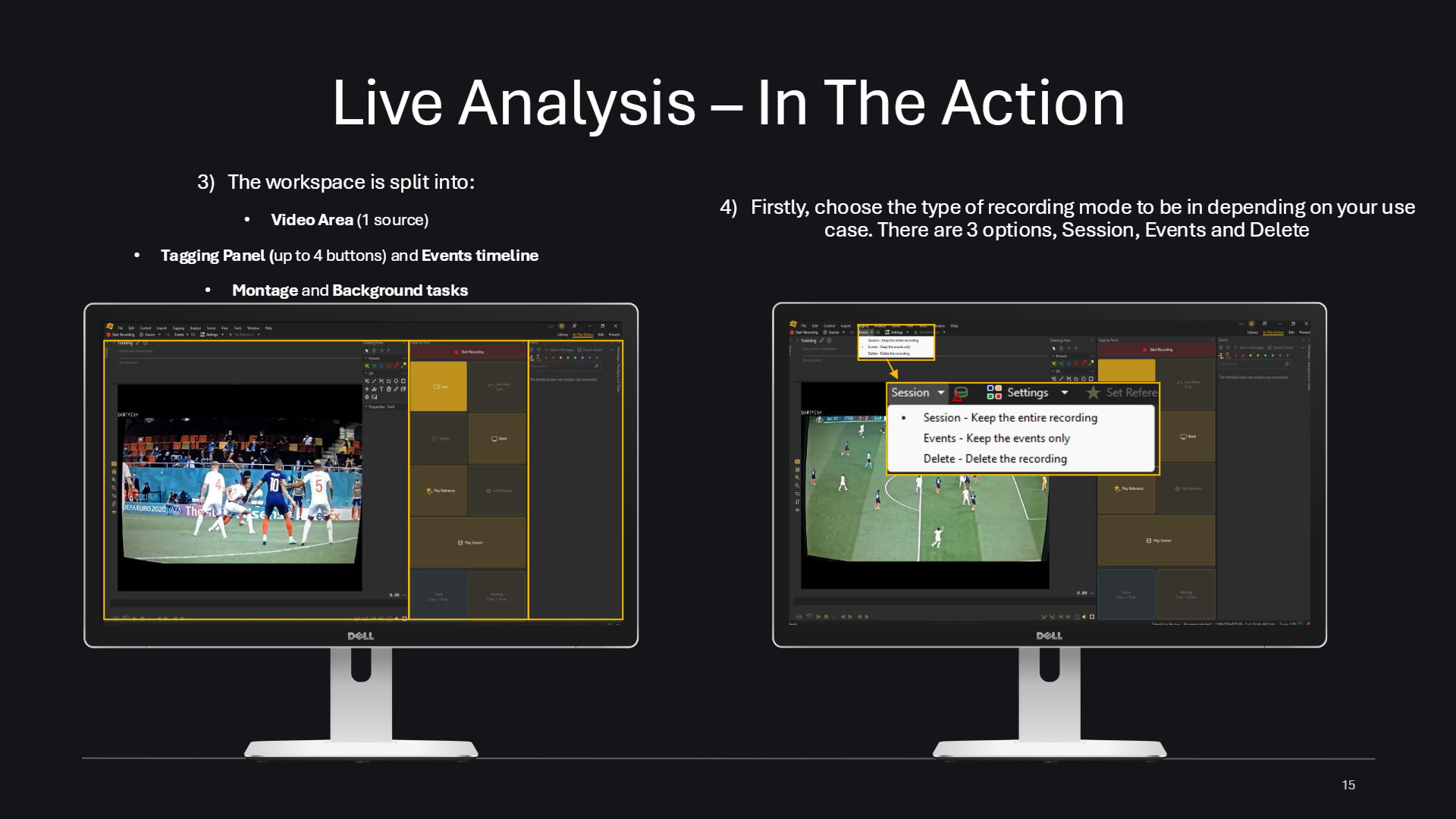
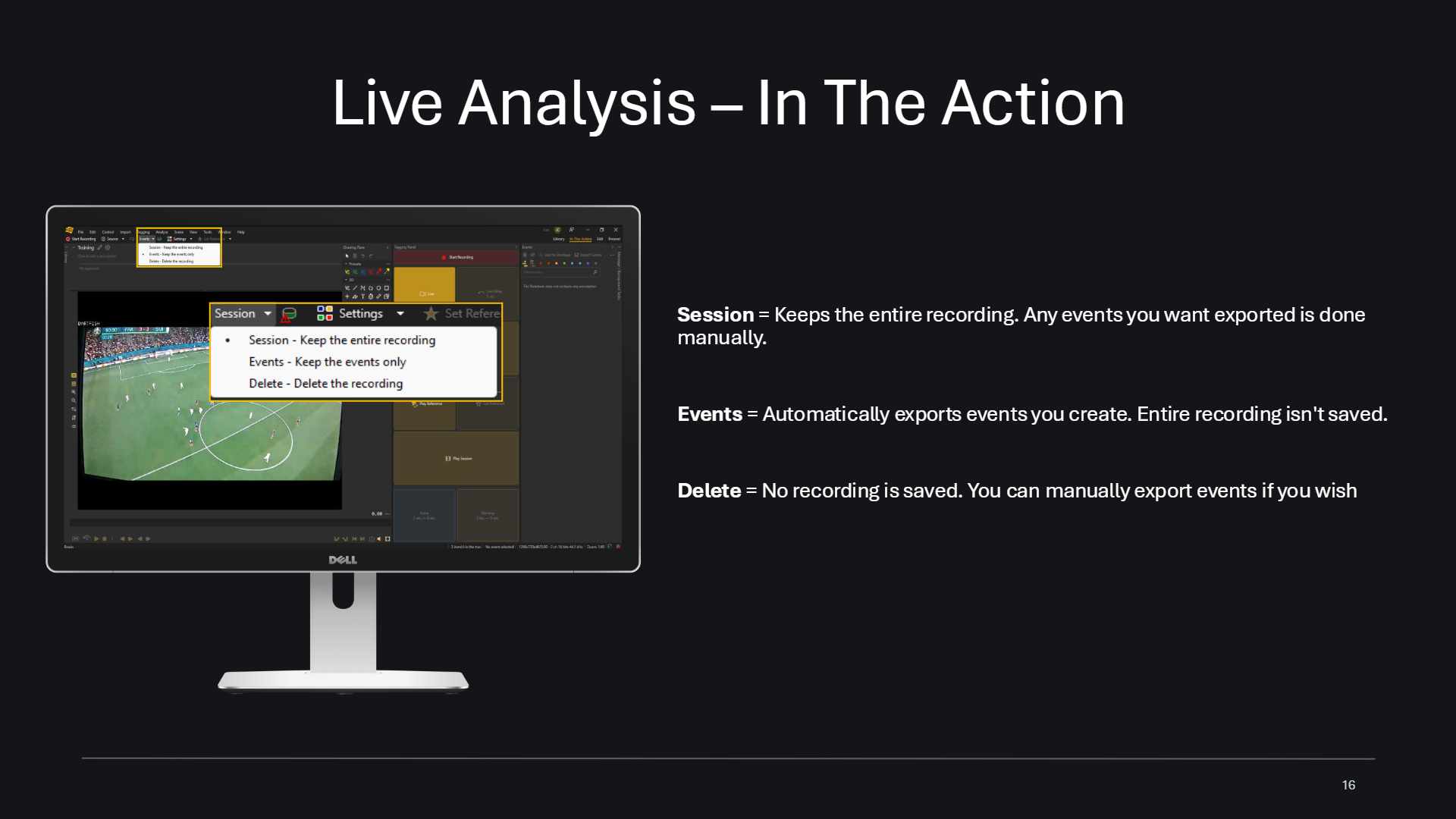
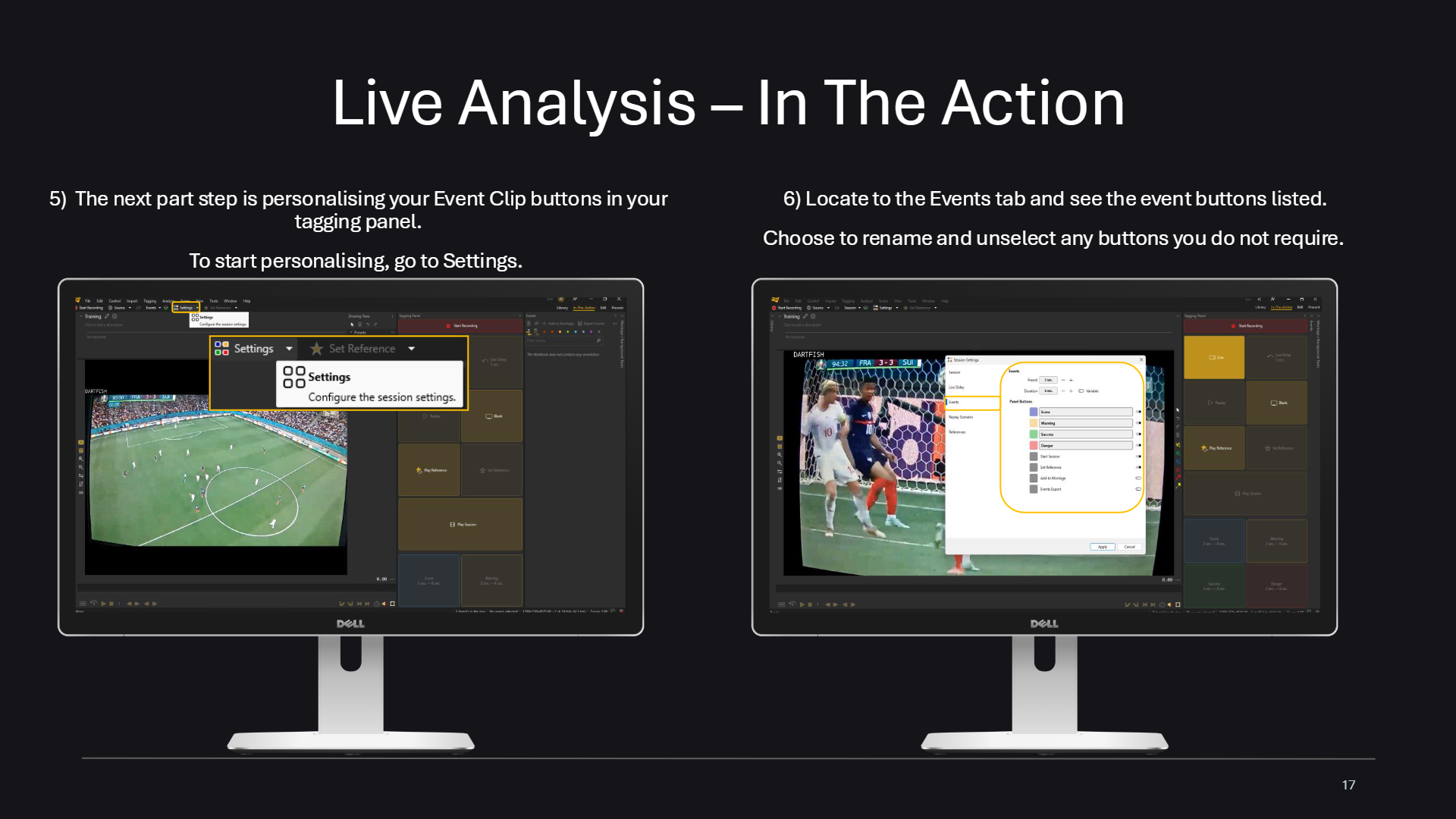
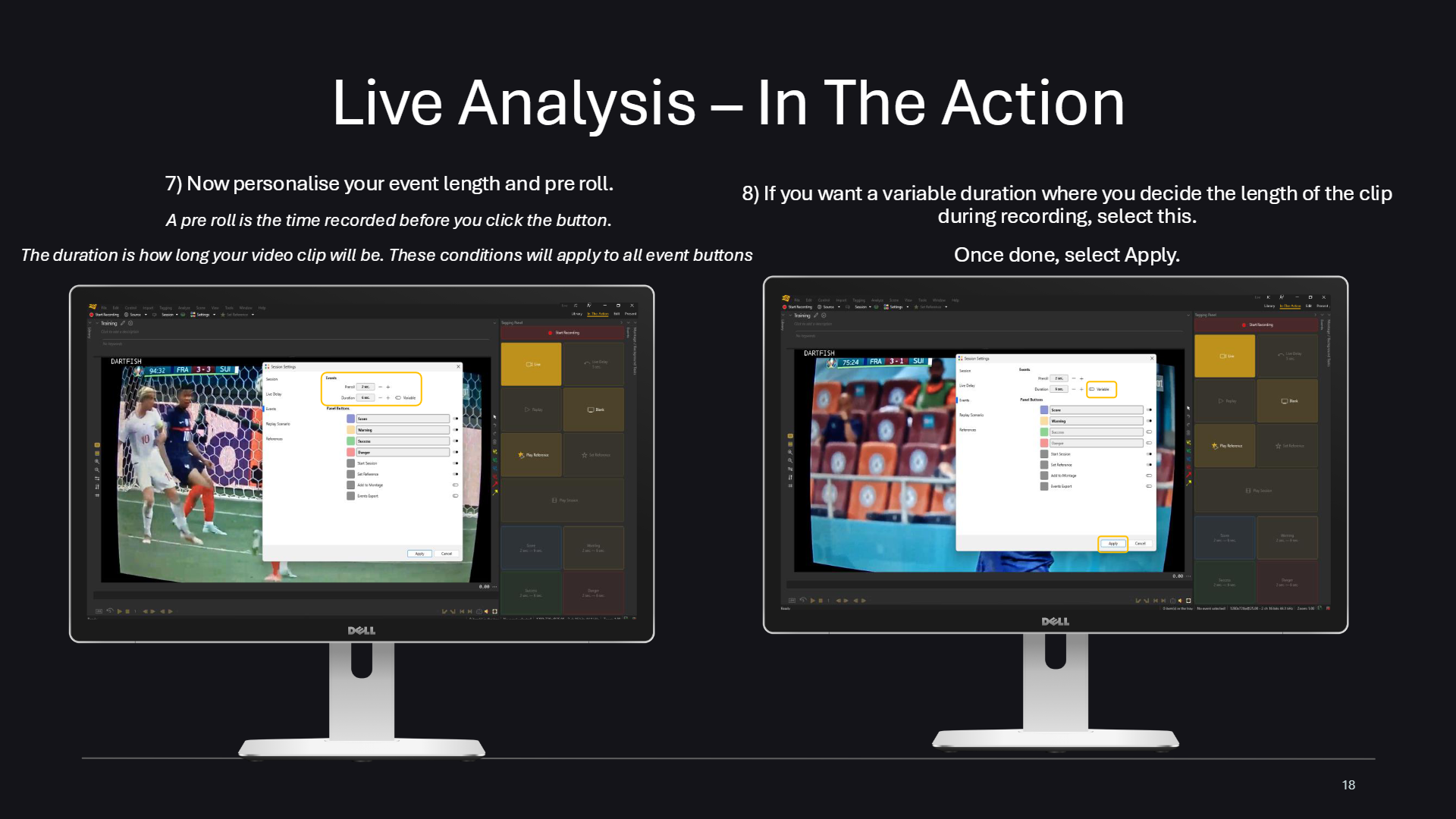
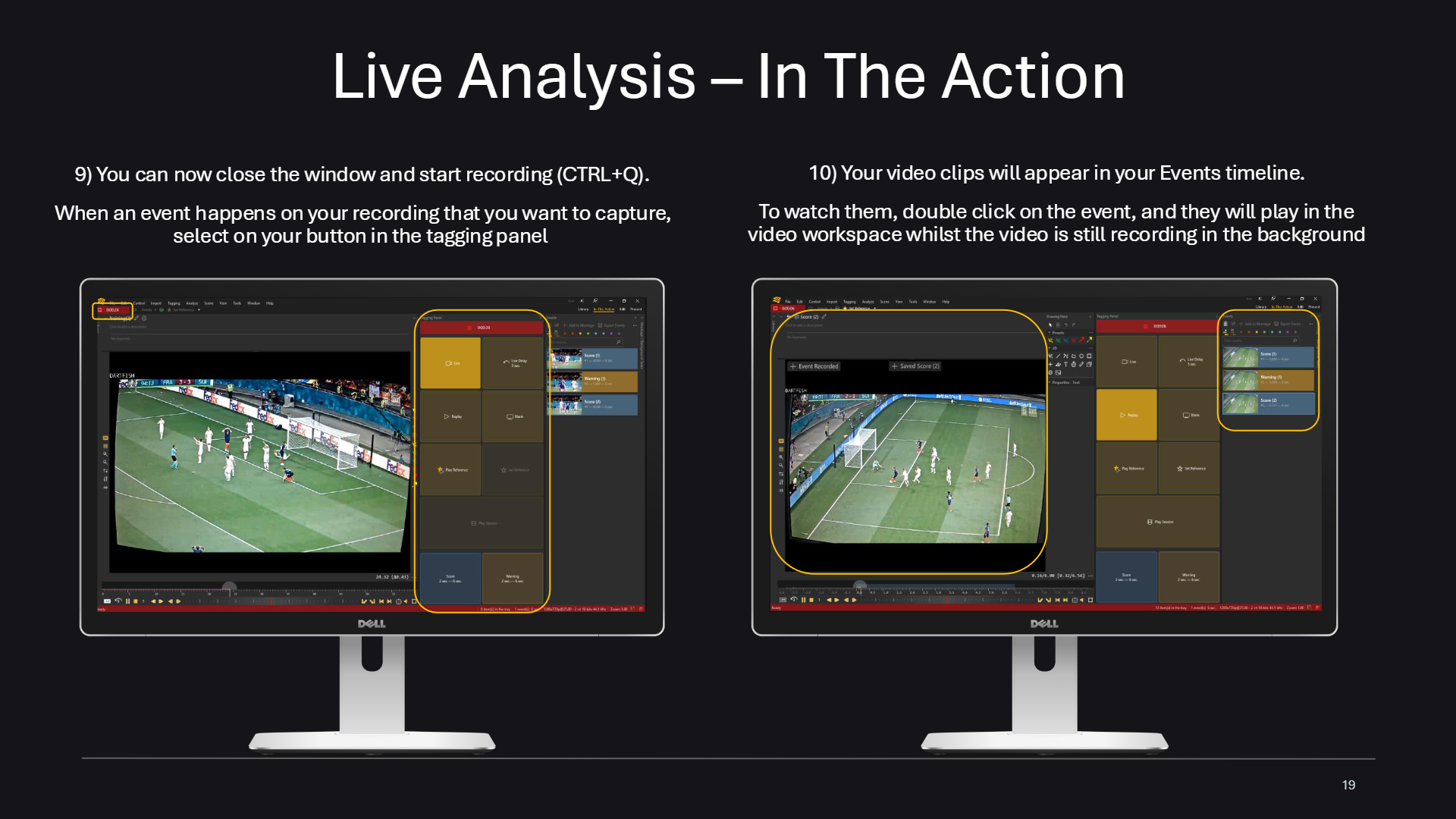
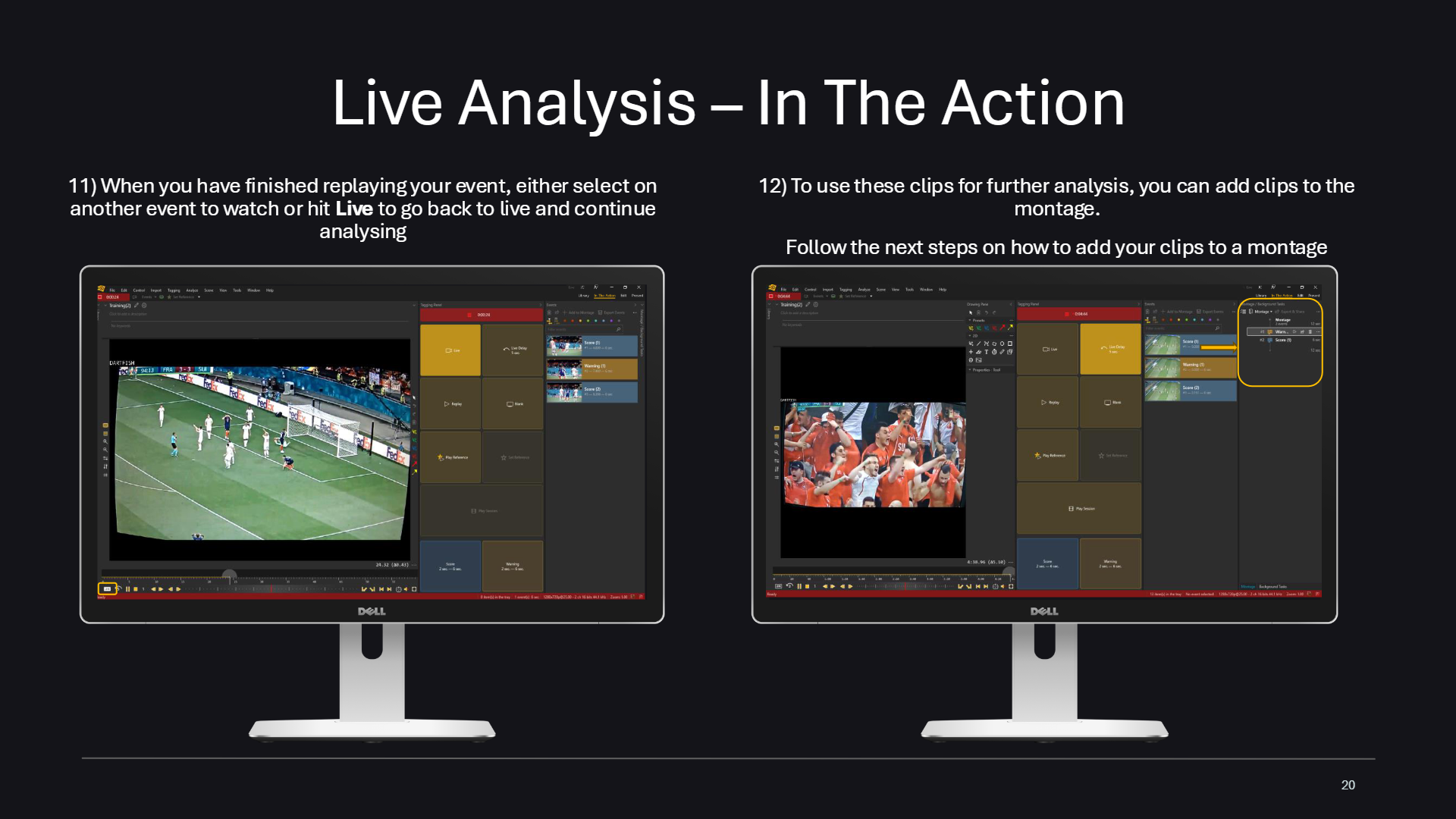
Live Analysis – In The Action – titleSteps 1 and 2: In The Action is an instant replay workspace; add it via Tools > In The Action if it isn't visibleSteps 3 and 4: workspace layout, then choose the recording mode: Session, Events or DeleteRecording modes: Session keeps the whole recording, Events only exports your events, Delete keeps no recordingSteps 5 and 6: personalise the event clip buttons of your tagging panel in the Events tabSteps 7 and 8: set the event length and pre-roll, or use a variable durationSteps 9 and 10: start recording (CTRL+Q); tagged clips appear in the Events timelineSteps 11 and 12: go back to Live after replaying an event, or add clips to a Montage for further analysis