
The Team list selector and the Property Button both help a panel provider capture game sheet context — who is playing, who is refereeing, where, and when — and reuse it consistently across a tagging panel, at the level where it makes the most sense: some values describe the whole video, others describe a specific event.
- Purpose and Scope
- New features
- Typical use case: a Game sheet tab that tags a video and its events in one click
- Other use cases
- Tips and best practices
- FAQ
Purpose and Scope
Game sheet data only stays useful once a video is published if it has been tagged consistently, especially in large organizations tagging many games with many staff. This article covers the Team list selector's category constraint and category filtering, and the new Property Button's ability to write game sheet values into a video document's (or event’s) name or description.
It assumes the underlying keyword categories and values already exist in Manage Teams & Players, and it does not describe the variable syntax used inside the Property Value field in detail.
What you can do
- Lock a Team list selector to a single, fixed keyword category
- Filter the categories a Team list selector offers down to a relevant subset
- Auto-build a video's (or event’s) name or description from game sheet values
- Chain buttons together so one click applies several keywords at once
Requirements
- You must have myDartfish 360S or above to create a tagging panel.
- You must have already defined the category and keyword list in Manage Teams & Players.
- This feature ships in a patch of Dartfish Software 2026 Update 1, version 12.1.807.0.
New features
1. Filter or constrain categories in the Team list selector
A Team list selector normally lets the person tagging pick any keyword category before choosing a value. Two properties narrow that choice.
Constrain to a single category — use this when a selector instance should never offer a choice at all.
- Select the Team list selector in the tagging panel designer.
- Under Interaction, set Default Category to the category this instance should always use.
- Set Hide Category Selector to Yes.
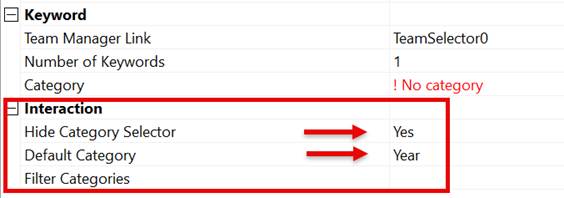
Result: the category dropdown disappears; the selector only ever shows values from the chosen category.

Filter to a relevant subset — use this when the selector should still let the person switch between categories, but only within a scoped subset.
- In Manage Teams & Players, add a column to hold the filtering criterion, for example Type.
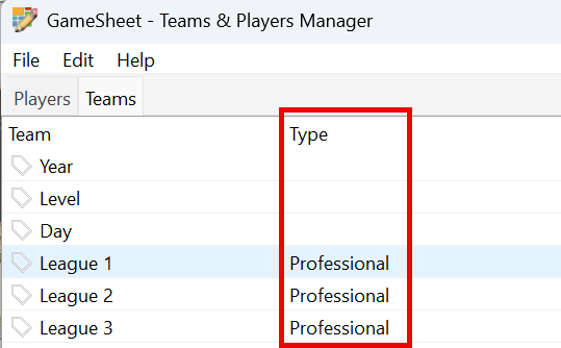
- For each keyword category, enter the value that identifies it for filtering, for example Professional for professional-league categories.
- On the Team list selector, under Interaction, set Filter Categories to the matching criterion — either plain text compared against the column value, or macro syntax that targets a specific column, for example $(Type.Professional).
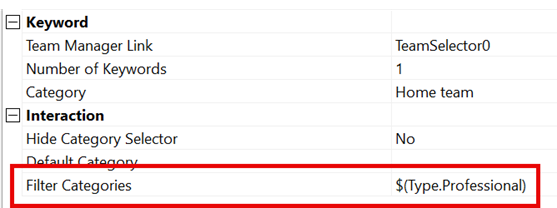
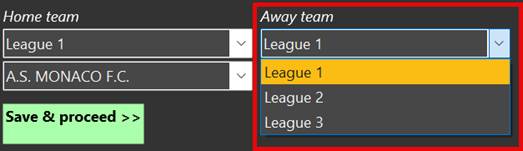
Result: the category dropdown only lists categories whose Type value matches. Matching is not case-sensitive.
2. Auto-build names and descriptions with the Property Button
The File Name Button is extended to Property Button. Its File Name Template property is renamed Value, now called Property Value.
- Select the Property Button in the tagging panel designer.
- Build Property Value by combining static text with variables that reference other tagging panel elements, for example the keyword currently selected in a Team list selector: $(TeamListSelector0.Keyword). Combine several to build a naming convention, such as matchday, referee, and local team in one string.
- Set Apply To to Name or Description.
- Set Insert Mode to Replace (overwrite the current value) or Append (add to the end of it).
- Set Target to Video Clip, Event, or Both.
Result: the video document's name or description is built automatically from the game sheet values already captured elsewhere in the panel.
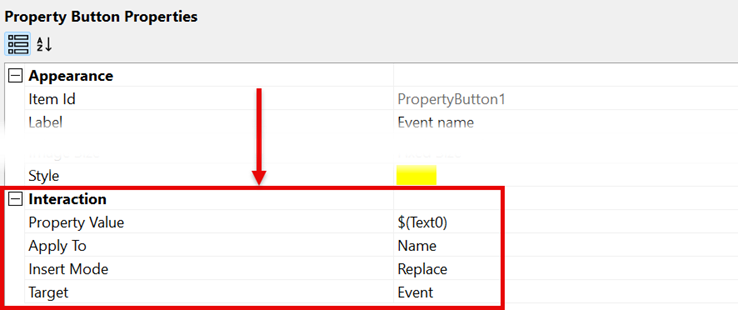
Note: a Property Button can be fired by another element's trigger, the same chaining mechanism used in the use case below.
Typical use case: a Game sheet tab that tags a video and its events in one click
A Game sheet tab holds four Team list selectors — Year, Level, Home team, Away team — and a single Save & proceed button.
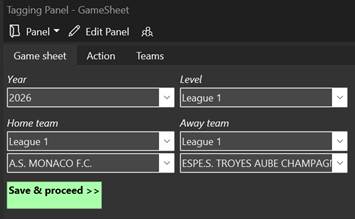
- Year and Level are constrained to their own category: Default Category set to Year/Level, Hide Category Selector set to Yes. It never needs to offer any other category, so the dropdown is removed.
- Home team and Away team each set Filter Categories to $(Type.Professional). In Manage Teams & Players, the professional leagues are flagged with a Type value of Professional, so only those leagues appear as category choices — amateur leagues are filtered out of this tab entirely.
- Selecting a league (say, League 1) narrows the second dropdown to that league's teams, so Home team and Away team are each chosen in two steps: league, then club.
- Save & proceed is itself a keyword button whose Trigger Items property lists the four field buttons (Year, Level, Home, Away). One click fires all four. Note that these buttons are contained in a hidden Group Box.
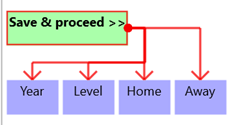
- Each of those four buttons reads its value directly from its paired selector using macro syntax, for example $(TeamListSelector1.Keyword) for the Year button. All four buttons target Video Clip, since they describe the whole video. In addition, Home team and Away team target Event, each with its own category (Home team, Away team) — so which two teams played is attached to every event of that game, not just to the video as a whole.
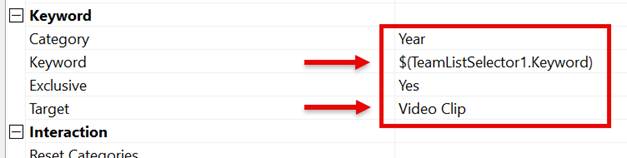
Result: the person tagging fills in four fields once, per video, and one click applies Year, Level, Hame and away teams as video-level keywords while Home team and Away team are also applied at the event level — combining category constraint, category filtering, and button chaining from this release.
Reminder — video-level vs. event-level keywords. Not every value in a game sheet belongs at the same level. Values that describe the whole game (year, level) make sense as video-level keywords. Values that could otherwise be lost when cross-filtering across many games — such as which teams played, or who refereed — are better attached at the event level, so that filtering across events from different games still tells you which team or referee that event belongs to.
Other use cases
- Auto-named video clips. Once the Game sheet tab above has set Year and Level as video-level keywords, a Property Button can combine them with other values into one string and apply it to the video clip's Name with Replace, so every published clip already carries a consistent, searchable name.
- Enriched description without overwriting. A Property Button targets Description with Append, adding game sheet details after whatever description already exists rather than replacing it.
Tips and best practices
- Reach for category filtering, not a full constraint, when the panel provider still wants some choice within a scoped subset.
- Decide the right level for each value before building the panel: video-level for whole-game facts, event-level for anything you'll want preserved when cross-filtering events across games.
- Use the Property Button to enforce a consistent naming convention across a large organization, rather than relying on manual entry.
FAQ
Does hiding the category selector affect other Team list selector instances?
No. Default Category and Hide Category Selector apply to that selector instance only.
Can Filter Categories and Default Category be used on the same selector?
Filter Categories narrows a still-visible dropdown to a subset; Default Category with Hide Category Selector locks it to one category with no dropdown at all. They serve different needs and are set independently.
Why do Home team and Away team target Event while Year and Level target Video Clip?
Year and Level describe the whole game and only need to be set once per video. Home team and Away team are attached per event so that filtering events across many games still shows which teams were involved in each one.