
The Text Box tool can now tag by typed entry instead of only displaying static text, and can trigger other buttons once a value is confirmed — opening up a tagging method suited to keyword categories with too many values for a button grid.
Purpose and Scope
Buttons work well for a category with a handful of values: one click, fully visual, immediate. They stop scaling once a category holds dozens of values — the case that motivated this feature was refereeing situations, with around seventy-five possible situations. This article covers the Text Box properties that turn it into a tagging input, and walks through a worked example: an Action tab where a text box tags an event and automatically sets that event's name, alongside a second, free-text box that sets the event's description.
What you can do
- Tag an event by typing into a text box, constrained to a predefined list or left as free text
- Keep a tagging text box synchronized with the events list in both directions
- Fire another button automatically once a text box value is confirmed
- Capture an open-ended note with no keyword category at all
Requirements
- You must have myDartfish 360S or above to create a tagging panel.
- You must have already defined the category and keyword list in Manage Teams & Players.
- This feature ships in a patch of Dartfish Software 2026 Update 1, version 12.1.807.0.
New features
Text Box: from static display to tagging input
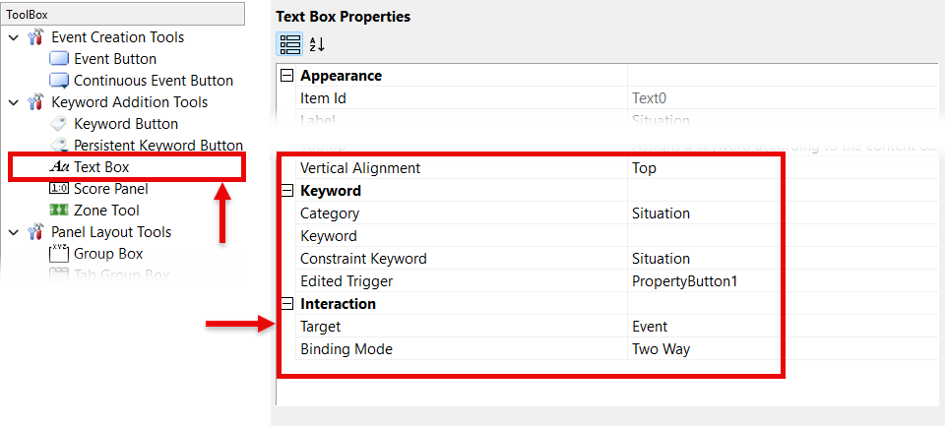
- Binding Mode: None or Two Way. Two Way keeps the text box and the events list in sync in both directions — typing in the text box tags the event and updates its row in the events list, and editing that value directly in the events list updates the text box back in the tagging panel.
- Category: required. The keyword category the box's content is written to. If an existing event is selected in the events list, typing tags that event directly — for example, with Category set to Situation, typing "Fault" while an event is selected sets that event's Situation to Fault. If no event is selected, the current text box value instead becomes the default that gets applied to the next event created.
- Constraint Keyword: when set, restricts the text box to a predefined list of values pulled from that category in Manage Teams & Players, turning it into a dropdown instead of free text. Left blank, the box stays free text. Category and Constraint Keyword do not need to match, though it usually makes sense for them to.
- Edited Trigger: the button, or buttons, that fire once the value is edited and confirmed — for example, a Property Button that writes the same text into the event's name.
- Vertical Alignment: Top, Center, or Bottom. Positions the content within the box.
Result: typing into a constrained box selects from a predefined list; typing into an unconstrained one tags with exactly what was typed. Either way, any configured trigger applies immediately.
Note: a constrained text box is a trade-off against buttons, not a replacement for them. Buttons stay the more immediate, visual choice for small value sets; a constrained text box earns its place once a category has too many values to expose as individual buttons.
Two-way sync (Text Box) vs. one-way write (Property Button). A Two Way text box stays synchronized with the events list in both directions: change it in the tagging panel or in the events list, and the other side follows. A Property Button, triggered from that text box, only writes in one direction — from the tagging panel into the event's name or description field in the events list. Editing that name or description afterward in the events list does not write anything back into the text box.
Typical use cases
- Tagging from a large value set. A category like Situation can hold around seventy-five values — too many to expose as buttons without cluttering the panel. Setting Constraint Keyword to that category turns the text box into a searchable list, so the person tagging types a few letters and picks the right value instead.
- Naming an event from the value just tagged. Once a Situation is typed and confirmed, its Edited Trigger fires a Property Button that writes that same text into the event's Name — the event is named after its situation automatically, with no separate naming step.
- A free-text description alongside tagging. Many panel providers also want an open note field that isn't a keyword at all. A second text box with no Category set captures free text; its own Edited Trigger fires a Property Button that writes that text into the event's Description — independent of, and in addition to, the Situation tagging.
Worked example
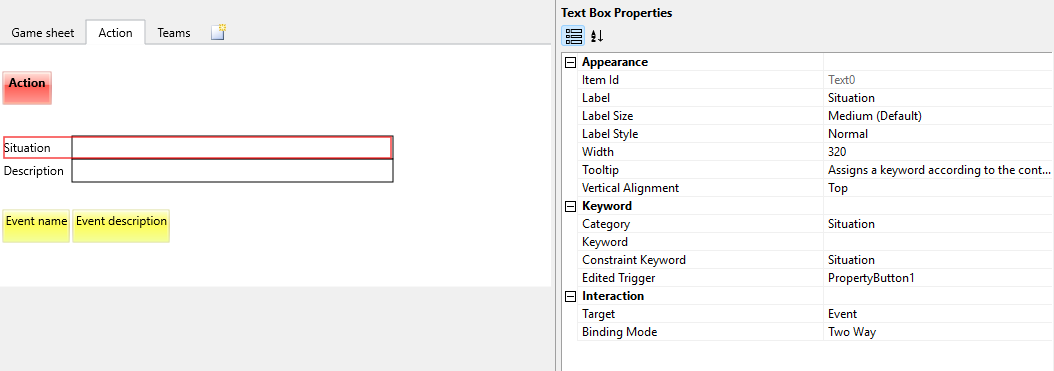
An Action tab holds an Action event button, a Situation text box, and a Description text box.
Try it yourself. This example panel is available for download, so you can open it directly in Dartfish Software and try the Action tab — tagging, naming, and describing an event as you type — rather than only reading about it.
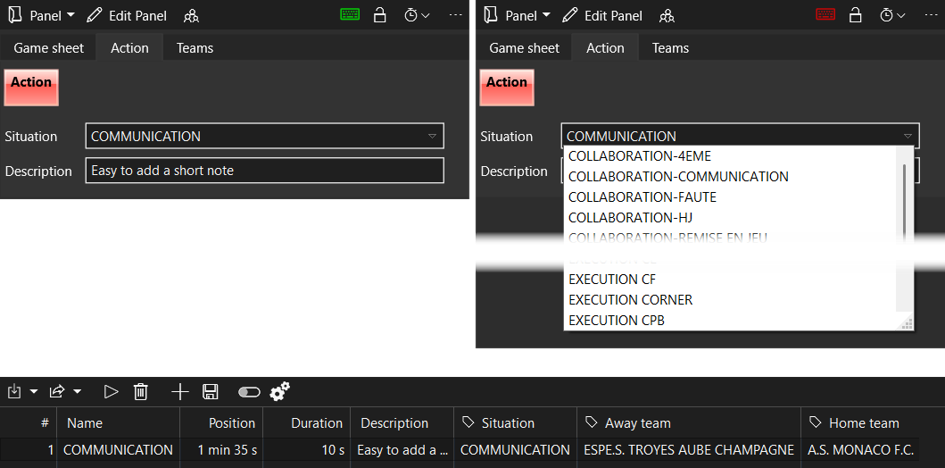
- Clicking Action creates a fixed-duration event (5 sec preroll, 10 sec duration). Its Reset Categories property is set to Situation, so any Situation value left in the text box from before is cleared first — without this, the new event would silently inherit the previous event's Situation as its default value.
- The Situation text box has Category set to Situation and Constraint Keyword also set to Situation, with Binding Mode Two Way and Target Event. Typing a few letters narrows a dropdown of the roughly seventy-five situation values defined in Manage Teams & Players.
- Confirming a value tags the current event with that Situation, and the box's Edited Trigger fires a Property Button whose Property Value is $(Text0) (the Situation box's content), Apply To Name, Target Event — so the event's name is set to the situation just tagged, automatically.
- The Description text box has no Category — it is pure free text, not a keyword. Its own Edited Trigger fires a second Property Button whose Property Value is $(Text1), Apply To Description, Target Event — so whatever was typed becomes the event's description, independently of tagging.
Result: one typed entry both tags the event and names it; a second, separate free-text entry describes it — all without an extra click on any button.
Tips and best practices
- Reserve constrained text boxes for categories with dozens of values; keep buttons for the handful used most often.
- Set Constraint Keyword to the same category you are tagging, unless there is a specific reason to draw values from a different list.
- Chain a text box's Edited Trigger into a Property Button to tag and name or describe an event in a single typed entry.
- Use Reset Categories on the event button when a category's value should never carry over from one event to the next.
FAQ
Why use a text box instead of buttons for tagging?
A button grid becomes unusable once a category holds dozens of values. A constrained text box lets the person tagging type a few letters and land on the right value instead.
Do Category and Constraint Keyword need to be the same?
No, but they usually are. Category decides what is tagged and on which event; Constraint Keyword decides whether the box is a free-text field or a dropdown limited to an existing list.
What happens if a text box has no category?
It behaves as plain free text: nothing is tagged, but it can still trigger other buttons, such as a Property Button that writes its content into a name or description.
Why does the Action button reset Situation?
A Two Way text box always holds whatever was last typed. With no event selected, that value becomes the default for the next event created, so resetting it first stops a new event from inheriting the previous one's Situation.
See also
Game sheet improvements in the tagging panel — the companion article on the Team list selector and the Property Button.